---
schema_version: "1"
id: 516a7c65504a714ee191ee6cae39d72432afe1f846dffd50a4ba69d6eedcbc53
title: Highlight Metric Value Changes in a Waterfall Chart
collection: admin
version: current
locale: en-us
portal_url: https://docs.salesforce.com/admin/current/en-us/analytics/264-0-0/tua_create_waterfallchart_how_to.md
canonical_url: https://help.salesforce.com/s/articleView?id=analytics.tua_create_waterfallchart_how_to.htm&release=264.0.0&type=5
source_site: help.salesforce.com
content_type: documentation
content_hash: 458d773e65f87228d834dae6d9ce17b1c3078fa833d32805b03b26935ff09161
description: Visualize how a key value evolves over time or across categories by showing the cumulative effect of both positive and negative changes in a waterfall chart. This chart type, based on a bar chart, is ideal for highlighting the net effect each individual value has on the final value. For example, compare pipeline value across opportunity stages to see how each stage contributes to total potential revenue.
products:
- Tableau Next
release: "264"
---
# Highlight Metric Value Changes in a Waterfall Chart
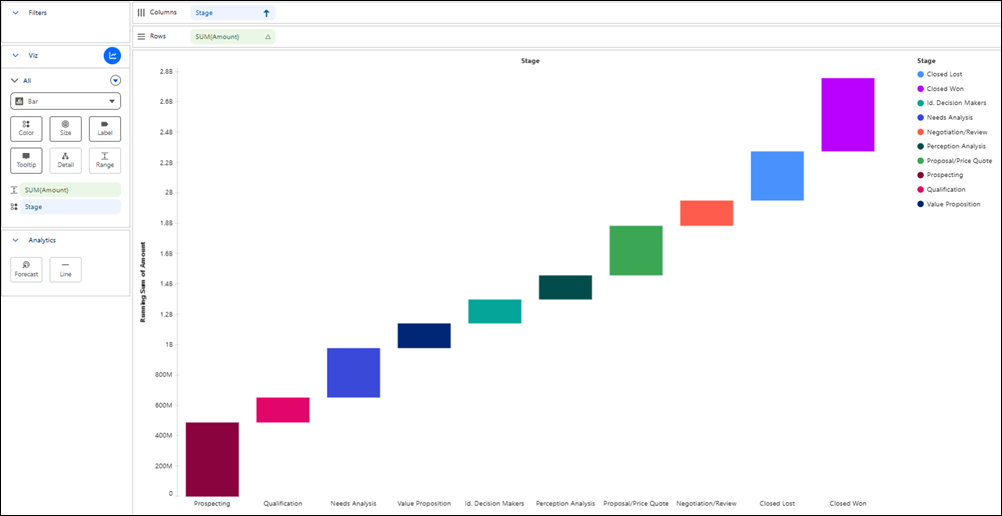
Visualize how a key value evolves over time or across categories by showing the cumulative effect of both positive and negative changes in a waterfall chart. This chart type, based on a bar chart, is ideal for highlighting the net effect each individual value has on the final value. For example, compare pipeline value across opportunity stages to see how each stage contributes to total potential revenue.
### Required Editions
Tableau Unmetered Platform Analyst or Tableau Next Platform Analyst permission set
1. From the **Show Me** pane in your visualization, click the  thumbnail.
The layout changes to Waterfall, and the pane shows the required fields and supported field encodings for the chart type.
2. From the Data pane, drag the dimension used to analyze the measure onto **Columns**. For the chart in this example, select **Stage**.
3. Drag the measure that you want to visualize, such as **Amount**, onto **Rows** and **Range**.
4. To arrange the stages in sequence:
1. Use an order field, such as **Stage Order**.
2. From the **Stage** field’s context menu on **Columns**, click **Sort**.
3. Select **Stage Order** as the field, **Minimum** as the aggregation, and **Ascending** as the sort order.
5. Optionally, to distinguish each stage by color, drag **Stage** onto **Color**.
6. Optionally, to show the value of each bar, drag **Amount** onto **Label**.
7. You can further customize the visualization with tooltips or other available mark properties to make the chart easier to interpret.
8. Save your visualization.
- **[Tableau Next Waterfall: Limitations](https://help.salesforce.com/s/articleView?id=analytics.tua_viz_waterfall_limitations.htm&release=264.0.0&type=5)**
Review these limitations before creating waterfall charts in Tableau Next.