
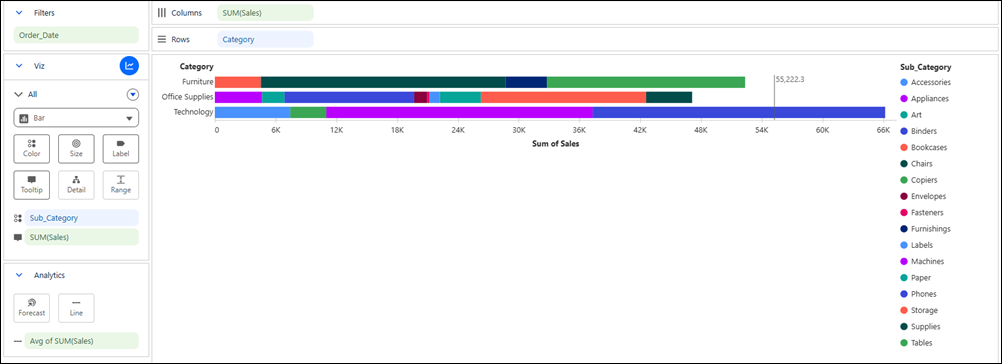
Build a Tableau Next visualization on your semantic model data to discover valuable insights about your business. For example, create a visualization that shows sales patterns by product category and sub-category.
Required Editions
| View supported editions. |
| User Permissions Needed | |
|---|---|
| To create Tableau Next visualizations: | Tableau Unmetered Platform Analyst or Tableau Next Platform Analyst permission set |
-
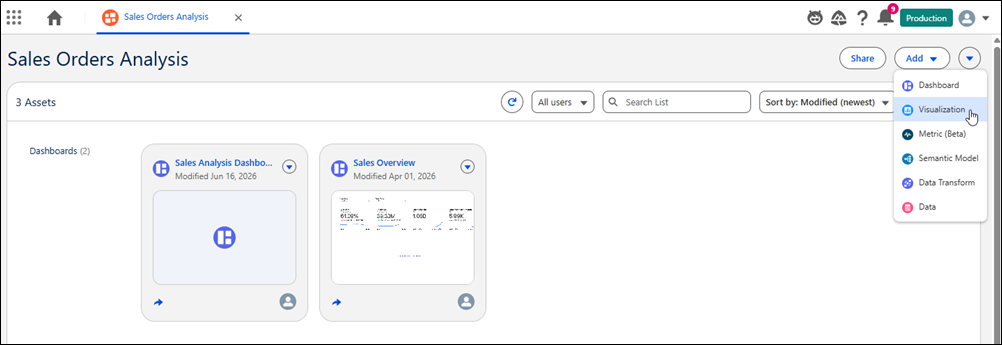
In your workspace, from the Add dropdown, select New Visualization.
- Alternatively, open a semantic model and click
Create Visualization.
- Alternatively, from Home, click Add and select Visualization. Choose whether to add the visualization to an existing or new workspace. Select From Semantic Model to create a visualization.
- Alternatively, open a semantic model and click
- For the data source, select the semantic model to use for the visualization.
- Drag and drop the fields you want in the visualization onto Columns or Rows . For the visualization in this example, drop Sales on Columns and Category on Rows.
- In the Marks section, select the chart type for your visualization.
- Optionally, add filters to focus the visualization on the data you want to analyze.
- To add more details to the visualization, drag fields to Color , Label, or Tooltip.
- Optionally, add a forecast or reference line to further analyze your data.
- Replace a Semantic Model with an Extended Semantic Model
When you extend a semantic model with additional calculations, data objects, or modified relationships, you can update an existing visualization with the latest data from the extended version.Tableau Next automatically maps matching fields based on API name, object name, and data type.