---
schema_version: "1"
id: bbdcbcc3d8e115d74c44fa6429f6769f42896db88041d1c648bf7c9149b08250
title: Create a Visualization with Semantic Model Data
collection: admin
version: current
locale: en-us
portal_url: https://docs.salesforce.com/admin/current/en-us/analytics/264-0-0/tua_create_viz_how_to.md
canonical_url: https://help.salesforce.com/s/articleView?id=analytics.tua_create_viz_how_to.htm&release=264.0.0&type=5
source_site: help.salesforce.com
content_type: documentation
content_hash: d480a6f4af5716c985de69c8190c62f5a19e4f7dd0c4d010a3218d4d2a058bde
description: Build a Tableau Next visualization on your semantic model data to discover valuable insights about your business. For example, create a visualization that shows sales patterns by product category and sub-category.
products:
- Tableau Next
release: "264"
---
# Create a Visualization with Semantic Model Data
Build a Tableau Next visualization on your semantic model data to discover valuable insights about your business. For example, create a visualization that shows sales patterns by product category and sub-category.
### Required Editions
Tableau Unmetered Platform Analyst or Tableau Next Platform Analyst permission set
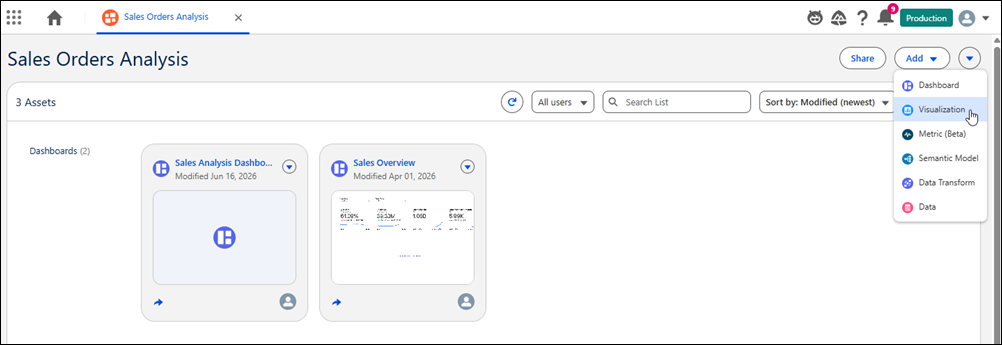
1. In your workspace, from the Add dropdown, select **New Visualization**.
- Alternatively, open a semantic model and click
**Create Visualization**.
- Alternatively, from Home, click **Add** and select **Visualization**. Choose whether to add the visualization to an existing or new workspace. Select **From Semantic Model** to create a visualization.
2. For the data source, select the semantic model to use for the visualization.
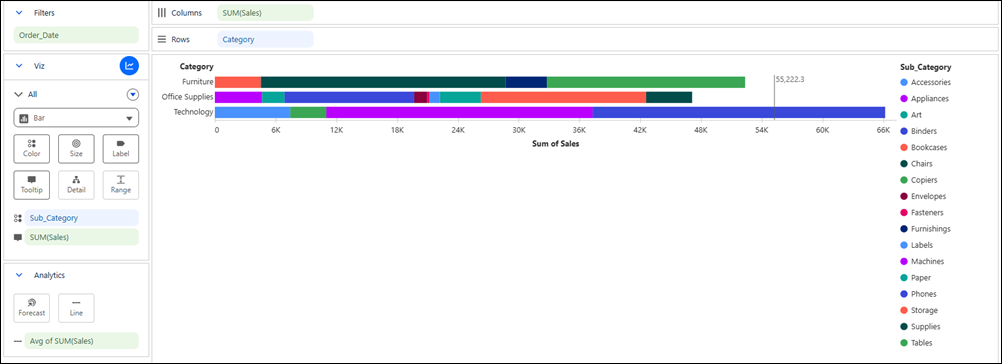
3. Drag and drop the fields you want in the visualization onto **Columns** or **Rows** . For the visualization in this example, drop **Sales** on Columns and **Category** on Rows.
4. In the Marks section, select the chart type for your visualization.
5. Optionally, add filters to focus the visualization on the data you want to analyze.
6. To add more details to the visualization, drag fields to **Color** , **Label**, or **Tooltip**.
7. Optionally, add a forecast or reference line to further analyze your data.
- **[Replace a Semantic Model with an Extended Semantic Model](https://help.salesforce.com/s/articleView?id=analytics.tua_replace_sdm_extension_how_to.htm&release=264.0.0&type=5)**
When you extend a semantic model with additional calculations, data objects, or modified relationships, you can update an existing visualization with the latest data from the extended version.Tableau Next automatically maps matching fields based on API name, object name, and data type.