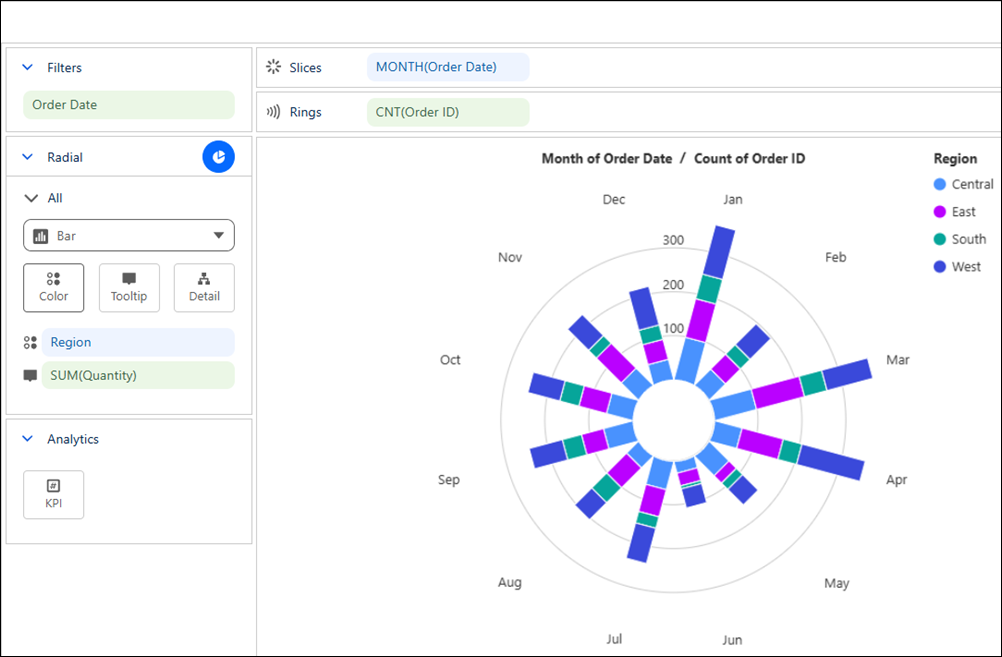
Quickly identify recurring patterns and changes across cyclical or periodic data with a
Tableau Next spoke bar chart. Bars extend outward from a central hub, with each spoke typically
representing a regular interval in a recurring cycle. For example, visualize monthly order counts
to identify seasonal peaks and slower periods during a fiscal year.
Required Editions
| User Permissions Needed |
| To create Tableau Next visualizations: |
Tableau Unmetered Platform Analyst or Tableau Next Platform Analyst permission set |
-
From the Show Me pane in your visualization, click the
 thumbnail. The layout changes to Spoke bar chart, and the pane shows the required
fields and supported field encodings for the chart type.
thumbnail. The layout changes to Spoke bar chart, and the pane shows the required
fields and supported field encodings for the chart type.
-
From the Data pane in your visualization, drag the continuous measure field you want to
visualize onto Rings. For the chart in the example, select
Order ID.
-
From the Order ID field’s context menu, select .
-
Drag a time field, such as Order Date, onto
Slices, and set the date part to the desired time interval, such as
Month.
-
To filter the visualization to a single fiscal year, drag Order Date
to Filters. Set the date range to start on the first day and end on the
last day of the fiscal year.
-
Optionally, to compare patterns across groups, drag Region onto
Color.
-
Optionally, drag a measure onto KPI to highlight its value in the center of the
chart.
-
You can further customize the visualization with labels or tooltips to make the chart
easier to interpret.
-
Save your visualization.