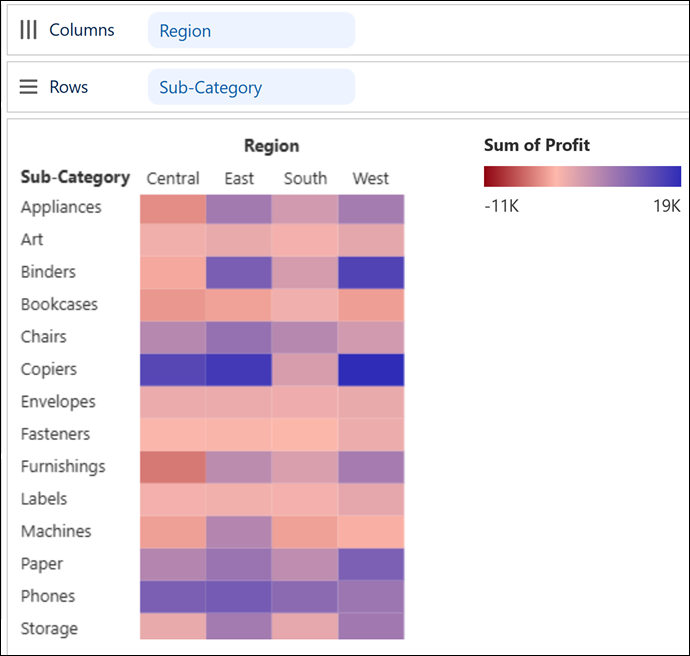
In Tableau Next, use heat maps to compare measure values across related categories and
quickly locate where your data shows high or low concentrations. With color coding applied to a
heat map, identify key data correlations, such as the impact of web traffic on sales. Or highlight
outliers, like a low-engagement period on a top-selling product, so that you can address anomalies
quickly. For example, compare product subcategories across each region in a heat map to see which
subcategories drive the most profit in each region.
Required Editions
| User Permissions Needed |
| To create Tableau Next visualizations: |
Tableau Unmetered Platform Analyst or Tableau Next Platform Analyst permission set |
-
From the Show Me pane in your visualization, click the
 thumbnail.
The Show Me pane shows you the minimum required fields for the chart type: one
dimension each on Rows and Columns and one measure on the Color encoding.
-
Double-click or drag a dimension, such as Region, onto
Columns.
-
To view the correlation between subcategories and region, double-click or drag
Sub-Category onto Rows.
-
To visualize data intensity and patterns easily using color, double-click or drag
Profit onto Color.
-
Apply your changes.