---
schema_version: "1"
id: 0b42152ffa1cc9cdc24f1ff9cab1ac8d06e8089e8b0419768a3188b9a962d4e5
title: Visualize Data Intensity and Patterns in Heat Maps
collection: admin
version: current
locale: en-us
portal_url: https://docs.salesforce.com/admin/current/en-us/analytics/264-0-0/tua_create_heatmap_how_to.md
canonical_url: https://help.salesforce.com/s/articleView?id=analytics.tua_create_heatmap_how_to.htm&release=264.0.0&type=5
source_site: help.salesforce.com
content_type: documentation
content_hash: 7386d1d35a0366e8c1cdc6c7cef5beeb394c934f412470cb26cb7c10bde0fb16
description: In Tableau Next, use heat maps to compare measure values across related categories and quickly locate where your data shows high or low concentrations. With color coding applied to a heat map, identify key data correlations, such as the impact of web traffic on sales. Or highlight outliers, like a low-engagement period on a top-selling product, so that you can address anomalies quickly. For example, compare product subcategories across each region in a heat map to see which subcategories drive the most profit in each region.
products:
- Tableau Next
release: "264"
---
# Visualize Data Intensity and Patterns in Heat Maps
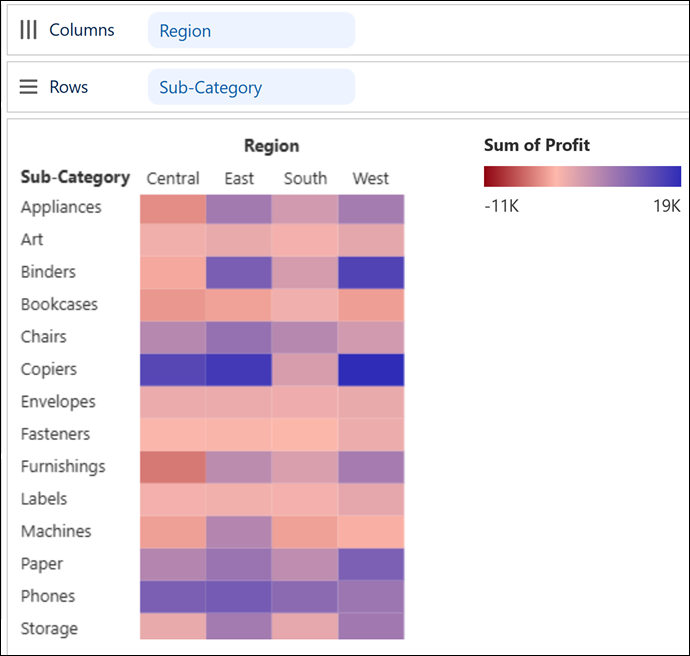
In Tableau Next, use heat maps to compare measure values across related categories and quickly locate where your data shows high or low concentrations. With color coding applied to a heat map, identify key data correlations, such as the impact of web traffic on sales. Or highlight outliers, like a low-engagement period on a top-selling product, so that you can address anomalies quickly. For example, compare product subcategories across each region in a heat map to see which subcategories drive the most profit in each region.
### Required Editions
Tableau Unmetered Platform Analyst or Tableau Next Platform Analyst permission set
1. From the Show Me pane in your visualization, click the  thumbnail.
The Show Me pane shows you the minimum required fields for the chart type: one dimension each on Rows and Columns and one measure on the Color encoding.
2. Double-click or drag a dimension, such as **Region**, onto **Columns**.
3. To view the correlation between subcategories and region, double-click or drag **Sub-Category** onto **Rows**.
4. To visualize data intensity and patterns easily using color, double-click or drag **Profit** onto **Color**.
5. Apply your changes.