
In Tableau Next, use a dashboard visualization’s context menu to continue analyzing, capture the current view or its data, or share the visualization with others.
Required Editions
| View supported editions. |
This table describes the visualization widget’s context menu options and what you can do with each.
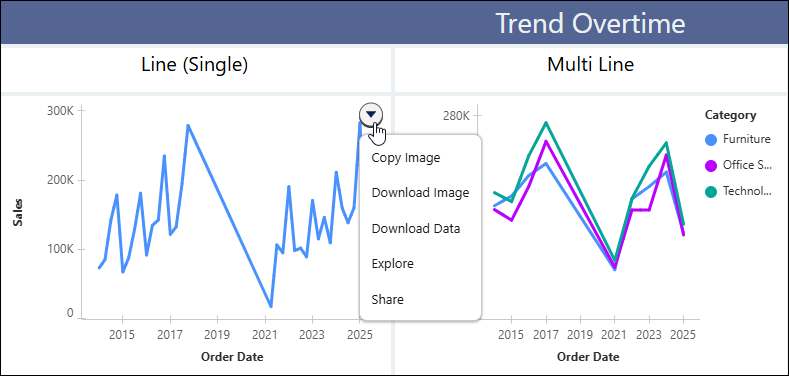
| Menu Item | Description |
|---|---|
| Copy Image | Copy an image of the visualization to the clipboard. |
| Download Image | Download an image of the visualization. |
| Download Data | Download the data displayed in the visualization as a CSV file. |
| Explore | Review the visualization with its applied dashboard filters and parameters, then continue analyzing it. |
| Share | Share the visualization with others. |
Explore a Tableau Next Visualization from a Dashboard
Examine a dashboard visualization in its current context to understand the data it shows. Refine the original if your analysis warrants it, or continue your data exploration with a new visualization that starts with the current dashboard filters. For example, after filtering a sales dashboard to the West region, edit the source to add a target reference line for all regions.Or, clone the filtered visualization to analyze West sales by product category.
Required Editions
| View supported editions. |
| User Permissions Needed | |
|---|---|
| To work with Tableau Next visualization widgets: | Tableau Unmetered Platform Analyst or Tableau Next Platform Analyst permission set |
-
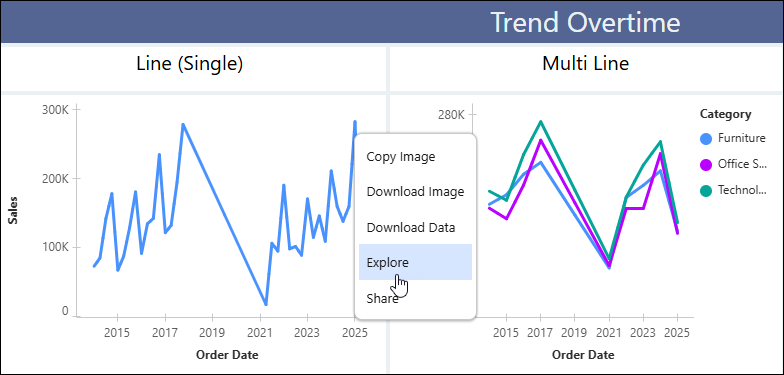
In a dashboard, from the visualization widget’s context menu, click
Explore.
-
To continue your analysis, choose one of these options:
- Click Clone to open a copy of the visualization with the current dashboard filters as its starting point. The original visualization remains unchanged.
- Click Edit Source to modify the original visualization without the applied dashboard filters and parameters.