---
schema_version: "1"
id: d35bc4d1bc0785b0c515507c7a95448d6a72077dfcb249f883591092ee35a8ef
title: Using the Visualization Widget Context Menu
collection: admin
version: current
locale: en-us
portal_url: https://docs.salesforce.com/admin/current/en-us/analytics/264-0-0/tua_create_dashboard_viz_widget_context.md
canonical_url: https://help.salesforce.com/s/articleView?id=analytics.tua_create_dashboard_viz_widget_context.htm&release=264.0.0&type=5
source_site: help.salesforce.com
content_type: documentation
content_hash: c3442783f09f74589b58fc097b14c1fb3d394de0364734c625662c5b4fccea5a
description: In Tableau Next, use a dashboard visualization’s context menu to continue analyzing, capture the current view or its data, or share the visualization with others.
products:
- Tableau Next
release: "264"
---
# Using the Visualization Widget Context Menu
In Tableau Next, use a dashboard visualization’s context menu to continue analyzing, capture the current view or its data, or share the visualization with others.
### Required Editions
This table describes the visualization widget’s context menu options and what you can do with each.
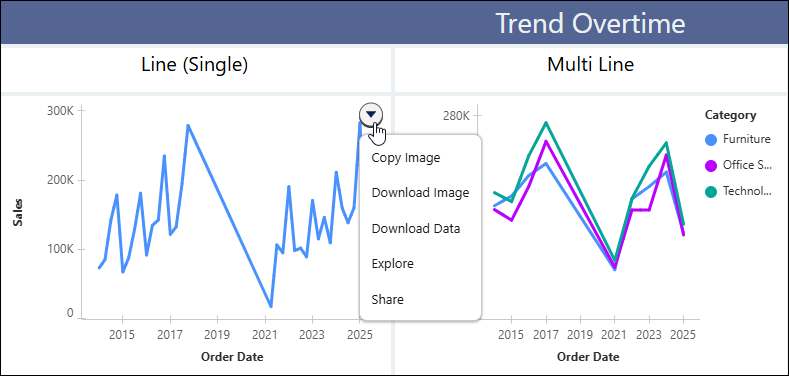
| Menu Item | Description |
| --- | --- |
| Copy Image | Copy an image of the visualization to the clipboard. |
| Download Image | Download an image of the visualization. |
| Download Data | Download the data displayed in the visualization as a CSV file. |
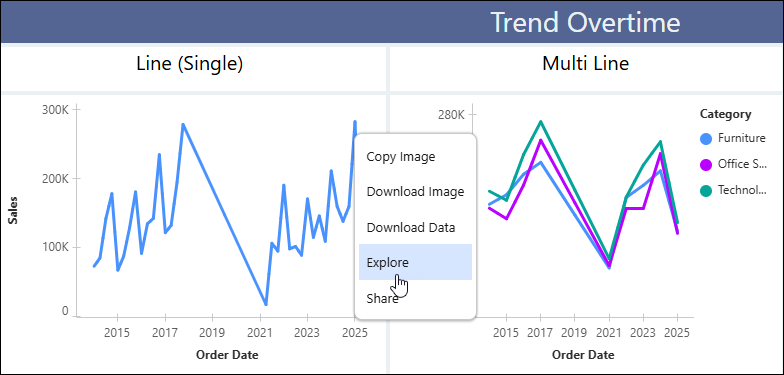
| Explore | Review the visualization with its applied dashboard filters and parameters, then continue analyzing it. |
| Share | Share the visualization with others. |
## Explore a Tableau Next Visualization from a Dashboard
Examine a dashboard visualization in its current context to understand the data it shows. Refine the original if your analysis warrants it, or continue your data exploration with a new visualization that starts with the current dashboard filters. For example, after filtering a sales dashboard to the West region, edit the source to add a target reference line for all regions.Or, clone the filtered visualization to analyze West sales by product category.
### Required Editions
Tableau Unmetered Platform Analyst or Tableau Next Platform Analyst permission set
1. In a dashboard, from the visualization widget’s context menu, click **Explore**.
2. To continue your analysis, choose one of these options:
- Click **Clone** to open a copy of the visualization with the current dashboard filters as its starting point. The original visualization remains unchanged.
- Click **Edit Source** to modify the original visualization without the applied dashboard filters and parameters.