Use the Navigation widget to transform dashboard pages into a horizontal navigation
bar. The Navigation widget automatically scales with new dashboard pages. You can also hide or
rearrange pages as you want them to appear in the bar.
Required Editions
| User Permissions
Needed |
| To edit Tableau Next dashboards: |
Tableau Unmetered Platform Analyst or Tableau Next Platform Analyst permission set |
-
Add the Navigation widget
 to your dashboard. The widget instantly populates with your current dashboard
pages.
to your dashboard. The widget instantly populates with your current dashboard
pages.
-
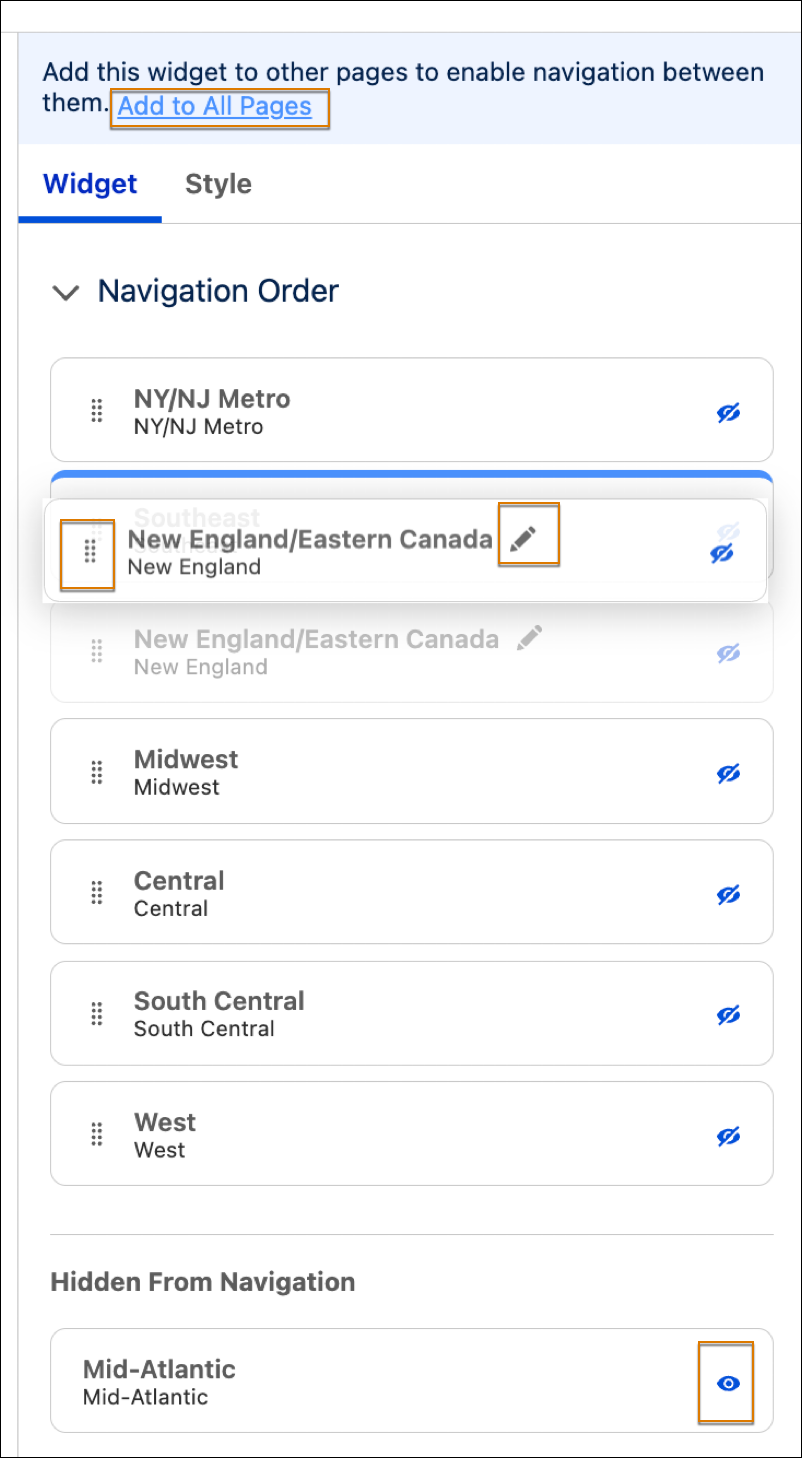
To update a specific button label on the navigation widget, change the page name or
click the button's pencil in the Widget panel.
-
To reorder buttons appear in the navigation bar, use the page handles to move them into
position.
-
To update a button's visibility, click the page's eye icon in the navigation bar.
-
The navigation widget appears with a default design. To change its look, click the
Style tab to change settings such as, borders, text fonts, and
colors.
-
Click Add to All Pages to ensure the navigation bar remains
available across your entire dashboard.