---
schema_version: "1"
id: 2f5ce92c7c8e04bfdb01f915510e164f058a40f18ca72dec20c8b1f0c57b66c9
title: Build Automated Navigation for Multi-Page Tableau Next Dashboards
collection: admin
version: current
locale: en-us
portal_url: https://docs.salesforce.com/admin/current/en-us/analytics/264-0-0/tua_create_dashboard_navigation.md
canonical_url: https://help.salesforce.com/s/articleView?id=analytics.tua_create_dashboard_navigation.htm&release=264.0.0&type=5
source_site: help.salesforce.com
content_type: documentation
content_hash: 627f156337745a5019494d737805cade8e9f18adcde6b0b2695be362b0a9fc43
description: Use the Navigation widget to transform dashboard pages into a horizontal navigation bar. The Navigation widget automatically scales with new dashboard pages. You can also hide or rearrange pages as you want them to appear in the bar.
products:
- Tableau Next
release: "264"
---
# Build Automated Navigation for Multi-Page Tableau Next Dashboards
Use the Navigation widget to transform dashboard pages into a horizontal navigation bar. The Navigation widget automatically scales with new dashboard pages. You can also hide or rearrange pages as you want them to appear in the bar.
### Required Editions
Tableau Unmetered Platform Analyst or Tableau Next Platform Analyst permission set
1. Add the Navigation widget  to your dashboard. The widget instantly populates with your current dashboard pages.

2. To update a specific button label on the navigation widget, change the page name or click the button's pencil in the Widget panel.

Note Changing a page name automatically updates the button label. However, changing the button name doesn't update the corresponding page.
3. To reorder buttons appear in the navigation bar, use the page handles to move them into position.
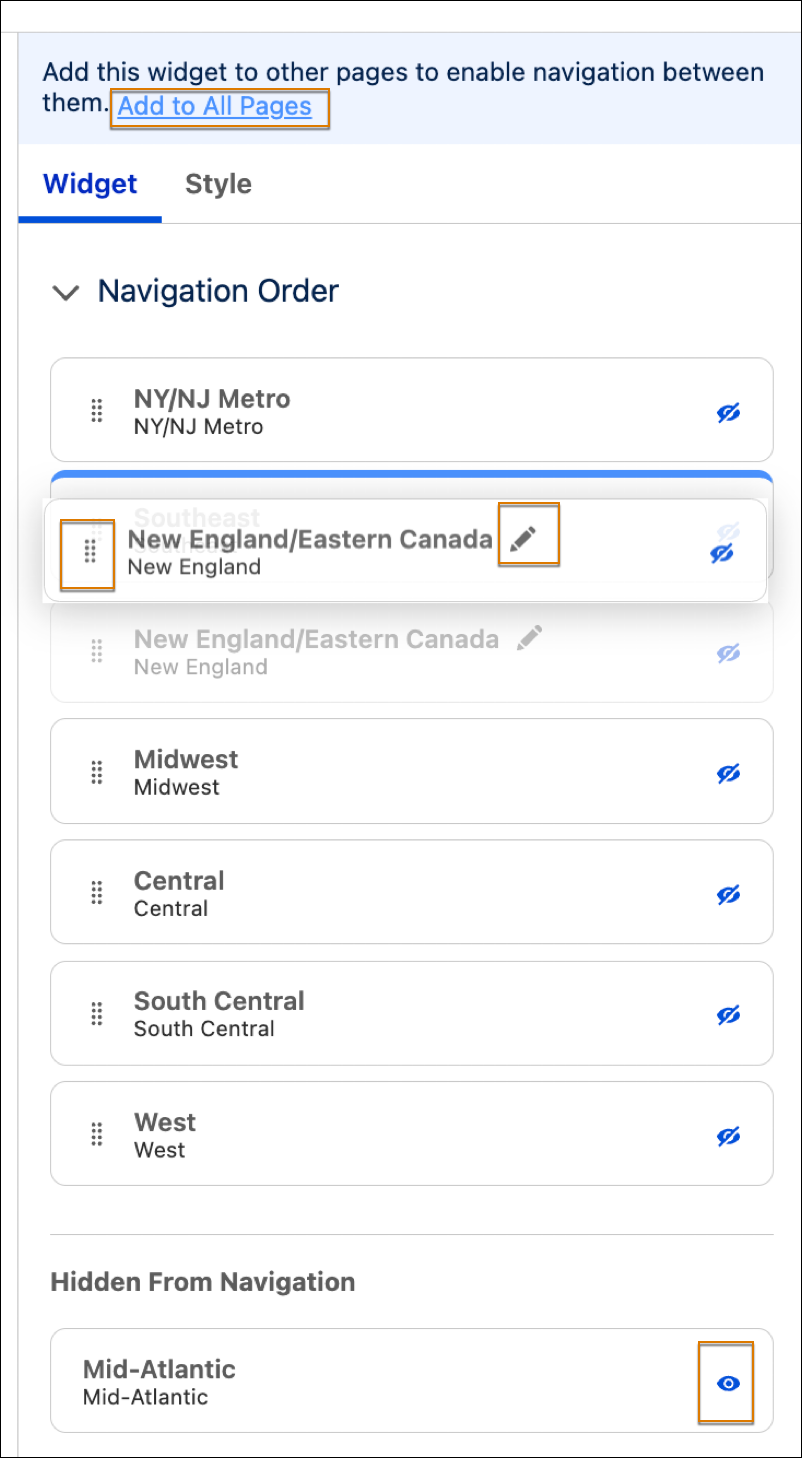
4. To update a button's visibility, click the page's eye icon in the navigation bar.
5. The navigation widget appears with a default design. To change its look, click the **Style** tab to change settings such as, borders, text fonts, and colors.
6. Click **Add to All Pages** to ensure the navigation bar remains available across your entire dashboard.