Make widget tasks easier by adding them to a container widget. You can also configure
containers with single-click actions to add interactivity to your dashboard.
Required Editions
| User Permissions
Needed |
| To edit Tableau Next dashboards: |
Tableau Unmetered Platform Analyst or Tableau Next Platform Analyst permission set |
-
Add a container widget
 to the dashboard.
-
Open a dashboard and drag the container widget to the dashboard.
-
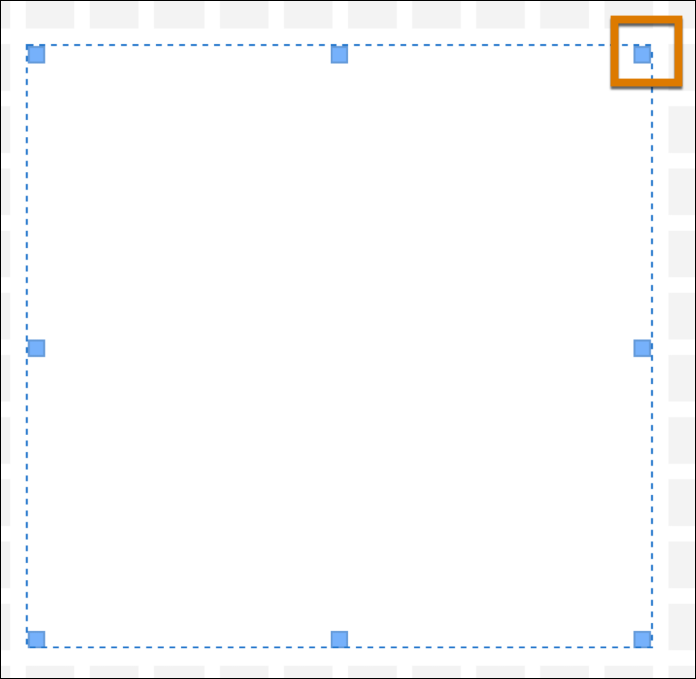
Use the widget anchors to resize the container to fit the expected widgets.
-
Drag dashboard widgets into the container and place them where you want them to
appear.
-
Explore a container
-
To select a container and its contents, click once anywhere in the container.
-
To select a widget inside of a container, double-click the widget. You can then
single-click to switch between widgets in the container.
-
Add actions to containers and buttons
Adding single-click actions enhances user engagement and efficiency by making the
dashboard more interactive and intuitive. You can add actions to quickly access detailed
pages or initiate Salesforce Flows, making it easier for users to find and act on the data
they need. See
Add
Single-Click Actions to Your Data.