---
schema_version: "1"
id: 6a56eab4d64347502e3c1c69dfaeeae93618e34f20c5b15e4bef8ac74014afd4
title: Add Efficiency to Your Dashboard with the Container Widget
collection: admin
version: current
locale: en-us
portal_url: https://docs.salesforce.com/admin/current/en-us/analytics/264-0-0/tua_create_dashboard_container.md
canonical_url: https://help.salesforce.com/s/articleView?id=analytics.tua_create_dashboard_container.htm&release=264.0.0&type=5
source_site: help.salesforce.com
content_type: documentation
content_hash: cb7ef9c15423c276572a163a76d8025031c2a68bbf32300e9358ed63d04ae9c0
description: Make widget tasks easier by adding them to a container widget. You can also configure containers with single-click actions to add interactivity to your dashboard.
products:
- Tableau Next
release: "264"
---
# Add Efficiency to Your Dashboard with the Container Widget
Make widget tasks easier by adding them to a container widget. You can also configure containers with single-click actions to add interactivity to your dashboard.
### Required Editions
Tableau Unmetered Platform Analyst or Tableau Next Platform Analyst permission set
1. Add a container widget  to the dashboard.
1. Open a dashboard and drag the container widget to the dashboard.
2. Use the widget anchors to resize the container to fit the expected widgets.
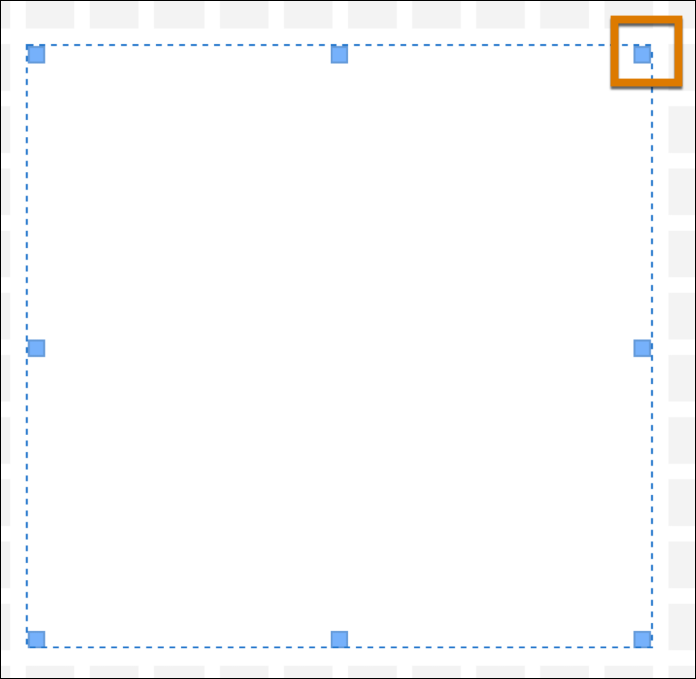
3. Drag dashboard widgets into the container and place them where you want them to appear.
2. Explore a container
1. To select a container and its contents, click once anywhere in the container.
2. To select a widget inside of a container, double-click the widget. You can then single-click to switch between widgets in the container.
3. Add actions to containers and buttons
Adding single-click actions enhances user engagement and efficiency by making the dashboard more interactive and intuitive. You can add actions to quickly access detailed pages or initiate Salesforce Flows, making it easier for users to find and act on the data they need. See [Add Single-Click Actions to Your Data](https://help.salesforce.com/s/articleView?id=analytics.tua_create_dashboard_add_action.htm&release=264.0.0&type=5 "Create a data journey for your users by turning your static Tableau Next dashboard into an interactive experience with single-click actions that lead to detailed pages or initiate Salesforce Flows. For example, use actions to add dynamic navigation to guide sales managers from a summary dashboard to pipeline details, progressively revealing more detailed information.").

Note A configured action assigned to a container starts when the container is clicked, including when you click any widget inside of the container. A configured action assigned to a button starts the actions for the button and container when the button is clicked.
#### See Also
- [_Salesforce Help_: Reuse Widgets Across Dashboards and Workspaces](https://help.salesforce.com/s/articleView?id=analytics.tua_create_dashboard_reuse.htm&language=en_US)