
The C360 Metrics Overview dashboard template provides a comprehensive overview of your key performance indicators (KPIs) relevant to C360 features. The dashboard is designed for program managers and stakeholders, offering a detailed breakdown of performance across various dimensions. It enables progress monitoring, identifying areas for improvement, and making data-driven decisions.
Required Editions
| View supported editions. |
| User Permissions Needed | |
|---|---|
| To create and edit Tableau Next dashboards and view Marketplace templates: | Tableau Unmetered Platform Analyst or Tableau Next Platform Analyst permission set |
This template is designed to work with a data model that incorporates data from multiple parts of your business, like sales, service, marketing, and commerce. Or skip the data configuration steps, and just select this layout to add a data model and metrics manually. For more information about creating models and metrics, see Create Semantic Models and Define Metrics.
-
On the Tableau Next home page, select Marketplace.
- In the Search box, enter C360, and select the C360 Metrics Overview tile.
-
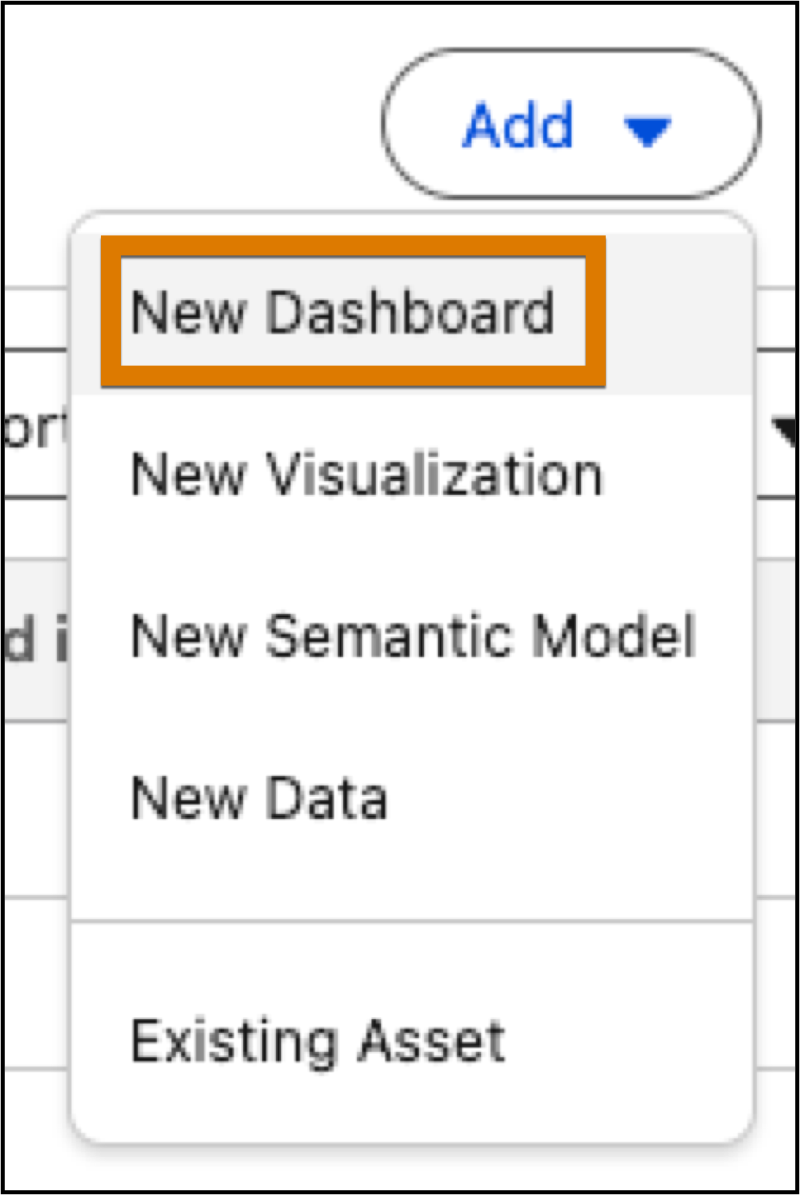
Or, from a workspace, click Add, and select New
Dashboard.
-
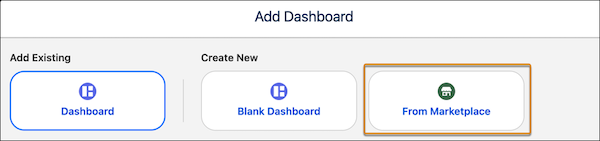
To view dashboard templates, select From Marketplace.
-
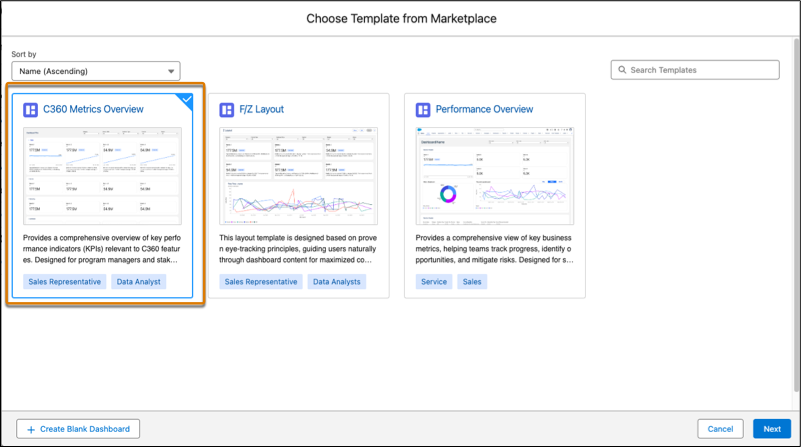
Select the C360 Metrics Overview template tile and click
Next.
-
Select a layout for your dashboard, based on where you want to embed it in your flow, and
click Next.
Use full page if you're embedding in a tab. For embedding into a record page, use Compact Horizontal or Compact Vertical. These layouts create dashboards optimized for viewing in headers, footers, or side panels.
-
Configure your data selections and click Next.
You can use your own semantic model or skip this step if you don’t have a semantic model yet.
- To use an existing semantic model, select the model. The selected model is used to populate the remaining configuration questions.
- Select up to 5 data fields to use as dashboard filters.
-
Configure the metrics and breakdowns for the sections of your dashboards. Then, click
Create Dashboard.
All selections are optional and can be skipped. You can configure a minimum of 1 section and a maximum of 4 sections. On a full page layout, these are collapsible sections and for compact layouts, these are separate dashboard pages. Only metrics associated with the selected model are available for selection.
- For each section, define a title, like Sales or Service.
- Select up to 4 metrics related to your section title.
-
Repeat these steps for each section.
As you complete a section, the options for the next section appear. Simply skip a section if you don’t want to add it.

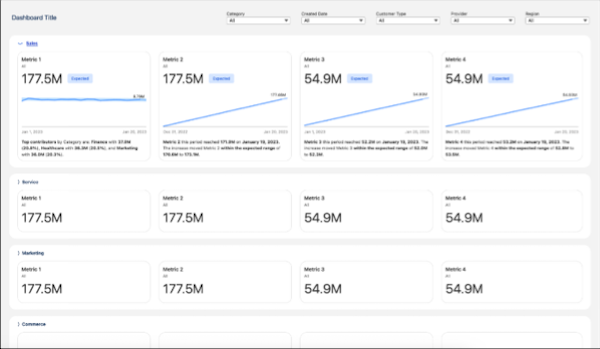
The template generates the dashboard with your configurations, displaying the installation progress. You can close this window at any time; the dashboard installation continues in the background. After installation is complete, give the dashboard a name, make any edits you want, and then save it to your workspace. If you closed the progress window, on completion, a success message with a link to the dashboard displays.