---
schema_version: "1"
id: ec3ebc190cd23502dea4332975dbc5f0e5853d6841b0ac4d460301f3dffc5f17
title: Configure a C360 Metrics Overview Dashboard
collection: admin
version: current
locale: en-us
portal_url: https://docs.salesforce.com/admin/current/en-us/analytics/264-0-0/tua_create_dashboard_c360metric.md
canonical_url: https://help.salesforce.com/s/articleView?id=analytics.tua_create_dashboard_c360metric.htm&release=264.0.0&type=5
source_site: help.salesforce.com
content_type: documentation
content_hash: 9397b83604f9870eb4a7dc3068f758712f9d85dc06fab9d0d170a3169bbac439
description: The C360 Metrics Overview dashboard template provides a comprehensive overview of your key performance indicators (KPIs) relevant to C360 features. The dashboard is designed for program managers and stakeholders, offering a detailed breakdown of performance across various dimensions. It enables progress monitoring, identifying areas for improvement, and making data-driven decisions.
products:
- Tableau Next
release: "264"
---
# Configure a C360 Metrics Overview Dashboard
The C360 Metrics Overview dashboard template provides a comprehensive overview of your key performance indicators (KPIs) relevant to C360 features. The dashboard is designed for program managers and stakeholders, offering a detailed breakdown of performance across various dimensions. It enables progress monitoring, identifying areas for improvement, and making data-driven decisions.
### Required Editions
To create and edit Tableau Next dashboards and view Marketplace templates:
Tableau Unmetered Platform Analyst or Tableau Next Platform Analyst permission set
This template is designed to work with a data model that incorporates data from multiple parts of your business, like sales, service, marketing, and commerce. Or skip the data configuration steps, and just select this layout to add a data model and metrics manually. For more information about creating models and metrics, see [Create Semantic Models and Define Metrics](https://help.salesforce.com/s/articleView?id=analytics.tua_data_sdm.htm&language=en_US).
1. On the Tableau Next home page, select **Marketplace**.
1. In the Search box, enter C360, and select the C360 Metrics Overview tile.
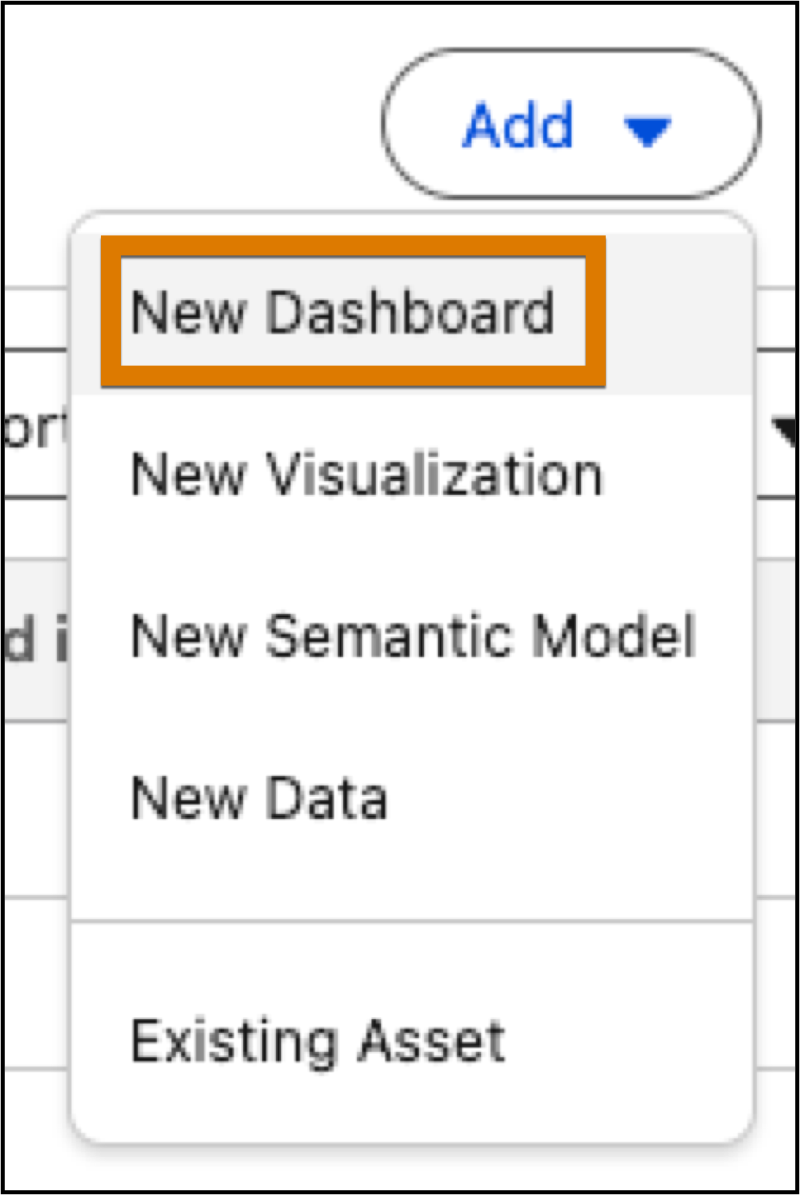
2. Or, from a workspace, click **Add**, and select **New Dashboard**.
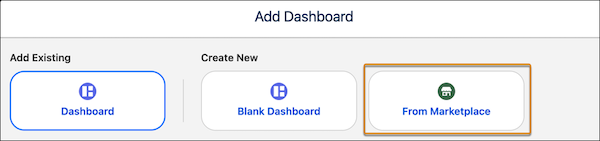
3. To view dashboard templates, select **From Marketplace**.
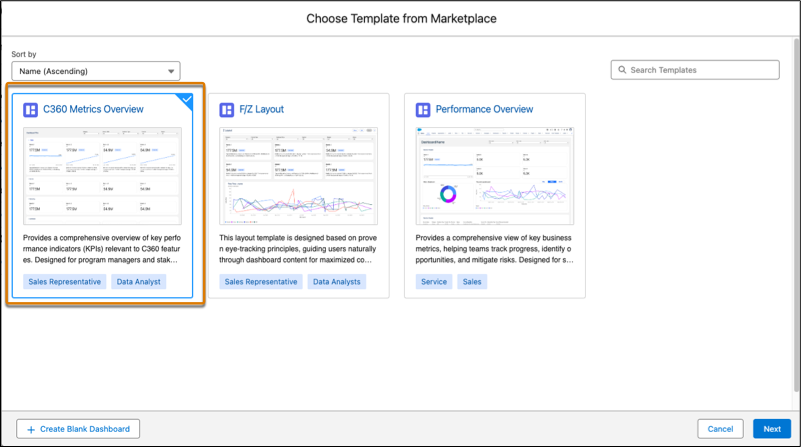
4. Select the C360 Metrics Overview template tile and click **Next**.
2. Select a layout for your dashboard, based on where you want to embed it in your flow, and click **Next**.
Use full page if you're embedding in a tab. For embedding into a record page, use Compact Horizontal or Compact Vertical. These layouts create dashboards optimized for viewing in headers, footers, or side panels.
3. Configure your data selections and click **Next**.
You can use your own semantic model or skip this step if you don’t have a semantic model yet.
1. To use an existing semantic model, select the model. The selected model is used to populate the remaining configuration questions.
2. Select up to 5 data fields to use as dashboard filters.
4. Configure the metrics and breakdowns for the sections of your dashboards. Then, click **Create Dashboard**.
All selections are optional and can be skipped. You can configure a minimum of 1 section and a maximum of 4 sections. On a full page layout, these are collapsible sections and for compact layouts, these are separate dashboard pages. Only metrics associated with the selected model are available for selection.
1. For each section, define a title, like Sales or Service.
2. Select up to 4 metrics related to your section title.
3. Repeat these steps for each section.
As you complete a section, the options for the next section appear. Simply skip a section if you don’t want to add it.

Example A C360 Metrics Overivew dashboard with the full page layout.
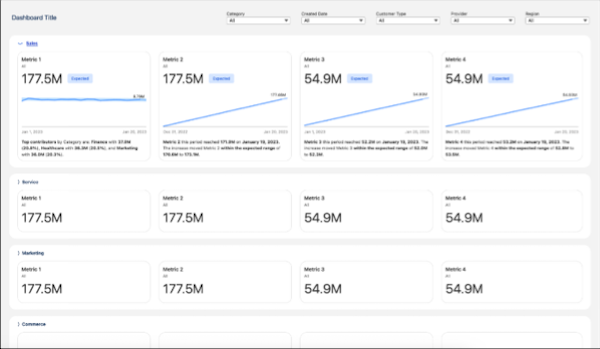
The template generates the dashboard with your configurations, displaying the installation progress. You can close this window at any time; the dashboard installation continues in the background. After installation is complete, give the dashboard a name, make any edits you want, and then save it to your workspace. If you closed the progress window, on completion, a success message with a link to the dashboard displays.