Make the information on a Tableau Next dashboard easier to digest by chunking the
content into multiple pages. And, with fewer queries per page, you can expect an increase in
dashboard performance.
Required Editions
| User Permissions
Needed |
| To edit Tableau Next dashboards: |
Tableau Unmetered Platform Analyst or Tableau Next Platform Analyst permission set |
-
Click Add Page
 . Each page appears as a separate tab, and looks just like a
dashboard when you preview it.
. Each page appears as a separate tab, and looks just like a
dashboard when you preview it.
-
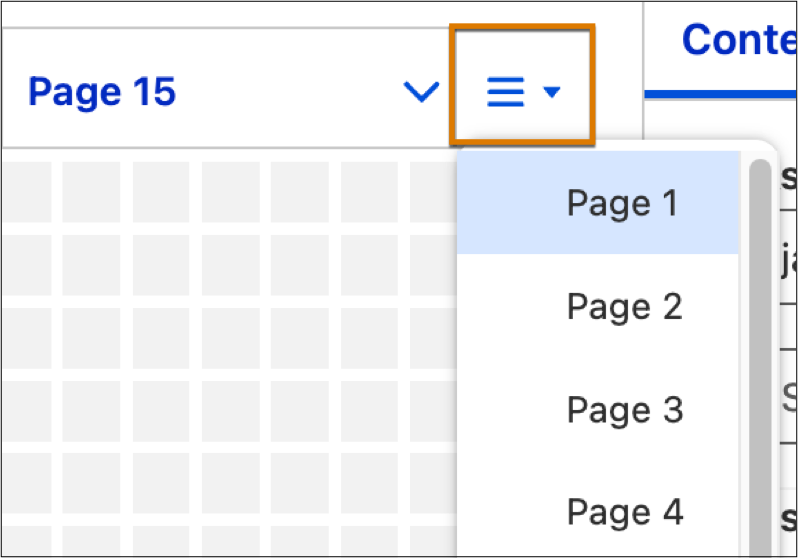
To move to a specific page, use the page menu. You can also use the your mouse wheel or press Shift+Left/Right Arrow (Windows)
or Option+Left/Right Arrow (macOS) on your keyboard.
-
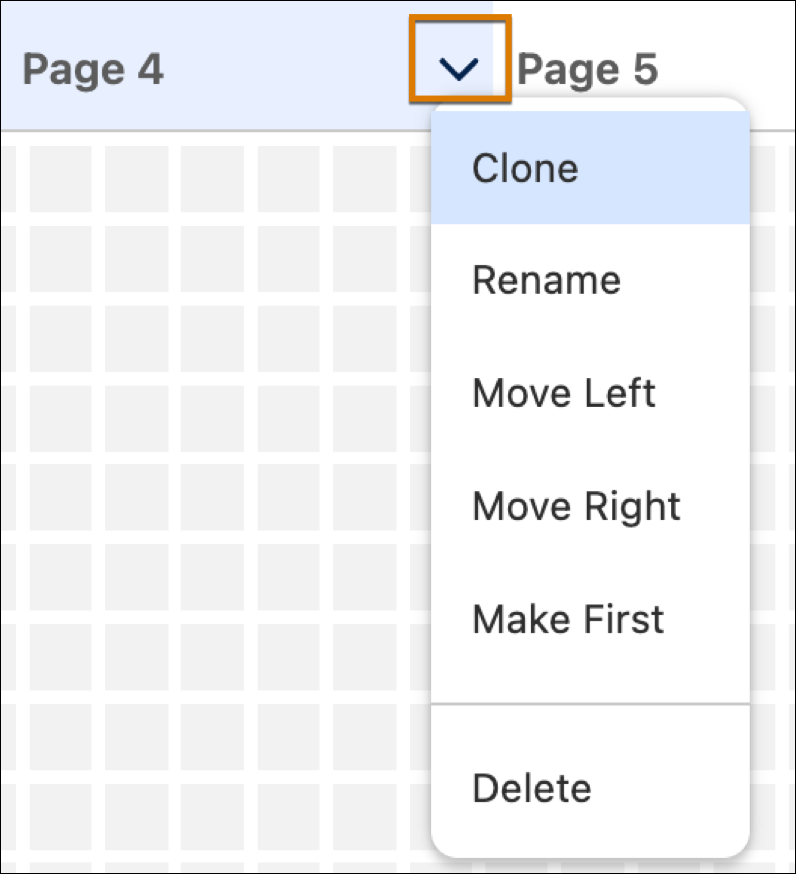
To move, delete, or clone pages, click a page's action menu.
-
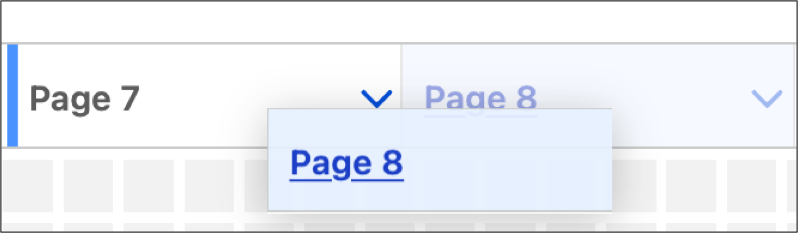
To reorder pages manually, drag a page tab to its new position.
-
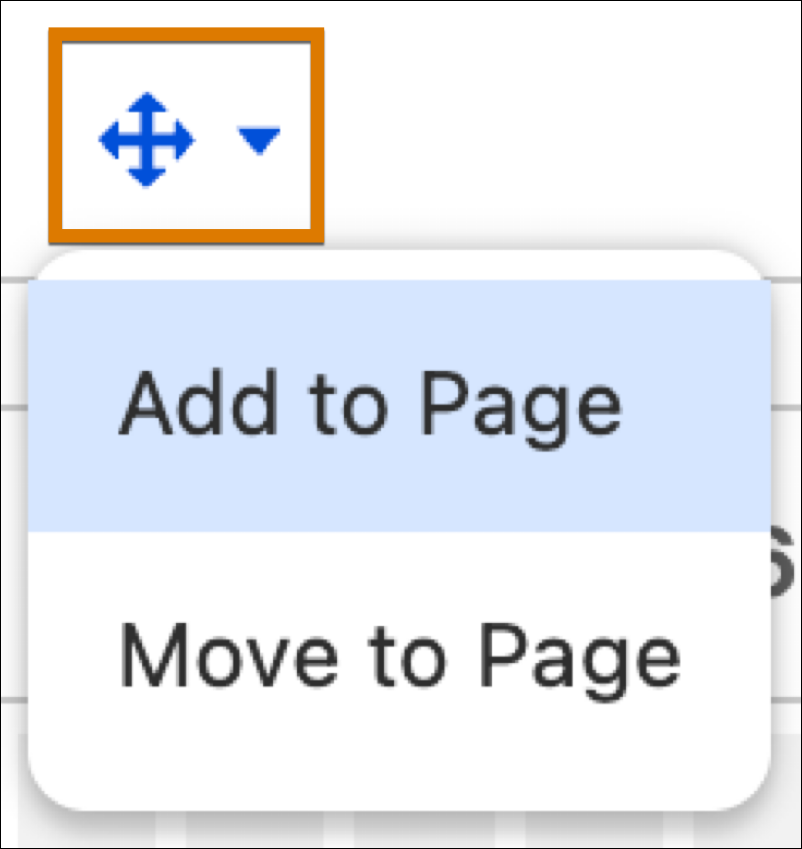
To move or add widgets from the current page to other pages, select a widget then click
More Page Actions in the dashboard toolbar.

 Note Dashboards can have up to 50 pages.