---
schema_version: "1"
id: 5ae959ce58a5b3d1f5a89e6134671d2ce0e7a3cfb0805dbd2b342de575713115
title: Organize Content with Dashboard Pages
collection: admin
version: current
locale: en-us
portal_url: https://docs.salesforce.com/admin/current/en-us/analytics/264-0-0/tua_create_dashboard_add_page.md
canonical_url: https://help.salesforce.com/s/articleView?id=analytics.tua_create_dashboard_add_page.htm&release=264.0.0&type=5
source_site: help.salesforce.com
content_type: documentation
content_hash: e232f8b24a059fb3a7fee81ddf9b934bc48714945cda64bfbdb8b4a6c49b500a
description: Make the information on a Tableau Next dashboard easier to digest by chunking the content into multiple pages. And, with fewer queries per page, you can expect an increase in dashboard performance.
products:
  - Tableau Next
release: "264"
---
# Organize Content with Dashboard Pages

Make the information on a Tableau Next dashboard easier to digest by chunking the content into multiple pages. And, with fewer queries per page, you can expect an increase in dashboard performance.

### Required Editions

<table class="slds-table slds-table_bordered slds-max-medium-table_stacked slds-m-bottom_small edition"><colgroup><col></colgroup><tbody><tr class=""><td class="slds-cell-wrap" style="vertical-align:top;"><a href="https://help.salesforce.com/s/articleView?id=analytics.tua_editions.htm&amp;language=en_US" target="_blank">View supported editions.</a></td></tr></tbody></table>

<table class="slds-table slds-table_bordered slds-max-medium-table_stacked slds-m-bottom_small permission">
        <colgroup>
          <col>
          <col>
        </colgroup>
        <thead class="slds-text-title_caps ">
          <tr class="">
            <th scope="colgroup" class="slds-cell-wrap" colspan="2" style="text-align:center;vertical-align:top;" id="d53481e54">User Permissions
              Needed</th>
          </tr>
        </thead>
        <tbody>
          <tr class="">
            <td data-label="User Permissions Needed" class="slds-cell-wrap" style="vertical-align:top;" headers="d53481e54 ">To edit Tableau Next dashboards:</td>

            <td class="slds-cell-wrap" style="vertical-align:top;" headers="d53481e54 "><span>Tableau Unmetered Platform Analyst or Tableau Next Platform Analyst</span> permission set</td>

          </tr>
        </tbody>
      </table>

1. Click **Add Page ![Add Page icon](https://sf-zdocs-cdn-prod.zoominsoftware.com/tdta-analytics-tua-264-0-0-production-enus/d794334f-d174-49d3-a4d2-a615bd2e54aa/tua/images/tua_create_dashboard_add_page_3.png)** . Each page appears as a separate tab, and looks just like a dashboard when you preview it.
    
    ![Note](https://sf-zdocs-cdn-prod.zoominsoftware.com/tdta-analytics-tua-264-0-0-production-enus/d794334f-d174-49d3-a4d2-a615bd2e54aa/images/icon_note.png)
    
    Note Dashboards can have up to 50 pages.
2. To move to a specific page, use the page menu.
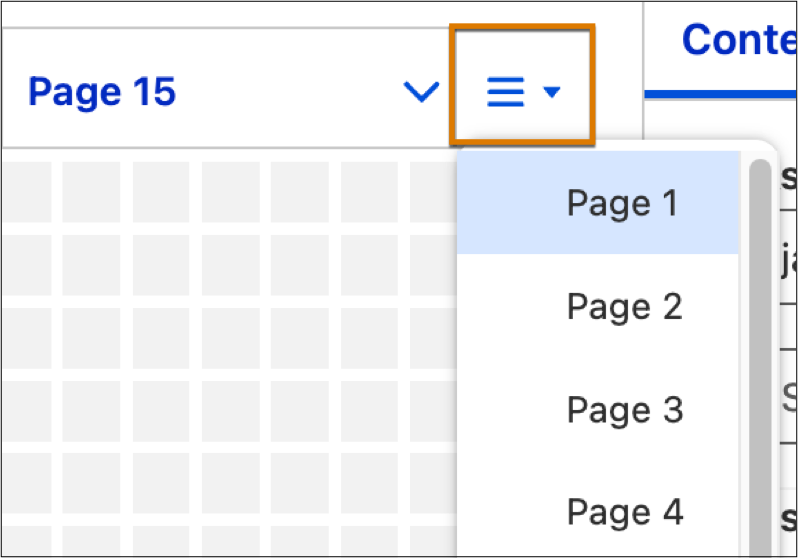
    
    ![Page menu with four pages.](https://sf-zdocs-cdn-prod.zoominsoftware.com/tdta-analytics-tua-264-0-0-production-enus/d794334f-d174-49d3-a4d2-a615bd2e54aa/tua/images/tua_create_dashboard_add_page_4.png)
    
    You can also use the your mouse wheel or press Shift+Left/Right Arrow (Windows) or Option+Left/Right Arrow (macOS) on your keyboard.
3. To move, delete, or clone pages, click a page's action menu.
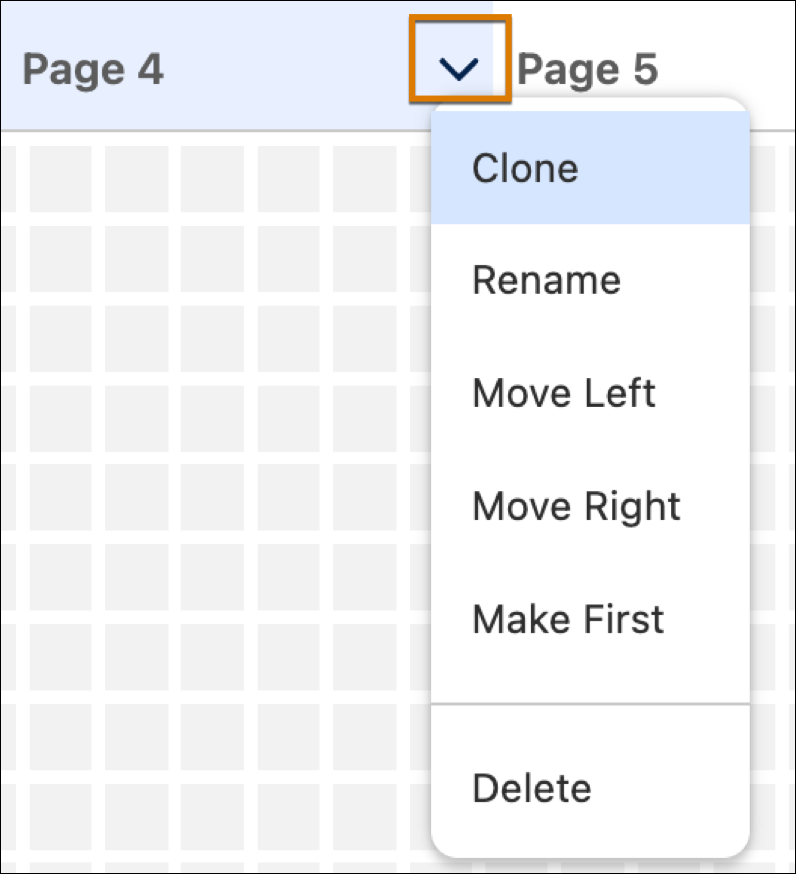
    
    ![Page action menu.](https://sf-zdocs-cdn-prod.zoominsoftware.com/tdta-analytics-tua-264-0-0-production-enus/d794334f-d174-49d3-a4d2-a615bd2e54aa/tua/images/tua_create_dashboard_add_page_2.png)
4. To reorder pages manually, drag a page tab to its new position.
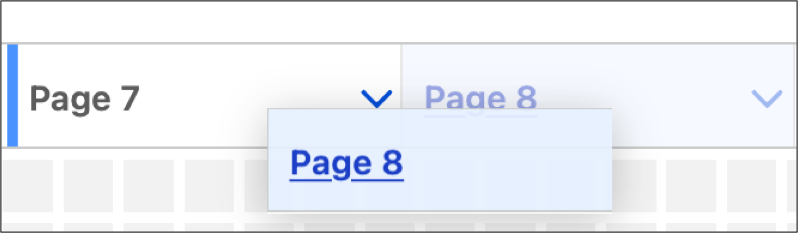
    
    ![More page actions](https://sf-zdocs-cdn-prod.zoominsoftware.com/tdta-analytics-tua-264-0-0-production-enus/d794334f-d174-49d3-a4d2-a615bd2e54aa/tua/images/tua_create_dashboard_add_page_5.png)
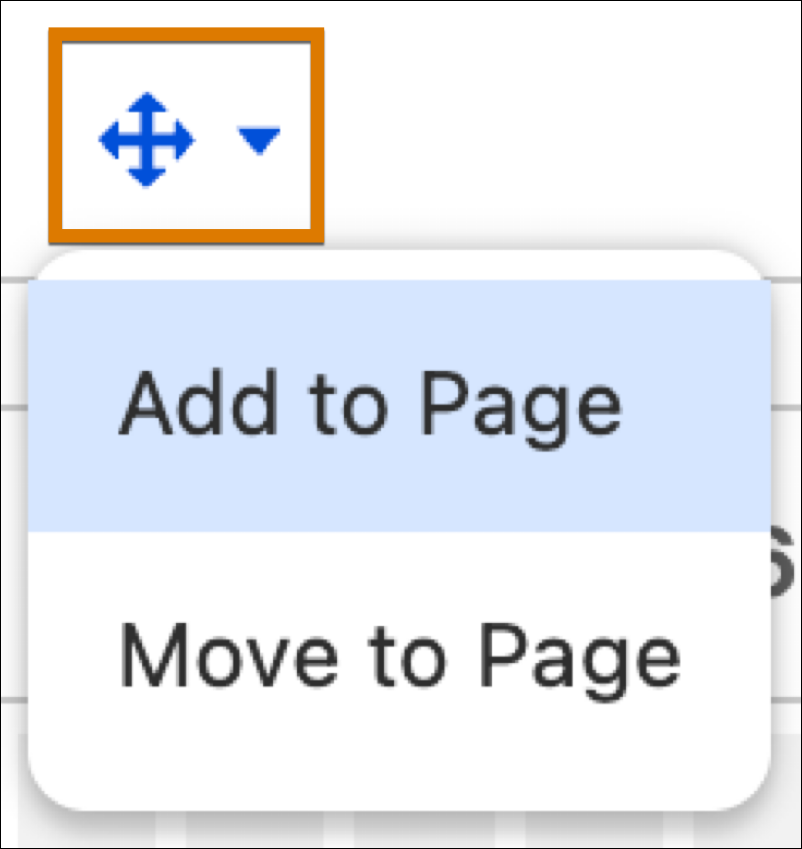
5. To move or add widgets from the current page to other pages, select a widget then click **More Page Actions** in the dashboard toolbar.
    
    ![More page actions](https://sf-zdocs-cdn-prod.zoominsoftware.com/tdta-analytics-tua-264-0-0-production-enus/d794334f-d174-49d3-a4d2-a615bd2e54aa/tua/images/tua_create_dashboard_add_page.png)
    
    ![Note](https://sf-zdocs-cdn-prod.zoominsoftware.com/tdta-analytics-tua-264-0-0-production-enus/d794334f-d174-49d3-a4d2-a615bd2e54aa/images/icon_note.png)
    
    Note Changes made to a copied widget will be seen on all pages where it's used, unless it has been unlinked. To unlink a widget, select the widget then click **Unlink** in the toolbar.