You can add a formula that calculates values relative to a parent or peer grouping in a
Lightning report. PARENTGROUPVAL calculates values relative to a parent grouping.
PREVGROUPVAL calculates values relative to a peer grouping. For example, calculate the
proportion of total opportunity amounts from each lead source, or compare sales each month
to the previous month.
Required Editions
| Available in: Salesforce Classic |
| Available in: Essentials, Group,
Professional, Enterprise, Performance,
Unlimited, and Developer Editions
|
| Available in: Enhanced Folder Sharing |
| User Permissions
Needed |
| To create, edit, and delete reports: |
- Enhanced Folder Sharing
- Create and Customize Reports
AND
Report
Builder
|
-
Edit or create a report that has at least one row grouping and optionally one
or more column groupings.
-
From the Columns section in the report builder, click
 and
select Add Summary Formula.
and
select Add Summary Formula.
-
Enter a column name.
-
Select the formula output type.
-
In the left panel, select Functions.
-
Select PARENTGROUPVAL or
PREVGROUPVAL.
-
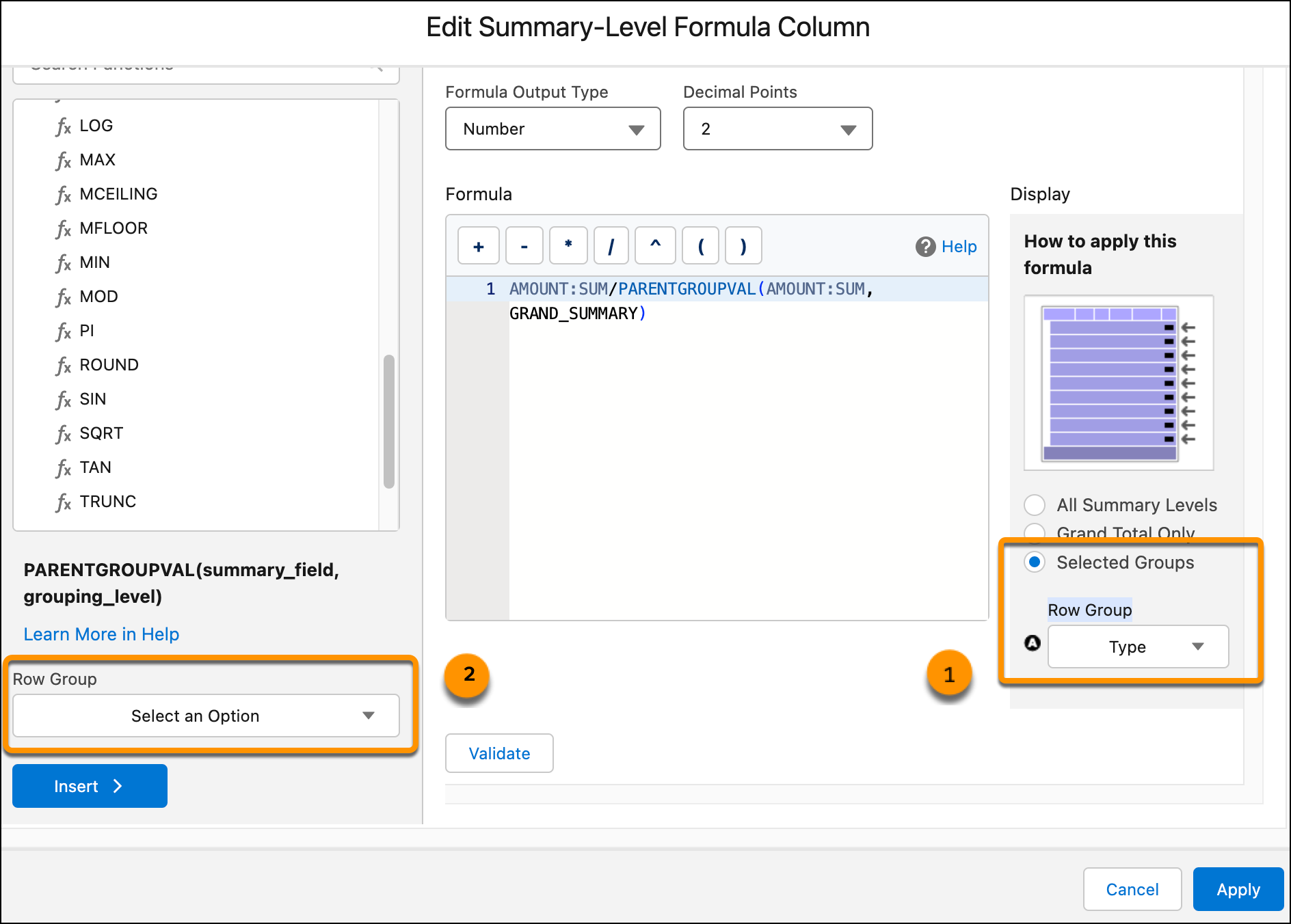
In the Display panel, select a specific grouping or groupings (1).
-
In the Function panel (2), select the grouping or groupings to use in the
function.
The available groupings depend on what you selected in the Display area.
-
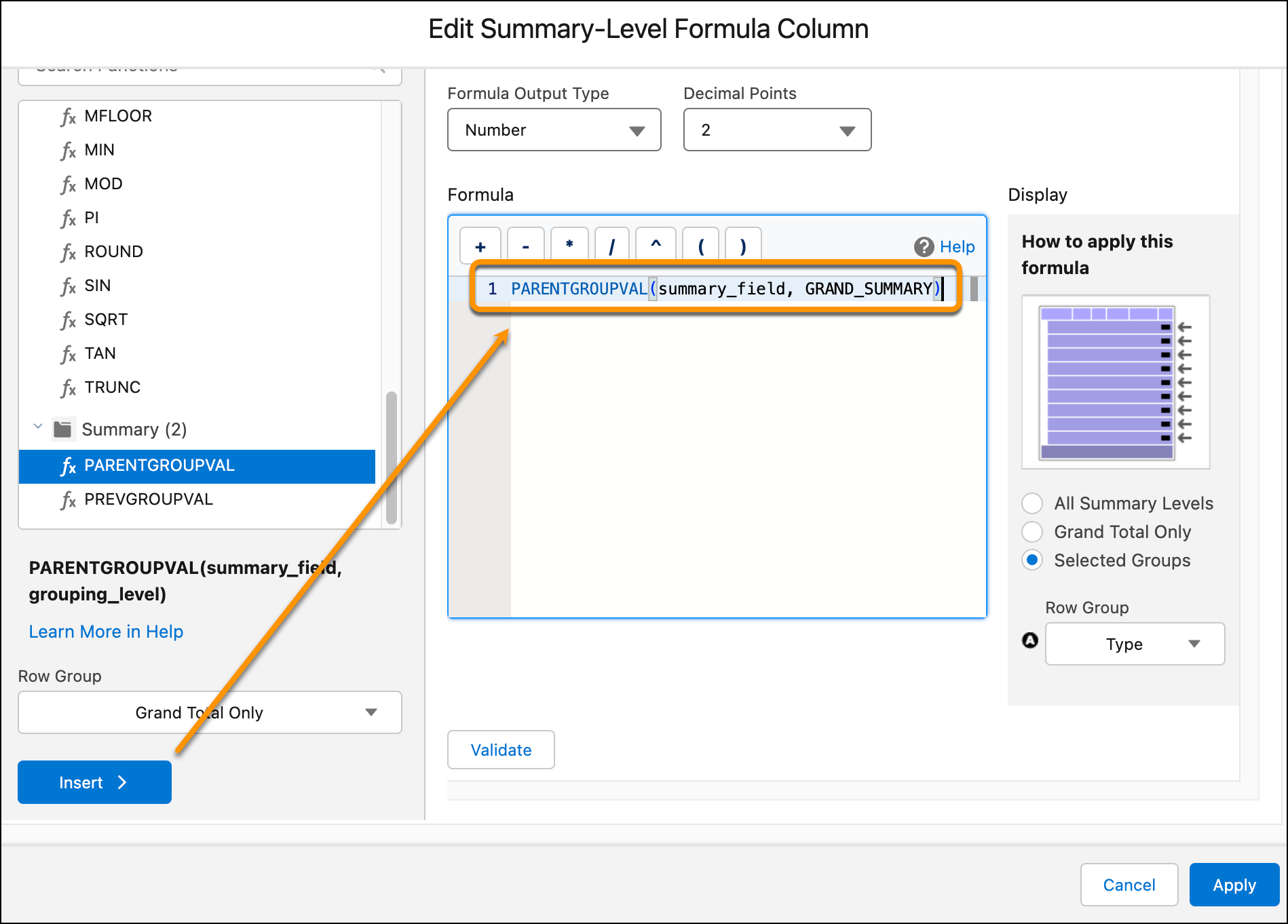
To add the function to your formula with the selected parameters included,
click Insert
-
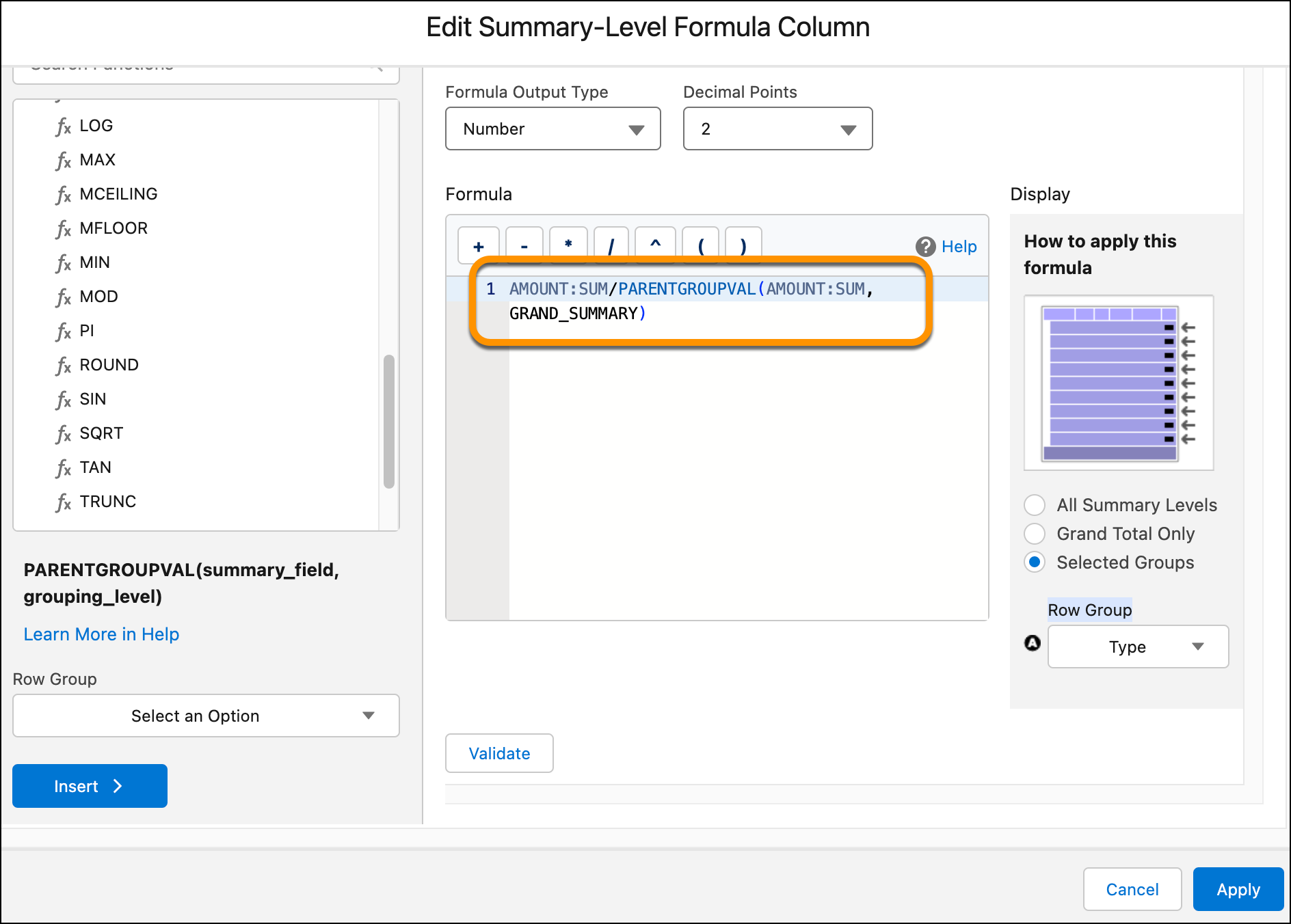
Add other parameters, functions, and operators to the formula as needed.
-
To check the formula, click Validate.
-
To close the formula builder and add the summary formula column to the report,
click Apply.