---
schema_version: "1"
id: e2ce1ef43d510db254424271affb2c96520fe7cc4e7802d719e03ae0d9dfb168
title: Calculate Values Relative to a Parent or Peer Group
collection: admin
version: current
locale: en-us
portal_url: https://docs.salesforce.com/admin/current/en-us/analytics/264-0-0/reports_enhanced_summary_formulas.md
canonical_url: https://help.salesforce.com/s/articleView?id=analytics.reports_enhanced_summary_formulas.htm&release=264.0.0&type=5
source_site: help.salesforce.com
content_type: documentation
content_hash: a353f097a13127cbe346f0fbf7747328c9aebe87a80d13d357c0ee1c8b21a163
description: You can add a formula that calculates values relative to a parent or peer grouping in a Lightning report. PARENTGROUPVAL calculates values relative to a parent grouping. PREVGROUPVAL calculates values relative to a peer grouping. For example, calculate the proportion of total opportunity amounts from each lead source, or compare sales each month to the previous month.
products:
- Cross Cloud
release: "264"
---
# Calculate Values Relative to a Parent or Peer Group
You can add a formula that calculates values relative to a parent or peer grouping in a Lightning report. PARENTGROUPVAL calculates values relative to a parent grouping. PREVGROUPVAL calculates values relative to a peer grouping. For example, calculate the proportion of total opportunity amounts from each lead source, or compare sales each month to the previous month.
### Required Editions
Available in: Salesforce Classic
Available in: Essentials, Group, Professional, Enterprise, Performance, Unlimited, and Developer Editions
Available in: Enhanced Folder Sharing
User Permissions
Needed
To create, edit, and delete reports:
Enhanced Folder Sharing
Create and Customize Reports
AND
Report
Builder
1. Edit or create a report that has at least one row grouping and optionally one or more column groupings.
2. From the Columns section in the report builder, click **** and select **Add Summary Formula**.
3. Enter a column name.
4. Select the formula output type.
5. In the left panel, select **Functions**.
6. Select **PARENTGROUPVAL** or **PREVGROUPVAL**.
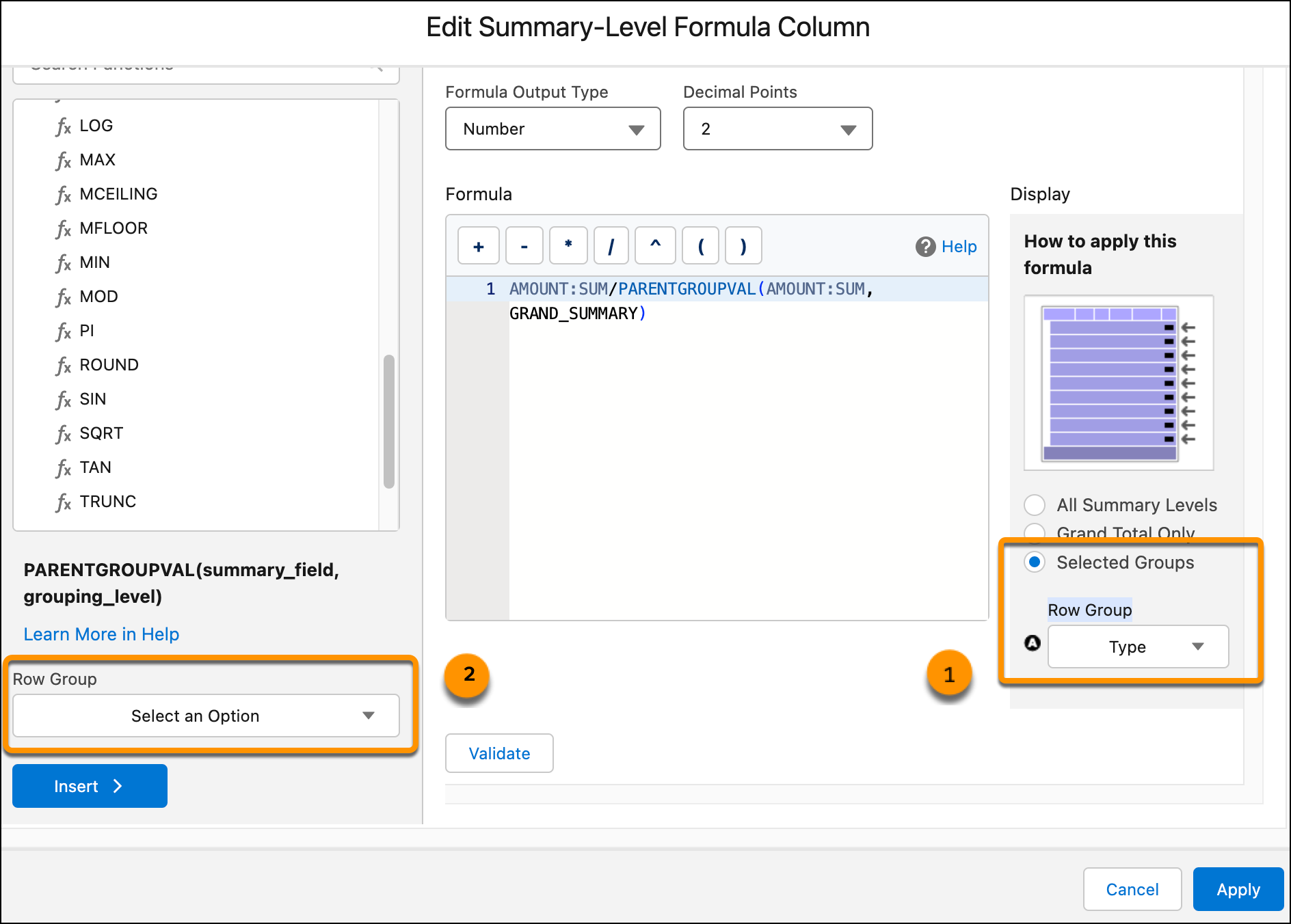
7. In the Display panel, select a specific grouping or groupings (1).
8. In the Function panel (2), select the grouping or groupings to use in the function.
The available groupings depend on what you selected in the Display area.
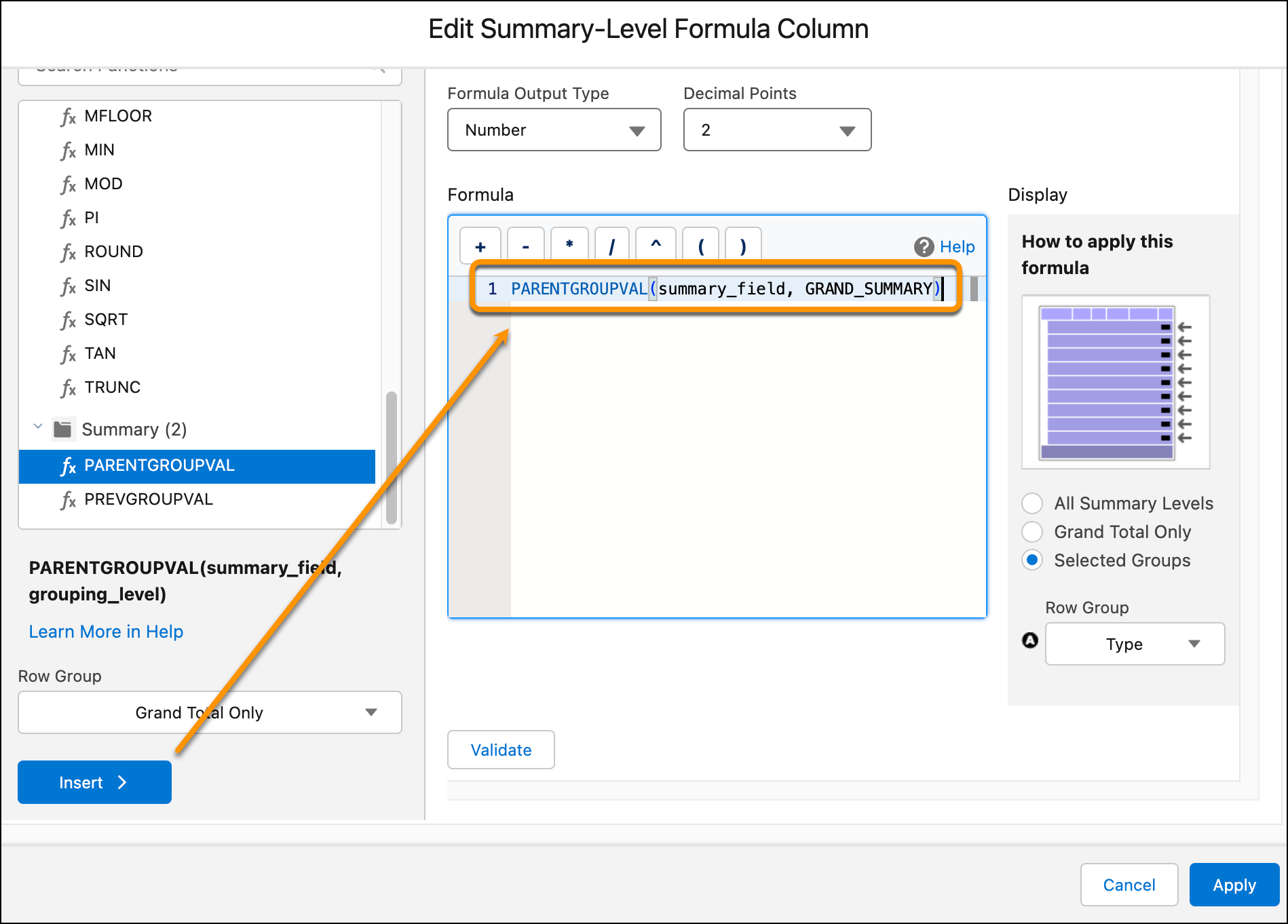
9. To add the function to your formula with the selected parameters included, click **Insert**
10. Add other parameters, functions, and operators to the formula as needed.
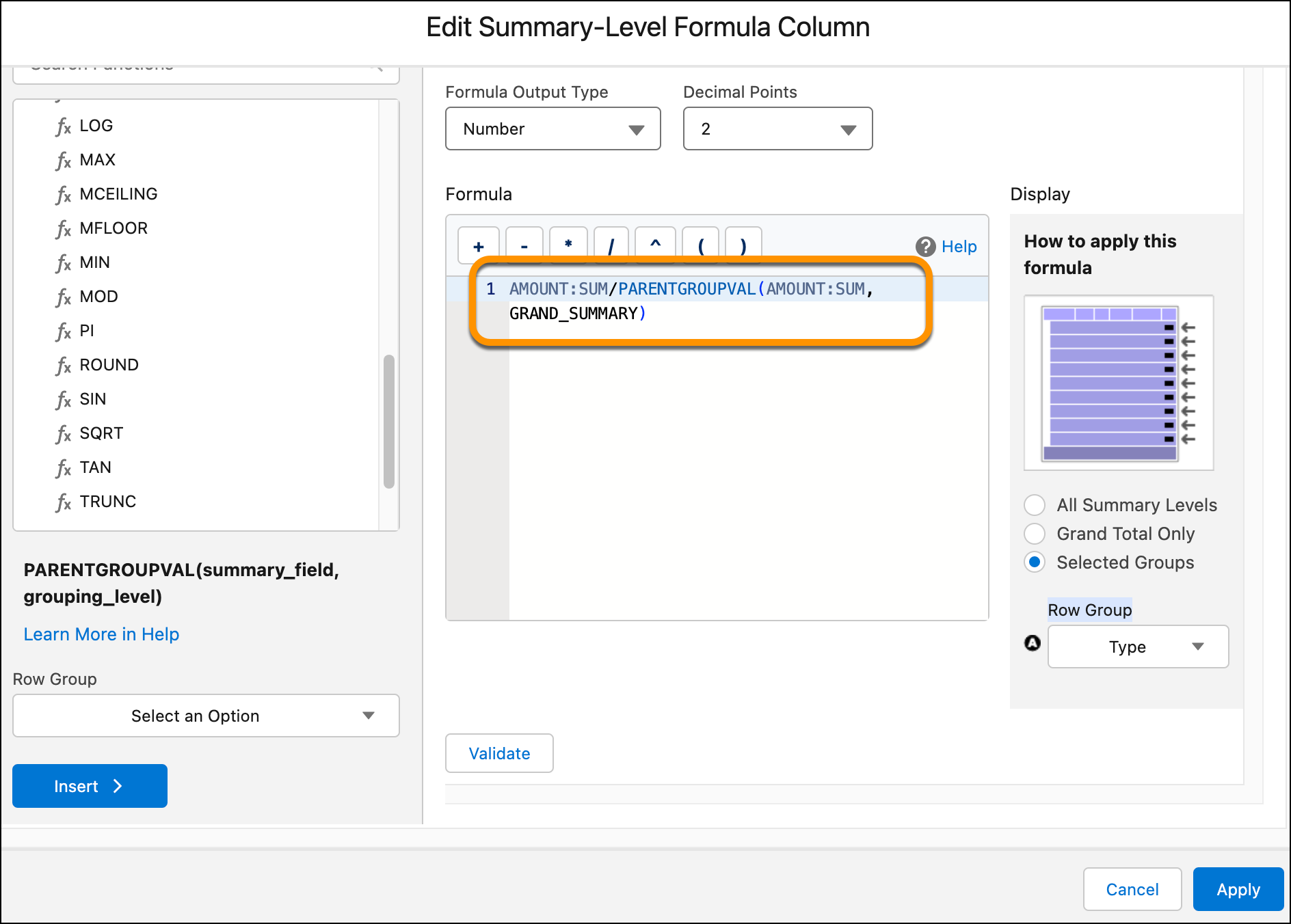
11. To check the formula, click **Validate**.
12. To close the formula builder and add the summary formula column to the report, click **Apply**.