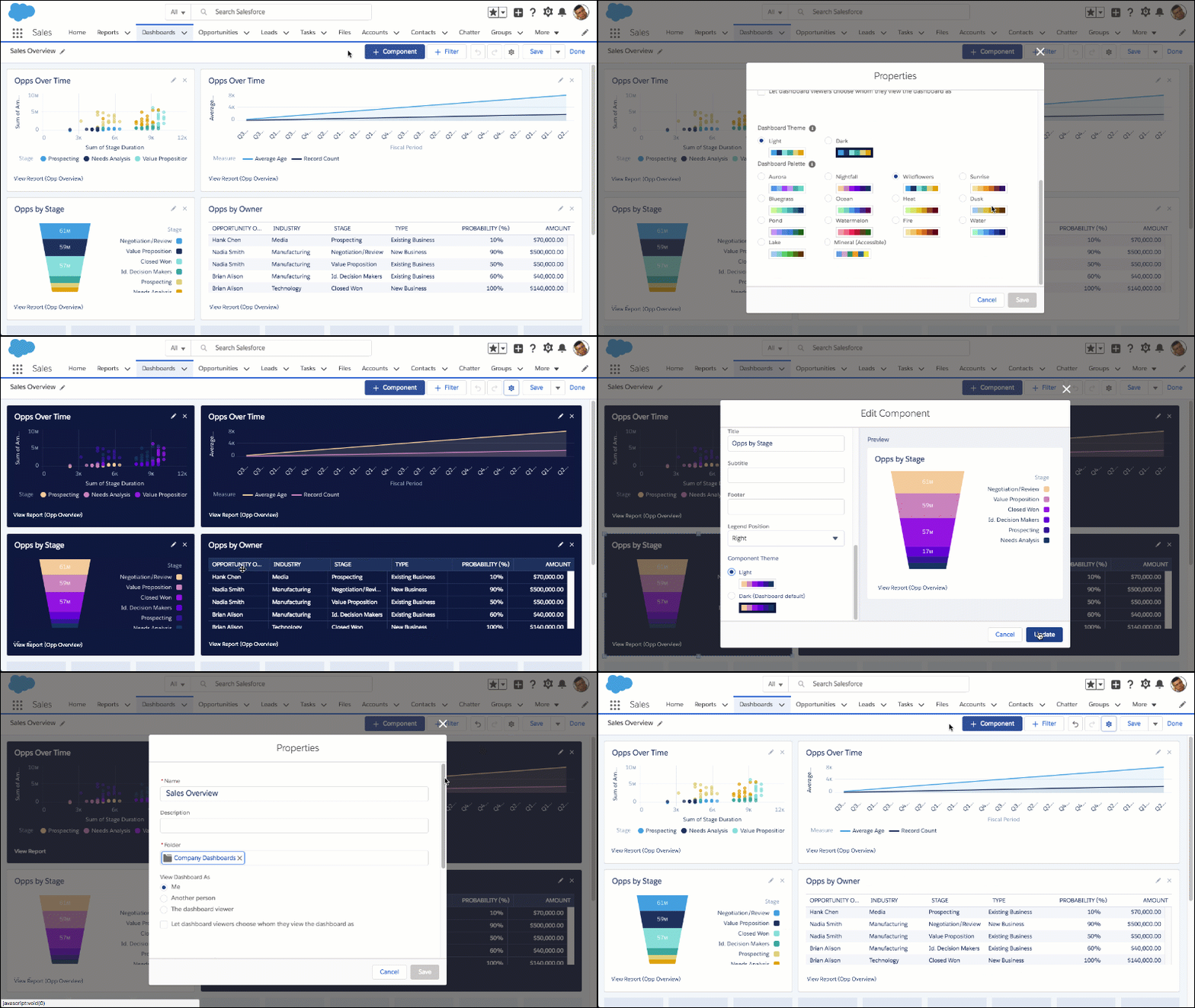
Customize the colors in your dashboard by choosing a light or dark theme and one of
14 color palettes. Themes and color palettes help you organize and curate data in your
dashboard. For example, highlight a set of summary metrics by giving them a dark theme and
setting them against a light-themed dashboard.
Required Editions
| Available in: Lightning Experience |
| Available in: Essentials, Group (View Only),
Professional, Enterprise, Performance,
Unlimited, and Developer Editions
|
| User
Permissions Needed |
| To set dashboard color themes and palettes: |
Change Dashboard Colors |
-
Edit a dashboard.
-
To change the color theme for the entire dashboard, open the properties menu by
clicking
 .
.
-
From Dashboard Theme, choose Light or
Dark.
-
From Dashboard Palette, choose one of 14 color palettes.
Wildflowers is the default color palette. If you need
an accessible color palette, choose Mineral.
-
To change the color theme for an individual widget, edit the widget by clicking
 . Scroll
through the settings and select the Light or
Dark
Component
Theme. Click Update.
. Scroll
through the settings and select the Light or
Dark
Component
Theme. Click Update.
Individual
widgets don’t support unique color palettes.
-
Save the dashboard.
If you subscribe to a dashboard that contains a custom color palette or theme, the
dashboard subscription email doesn’t display the custom palette or theme.