---
schema_version: "1"
id: 96af88b6e0a8889d2be6aae35f674fe0a695112f302b0b61c462f17727cef759
title: Color Dashboard Data with Themes and Palettes
collection: admin
version: current
locale: en-us
portal_url: https://docs.salesforce.com/admin/current/en-us/analytics/264-0-0/dashboards_color_theme.md
canonical_url: https://help.salesforce.com/s/articleView?id=analytics.dashboards_color_theme.htm&release=264.0.0&type=5
source_site: help.salesforce.com
content_type: documentation
content_hash: cfc08c446ded836a9b389d9b738cefd5500c7280f33f821bb45a78367deef6d8
description: Customize the colors in your dashboard by choosing a light or dark theme and one of 14 color palettes. Themes and color palettes help you organize and curate data in your dashboard. For example, highlight a set of summary metrics by giving them a dark theme and setting them against a light-themed dashboard.
products:
- Cross Cloud
release: "264"
---
# Color Dashboard Data with Themes and Palettes
Customize the colors in your dashboard by choosing a light or dark theme and one of 14 color palettes. Themes and color palettes help you organize and curate data in your dashboard. For example, highlight a set of summary metrics by giving them a dark theme and setting them against a light-themed dashboard.
### Required Editions
Available in: Lightning Experience
Available in: Essentials, Group (View Only), Professional, Enterprise, Performance, Unlimited, and Developer Editions
User
Permissions Needed
To set dashboard color themes and palettes:
Change Dashboard Colors
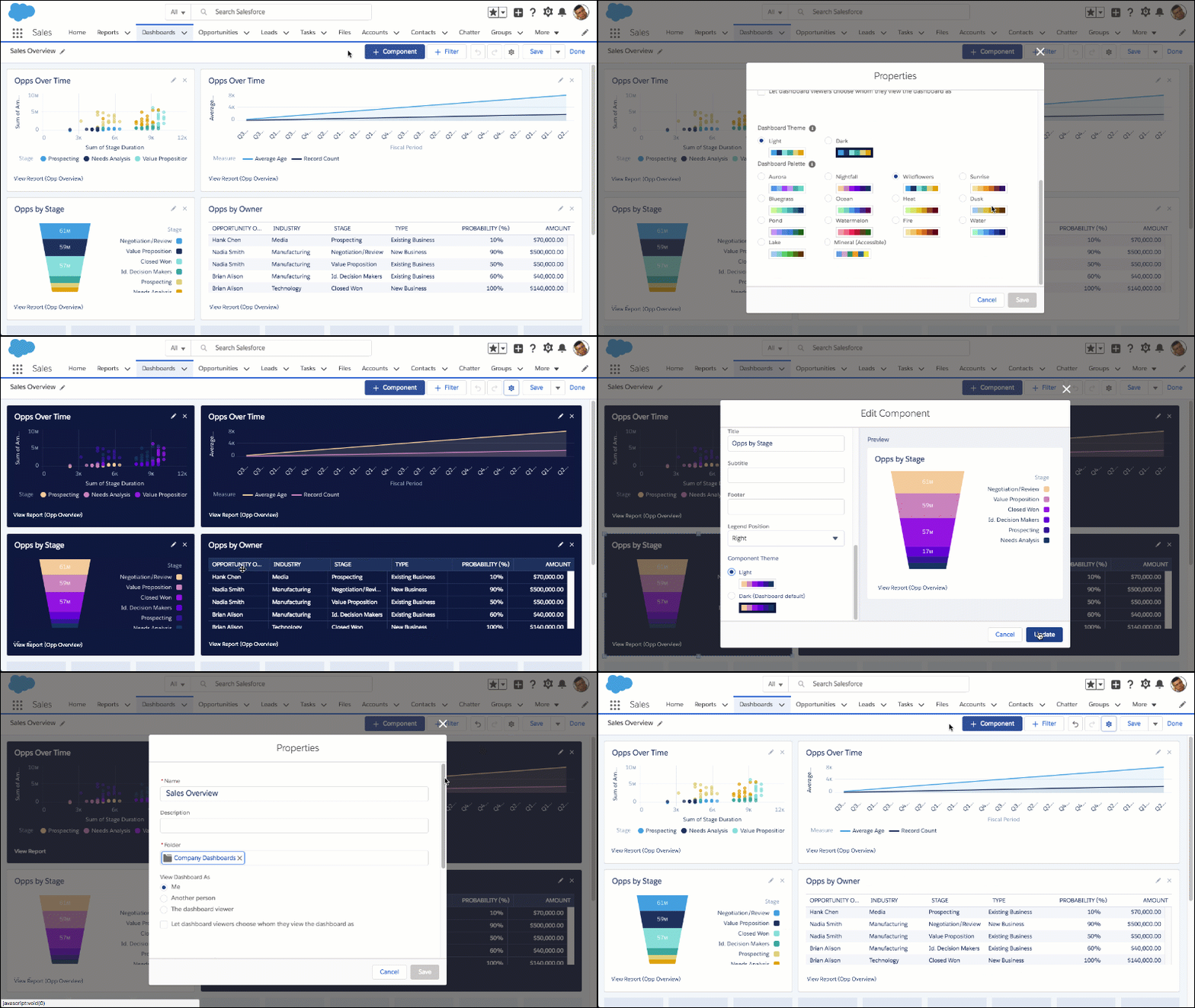
1. Edit a dashboard.
2. To change the color theme for the entire dashboard, open the properties menu by clicking .
3. From Dashboard Theme, choose **Light** or **Dark**.
4. From Dashboard Palette, choose one of 14 color palettes. **Wildflowers** is the default color palette. If you need an accessible color palette, choose **Mineral**.
5. To change the color theme for an individual widget, edit the widget by clicking . Scroll through the settings and select the **Light** or **Dark** Component Theme. Click **Update**.
Individual widgets don’t support unique color palettes.
6. Save the dashboard.
If you subscribe to a dashboard that contains a custom color palette or theme, the dashboard subscription email doesn’t display the custom palette or theme.
- **[Align Report and Dashboard Charts with Your Corporate Branding](https://help.salesforce.com/s/articleView?id=analytics.dashboards_custom_org_themes.htm&release=264.0.0&type=5)**
Apply a consistent, professional look to all your charts without the need to manually select colors for each element. Configure a brand palette once in your org’s theme settings and apply them to report and dashboard charts.