Data-defined goals are based on a measure in the semantic data model. With data-defined goals, anyone who filters or follows a sub-metric inherits the goal, and the goal stays synchronized when the source goal value changes. For example, you can create a data-defined goal based on the win rate measure. If the team has a data-defined win rate goal of 30%, and the West territory has its own goal of 28%, then users who filter the sub-metric to the West territory see the correct goal—28%. This way, users don’t need to create individual goals for each sub-metric, and your team stays in sync working towards the same goal. When a data-defined goal exists, individual goals for sub-metric can’t be created and vice versa.
Required Editions
Create Data-Defined Goals
When you create a data-defined goal, all sub-metrics inherit that goal, and the goal updates dynamically when sub-metrics are filtered. If sub-metrics already have individual goals, a data-defined goal can’t be created. Inversely, you can’t create individual goals when a data-defined goal exists at the metric level.
Required Editions
| User Permissions Needed |
| Create a data-defined goal |
Tableau Unmetered Platform Analyst or Tableau Next Platform Analyst permission
set |
-
Create a Tableau Next metric from a workspace in the semantic layer, or edit an existing
metric.
-
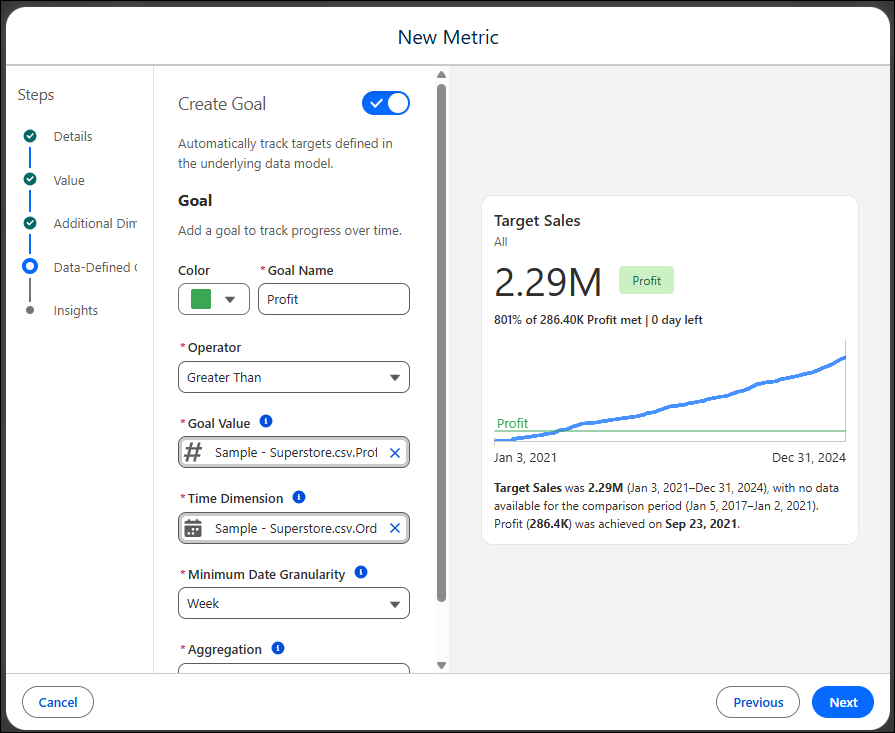
In the Data-Defined Goal step, turn the toggle on to create a
goal.
-
For the goal, complete the following fields:
-
Enter a name for your goal.
-
Select an operator.
-
Select the measure that represents your goal’s value.
-
Choose a time dimension and minimum time granularity.
-
Select how Tableau aggregates the goal measure when multiple rows match the metric’s filter and time context.
-
Save.
Anyone who filters or follows a sub-metric inherits the goal, and the goal updates dynamically. If the toggle to create a goal isn’t available, remove goals set at the sub-metric level and try again.
Edit or Delete Data-Defined Goals
To edit or delete a data-defined goal, edit the metric in the semantic layer. When a data-defined goal is deleted, the goal is removed from the metric and no longer appears for users who follow its sub-metrics.
-
Find the metric in the semantic layer, and click Edit Metric.
-
In the Data-Defined Goal step, edit the goal. Or turn the goal toggle off to delete the goal.
-
Save your changes.
