---
schema_version: "1"
id: 9dfafd99052e8a6ea31ff3c5558de50fb95ad1b6cc3434f6227160819317511b
title: Set Data-Defined Goals
collection: admin
version: current
locale: en-us
portal_url: https://docs.salesforce.com/admin/current/en-us/analytics/264-0-0/c360_a_sl_data_goal.md
canonical_url: https://help.salesforce.com/s/articleView?id=analytics.c360_a_sl_data_goal.htm&release=264.0.0&type=5
source_site: help.salesforce.com
content_type: documentation
content_hash: 72154b04a96afa3bf2fad78a6b87508090b38dd979d159fa3de95d75c16da035
description: Data-defined goals are based on a measure in the semantic data model. With data-defined goals, anyone who filters or follows a sub-metric inherits the goal, and the goal stays synchronized when the source goal value changes. For example, you can create a data-defined goal based on the win rate measure. If the team has a data-defined win rate goal of 30%, and the West territory has its own goal of 28%, then users who filter the sub-metric to the West territory see the correct goal—28%. This way, users don’t need to create individual goals for each sub-metric, and your team stays in sync working towards the same goal. When a data-defined goal exists, individual goals for sub-metric can’t be created and vice versa.
products:
- Data 360
release: "264"
---
# Set Data-Defined Goals
Data-defined goals are based on a measure in the semantic data model. With data-defined goals, anyone who filters or follows a sub-metric inherits the goal, and the goal stays synchronized when the source goal value changes. For example, you can create a data-defined goal based on the win rate measure. If the team has a data-defined win rate goal of 30%, and the West territory has its own goal of 28%, then users who filter the sub-metric to the West territory see the correct goal—28%. This way, users don’t need to create individual goals for each sub-metric, and your team stays in sync working towards the same goal. When a data-defined goal exists, individual goals for sub-metric can’t be created and vice versa.
### Required Editions
## Create Data-Defined Goals
When you create a data-defined goal, all sub-metrics inherit that goal, and the goal updates dynamically when sub-metrics are filtered. If sub-metrics already have individual goals, a data-defined goal can’t be created. Inversely, you can’t create individual goals when a data-defined goal exists at the metric level.
### Required Editions
User Permissions Needed
Create a data-defined goal
Tableau Unmetered Platform Analyst or Tableau Next Platform Analyst permission
set
1. Create a Tableau Next metric from a workspace in the semantic layer, or edit an existing metric.
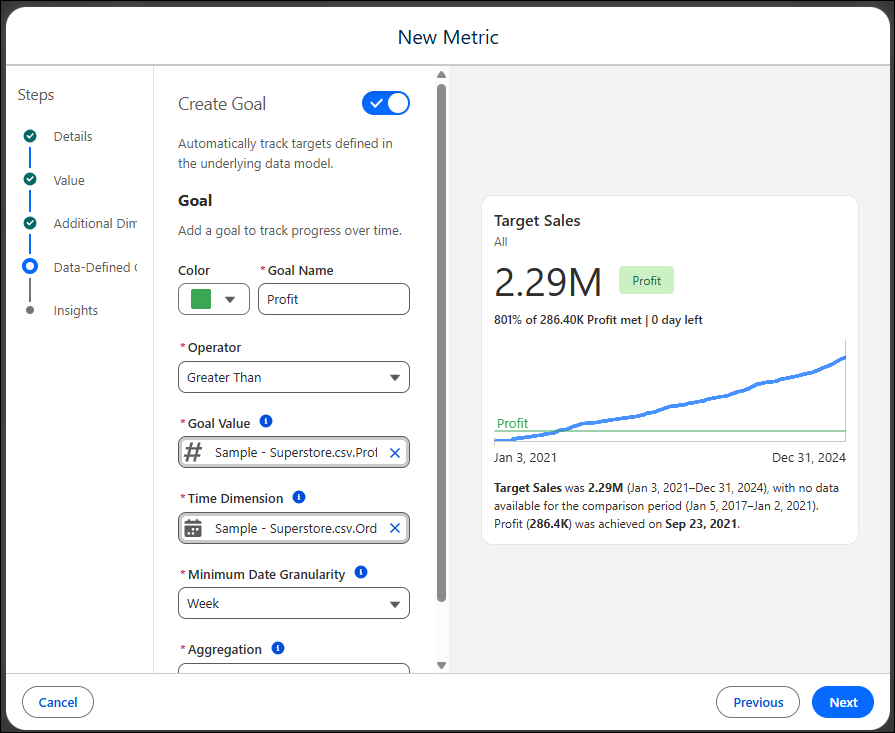
2. In the **Data-Defined Goal** step, turn the toggle on to create a goal.
3. For the goal, complete the following fields:
1. Enter a name for your goal.
2. Select an operator.
3. Select the measure that represents your goal’s value.
4. Choose a time dimension and minimum time granularity.
5. Select how Tableau aggregates the goal measure when multiple rows match the metric’s filter and time context.
4. Save.
Anyone who filters or follows a sub-metric inherits the goal, and the goal updates dynamically. If the toggle to create a goal isn’t available, remove goals set at the sub-metric level and try again.
## Edit or Delete Data-Defined Goals
To edit or delete a data-defined goal, edit the metric in the semantic layer. When a data-defined goal is deleted, the goal is removed from the metric and no longer appears for users who follow its sub-metrics.
1. Find the metric in the semantic layer, and click **Edit Metric**.
2. In the Data-Defined Goal step, edit the goal. Or turn the goal toggle off to delete the goal.
3. Save your changes.