Specify who can create apps and edit and delete datasets and dashboards by making
Analytics Studio invisible to Analytics Tab users on a per profile basis. When you remove
Analytics Studio visibility from a profile, Analytics tab users with the profile don’t see
Analytics Studio in the App Launcher. They also don’t have the Open in Analytics Studio action in
asset menus and dashboard headers.
Required Editions
| Available in Salesforce Classic and Lightning Experience. |
| Available with CRM Analytics, which is available for an extra cost in
Enterprise, Performance, and Unlimited Editions. Also available in
Developer Edition.
|
| User Permissions Needed |
| To modify settings: |
Manage CRM Analytics |
To restrict access to the Analytics Studio within the Analytics tab, complete the following
steps.
-
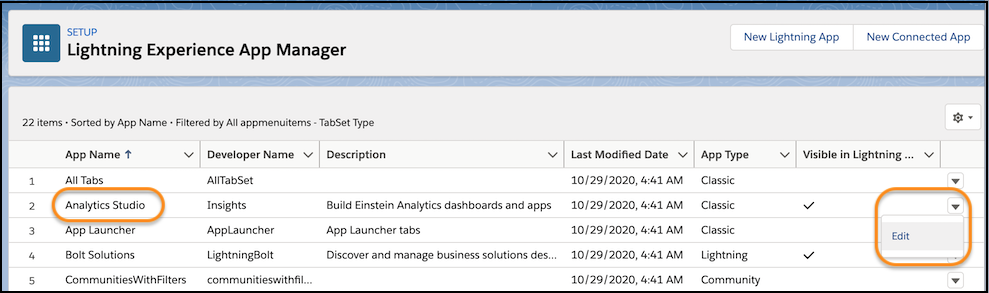
From Setup, in the Quick Find box, enter App
Manager.
-
In the App Manager, open the Analytics Studio menu and select
Edit.
-
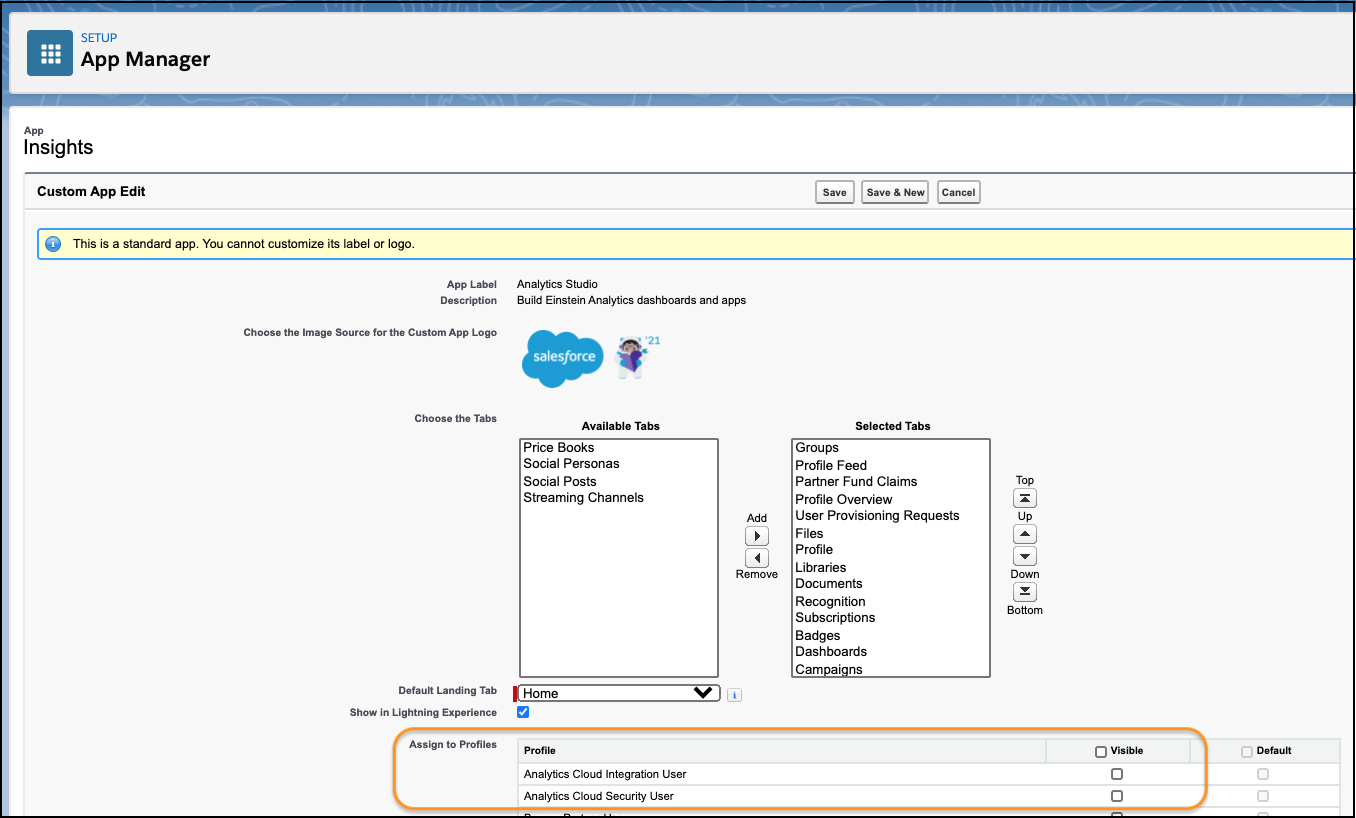
To restrict access to the Analytics Studio for a profile, clear its check from the
Visible column in the Assign to Profiles section.