
When you upload an external data file, CRM Analytics kicks off a job that uploads the data into the specified dataset. You can use the Monitor tab of the data manager to monitor and troubleshoot the upload job.
Required Editions
| Available in Salesforce Classic and Lightning Experience. |
| Available with CRM Analytics, which is available for an extra cost in Enterprise, Performance, and Unlimited Editions. Also available in Developer Edition. |
| User Permissions Needed | |
|---|---|
| To access the Monitor tab of the data manager: | Edit CRM Analytics Dataflows, Upload External Data to CRM Analytics, or Manage CRM Analytics |
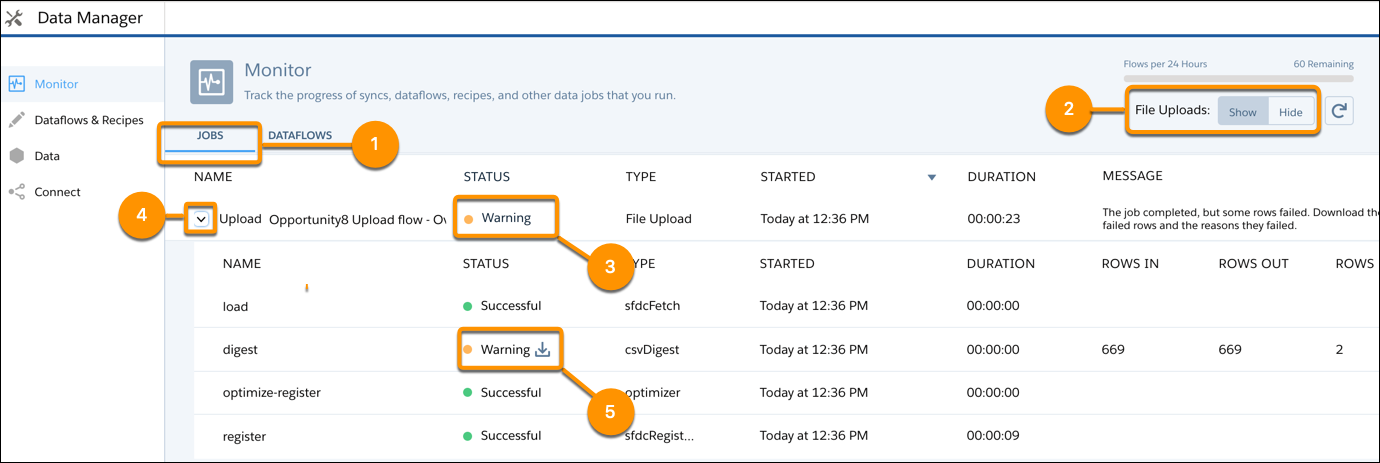
The Jobs subtab (1) of the Monitor tab shows the status, start time, and duration of each dataflow, data sync, recipe, and external data upload job. It shows jobs for the last 7 days.

Note Duration is calculated as the sum of the job queue time and job run time.
- In CRM Analytics, click the gear icon (
 ) and
then click Data Manager.
The data manager opens on the Monitor tab, with the Jobs subtab selected by default. It displays each upload job name as
) and
then click Data Manager.
The data manager opens on the Monitor tab, with the Jobs subtab selected by default. It displays each upload job name as<dataset_name upload flow>. You can hover a job to view the entire name.Note To view external data upload jobs in the Jobs view, make sure that the File Uploads selector (2) is set to Show. Show is the default selection. - To see the latest status of a job, click the Refresh Jobs button (
 ).
Each job can have one of these statuses.
).
Each job can have one of these statuses.Status Description Queued The job is in queue to start. Running The job is running. Failed The job failed. Successful The job completed successfully. Warning The job completed successfully, but some rows failed. A message is displayed next to jobs with a status of Warning (3) or Failed . If you can’t see the complete message, click the message to view all of it.
- To view the run-time details for a job, expand the job node (4).
The run-time details display under the job. In the run-time details section, scroll to the right to view information about the rows that were processed.
- To troubleshoot a job that has failed rows, view the error message. If an error log is
available, click the status text or download button (5) to download the log.
Note Only the user who uploaded the external data file can download the error log.
The error log contains a list of failed rows.

- To troubleshoot a failed job, view the error message and the run-time details.