
In Data Manager, the Monitor's Dataflows tab shows status, start time, and duration of the last 10 dataflow jobs. It retains the last 7 days of job history. You can view error messages about each job, view the run-time details about every transformation that is processed, monitor the number of jobs remaining from your org’s 24-hour limit, and download error logs.
Required Editions
| Available in Salesforce Classic and Lightning Experience. |
| Available with CRM Analytics, which is available for an extra cost in Enterprise, Performance, and Unlimited Editions. Also available in Developer Edition. |
| User Permissions Needed | |
|---|---|
| To access the monitor: | Edit CRM Analytics Dataflows, Upload External Data to CRM Analytics, or Manage CRM Analytics |
| To download an error log: |
Edit CRM Analytics Dataflows and View All Data  Note The View All Data
permission is required to download an error log run by another user. The user who
ran the dataflow or uploaded a CSV is able to download the error log without the
View All Data permission.
|
- On the Monitor tab of Data Manager, click Dataflows (1).
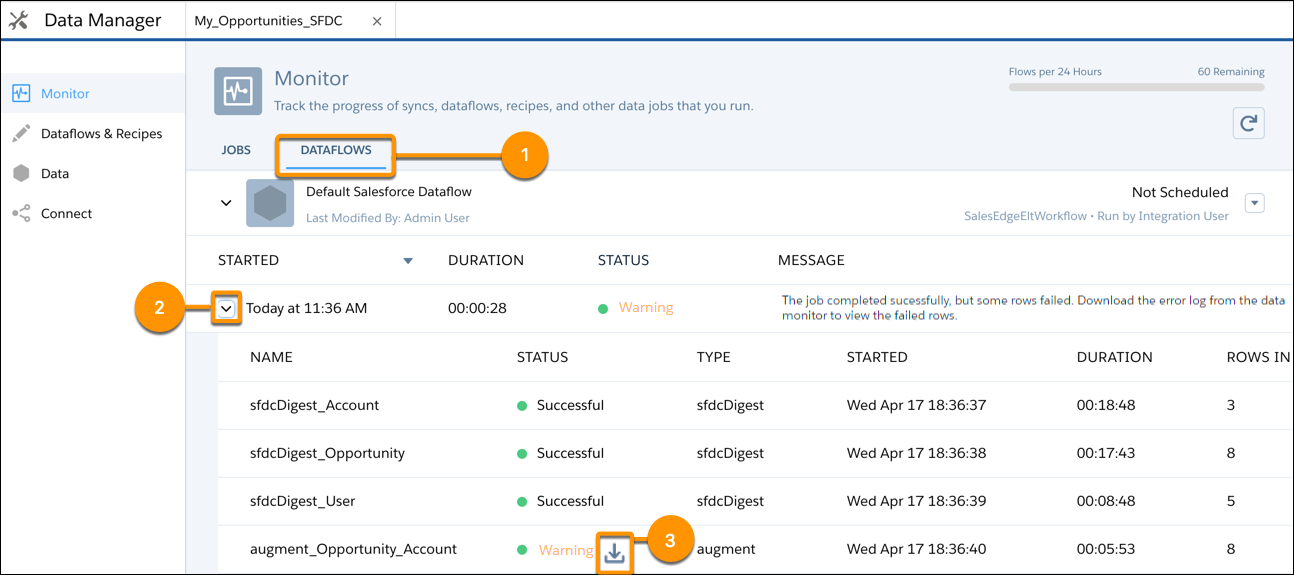 Note Duration is calculated as the sum of the job queue time and job run time.
 - Monitor the flow indicator to see how many dataflow and recipe jobs can be run in a
rolling 24-hour period.
 Note Runs less than 2 minutes in duration, and data sync, don’t count toward this limit. To request a higher 24-hour limit, contact Salesforce Support.
 - Click
 to see the latest status of a job.
Each job can have one of these statuses.
to see the latest status of a job.
Each job can have one of these statuses.Status Description Running The job is running. Failed The job failed. Successful The job completed successfully. Warning The job completed successfully, but some rows failed. - If the dataflow job fails, expand the job node (2) to view the run-time details for every transformation that was processed.
- If an error log is available for a node, click the download log button (3) to download
a CSV file containing the failed rows.
Note Error logs display the data from rows that have failed to load. To maintain data security and prevent unauthorized access to this data, only the dataflow owner or users with the View All Data permission can download an error log.
- If there’s a problem with the dataflow logic, edit the dataflow and then run it again.