End users can pin and hide their collections giving them more options with customizing
their homepage. Admins and managers have the option to pin collections to end-user homepages and
promote trusted content among groups and teams.
Required Editions
| Available in: Lightning Experience |
| Available in: Essentials, Group, Enterprise, Professional,
Unlimited, and Developer Editions.
|
| Also available with CRM Analytics, which is available for an extra cost in
Performance, Enterprise, Unlimited, and Developer
Editions.
|
| User Permissions Needed |
| To pin and hide a collection: |
- Enhanced Folder Sharing
- Run Reports AND Create and Customize Dashboards
|
| To pin and hide a collection with CRM Analytics items: |
Use CRM Analytics |
| Pin and hide a collection for another end user: |
Manage CRM Analytics |
- Pin a collection to your home page.
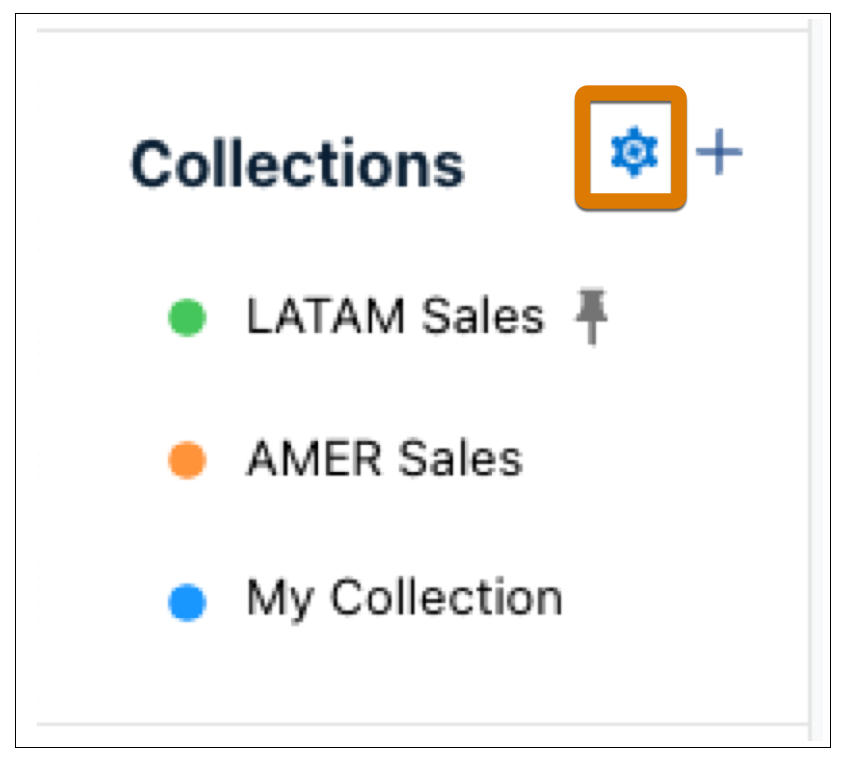
- Click the gear icon in the Collections panel on your homepage.
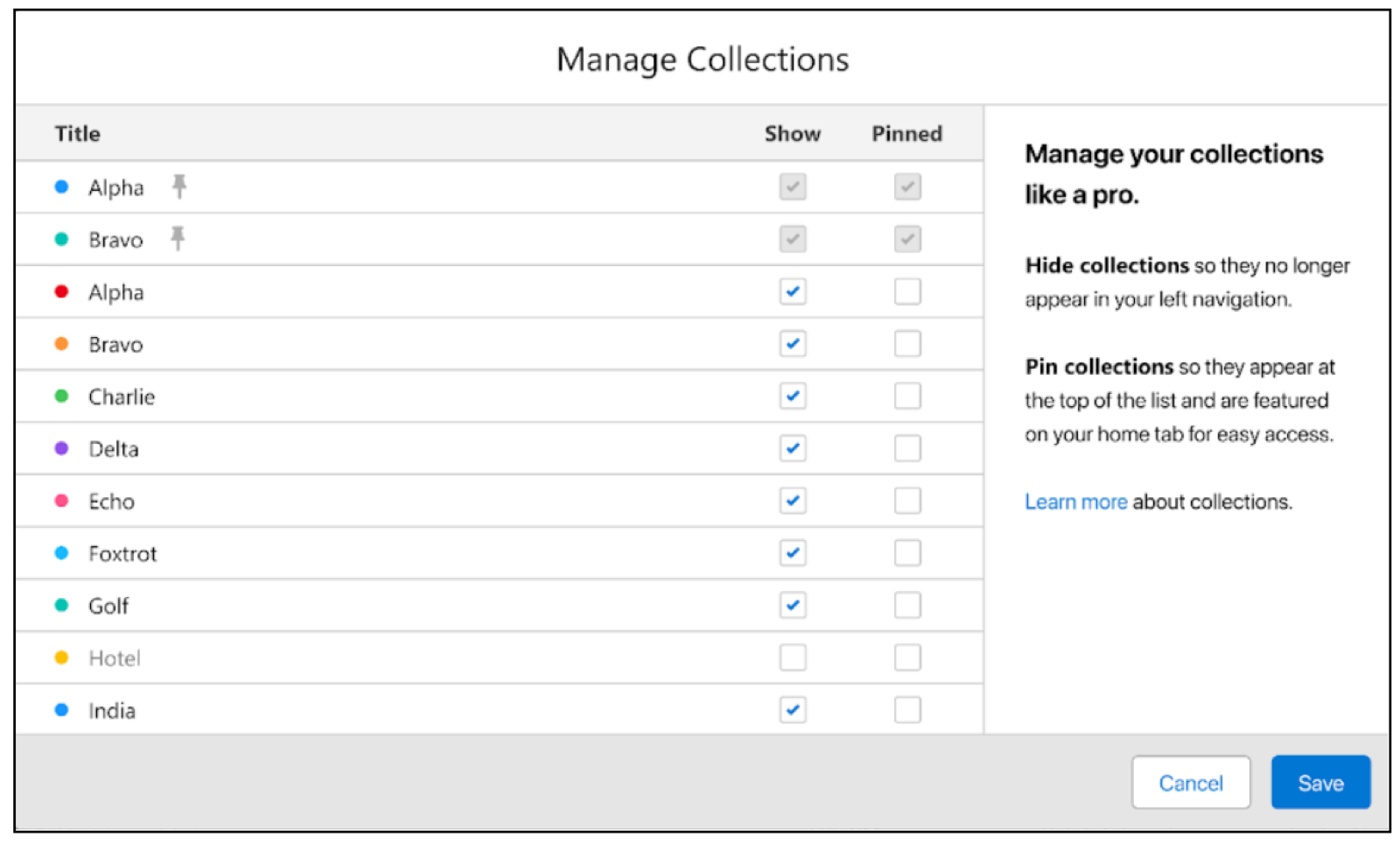
- Locate the collection you want to pin on the Manage Collections page and click the
checkbox in the Pinned column for the collection.
- Click Save.
- Hide a collection from your home page.
- Click the gear icon in the Collections panel on your homepage.
- Locate the collection you want to hide and uncheck the checkbox in the Show column.
- Click Save.
- Pin or hide a collection for another end user. Requires the Manage Analytics
user permission.
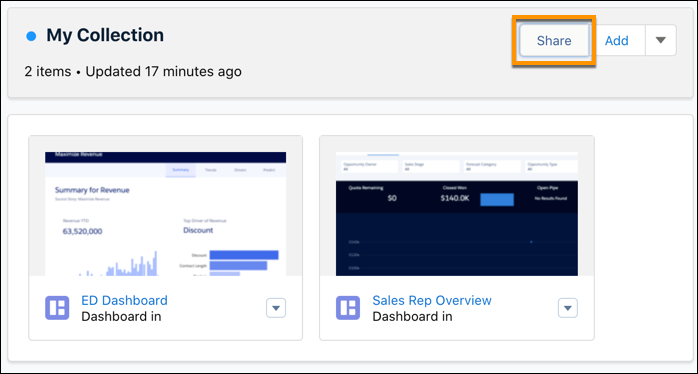
- Open a collection.
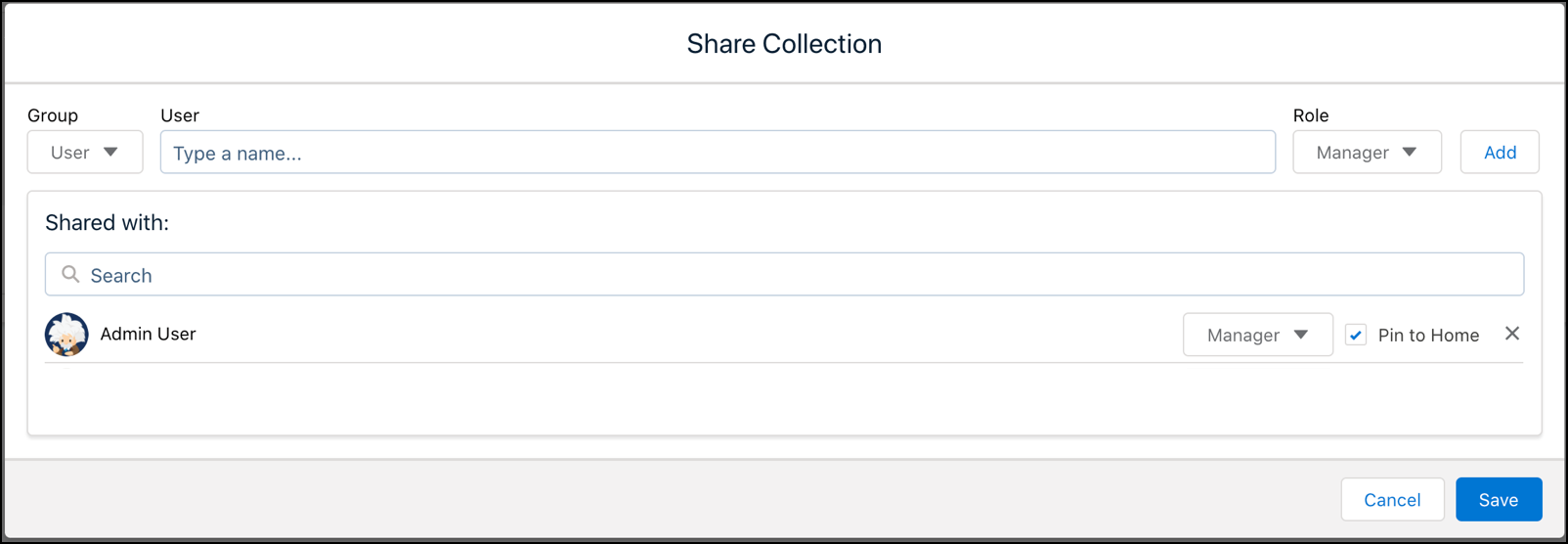
- Click the Share button.
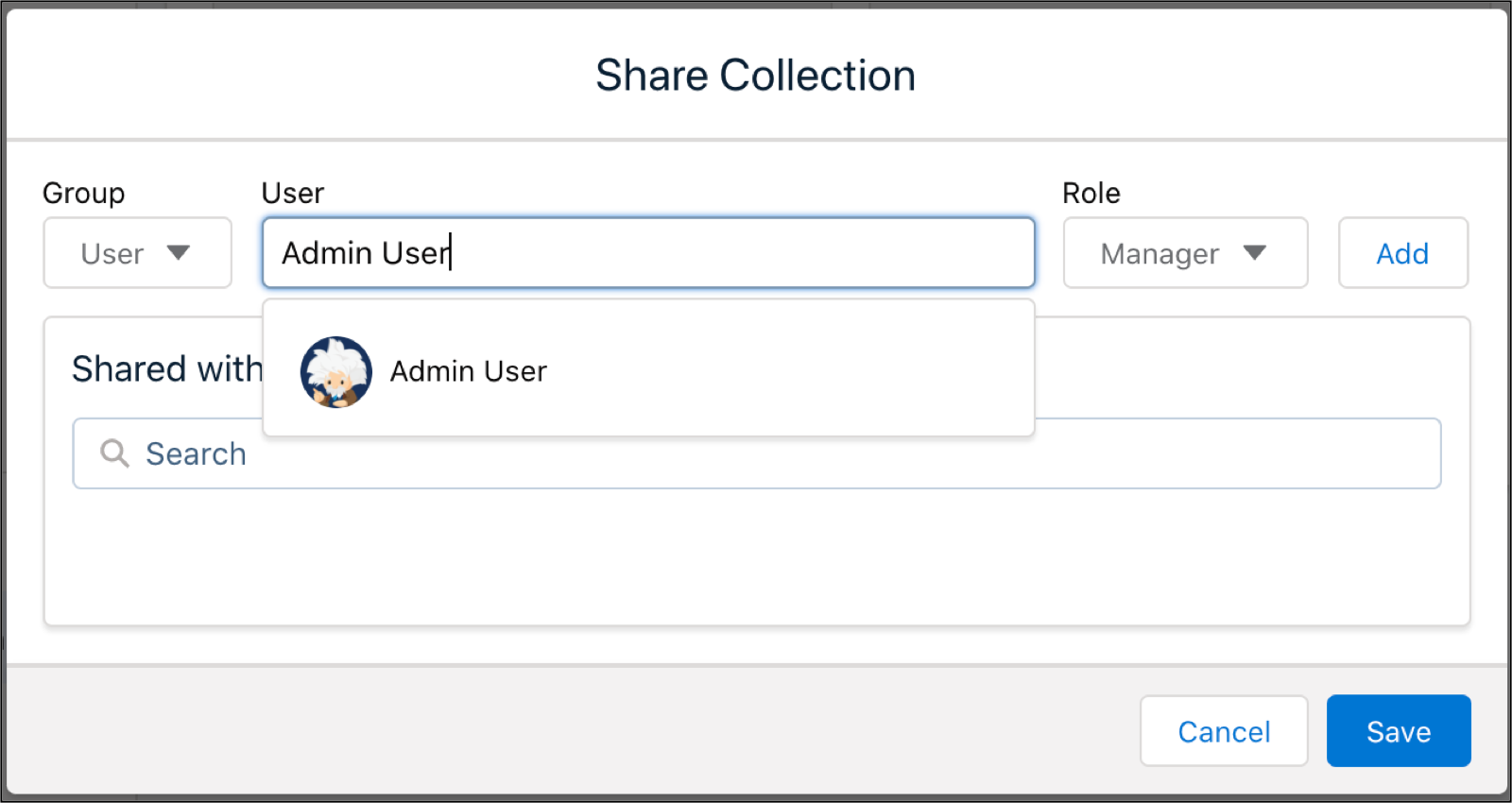
- Use the Group dropdown menu to filter your search by user, group,
or role.
- Type in a name in the User field. Click the match that it
finds.
- Assign a role by clicking the Role dropdown menu.
| Collection Roles |
| Viewer |
View contents of the collection. |
| Editor |
Add, remove, and reorder items in the collection. |
| Manager |
Change sharing settings, edit collection properties, and delete the
collection. |
- Click Add.
- Click the Pin to Home checkbox. To hide a collection that’s
already pinned, you can uncheck Pin to Home to remove the collection
from the end user’s home page.
- Click Save.