Schedule the Service Analytics Data Sync and Dataflow
Schedule a daily app refresh to assure that Service Analytics uses up-to-date data.
Required Editions
| User Permissions Needed | |
|---|---|
| To create and manage CRM Analytics apps: | Manage CRM Analytics Templated Apps |
| Edit CRM Analytics Dataflows | |
When you create Service Analytics, the creation process includes a dataflow that imports the latest Services Cloud data to CRM Analytics. You can schedule the app to refresh daily to assure that your app uses up-to-date Salesforce data. Schedule the refresh to take place sometime outside normal business hours so the processes don’t interrupt your use of the app.

Note The Service Analytics dataflow runs only one time when you create the app. Schedule it to
refresh daily so the app uses the latest sales data.
- From Setup, in the Quick Find box, enter App Install History, and then select App Install History.
- Find your app in the list of installed apps.
-
Click the dropdown arrow
 to the far right of the app. From
the menu that appears, select Schedule.
to the far right of the app. From
the menu that appears, select Schedule.
-
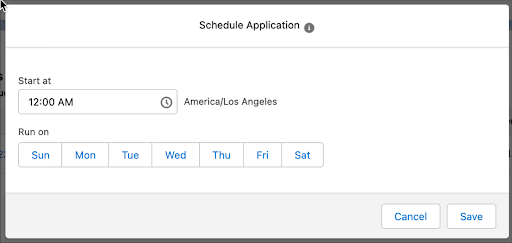
Pick the days you want and set a time for refreshing the app data. It’s best to select a
time outside normal working hours so the data refresh doesn’t interrupt business activities.
Then click Save.