
Unresolved include directive in modules/ROOT/pages/mulesoft-inference-connector-config-acb.adoc - include::connectors::partial$configure-acb-connectors-partial.adoc[]
新しいインテグレーションプロジェクトを作成する
Unresolved include directive in modules/ROOT/pages/mulesoft-inference-connector-config-acb.adoc - include::connectors::partial$configure-acb-connectors-partial.adoc[]
プロジェクトにコンポーネントを追加する
Unresolved include directive in modules/ROOT/pages/mulesoft-inference-connector-config-acb.adoc - include::connectors::partial$configure-acb-connectors-partial.adoc[]
フローのトリガーを設定する
Unresolved include directive in modules/ROOT/pages/mulesoft-inference-connector-config-acb.adoc - include::connectors::partial$configure-acb-connectors-partial.adoc[]
インテグレーションプロジェクトにコネクタを追加する
-
[Explorer] ビューで、目的のプロジェクトの設定 XML ファイル (
my-project-name.xml など) を開きます。 -
キャンバス UI が自動的に開かない場合は、アクティビティバーの
 (Show Mule graphical mode (Mule グラフィカルモードを表示)) アイコンをクリックしてキャンバス UI を開きます。
 -
キャンバス UI から他のコンポーネントを追加した方法と同じ方法でコネクタを追加します。
-
キャンバス UI で
 アイコン",15,15] ([Add component (コンポーネントを追加)]) アイコンをクリックします。
 -
[Add Component (コンポーネントを追加)] パネルで [Connectors (コネクタ)] をクリックします。
-
-
 アイコン",15,15] ([Search in Exchange (Exchange 内を検索)]) 切り替えをクリックします。
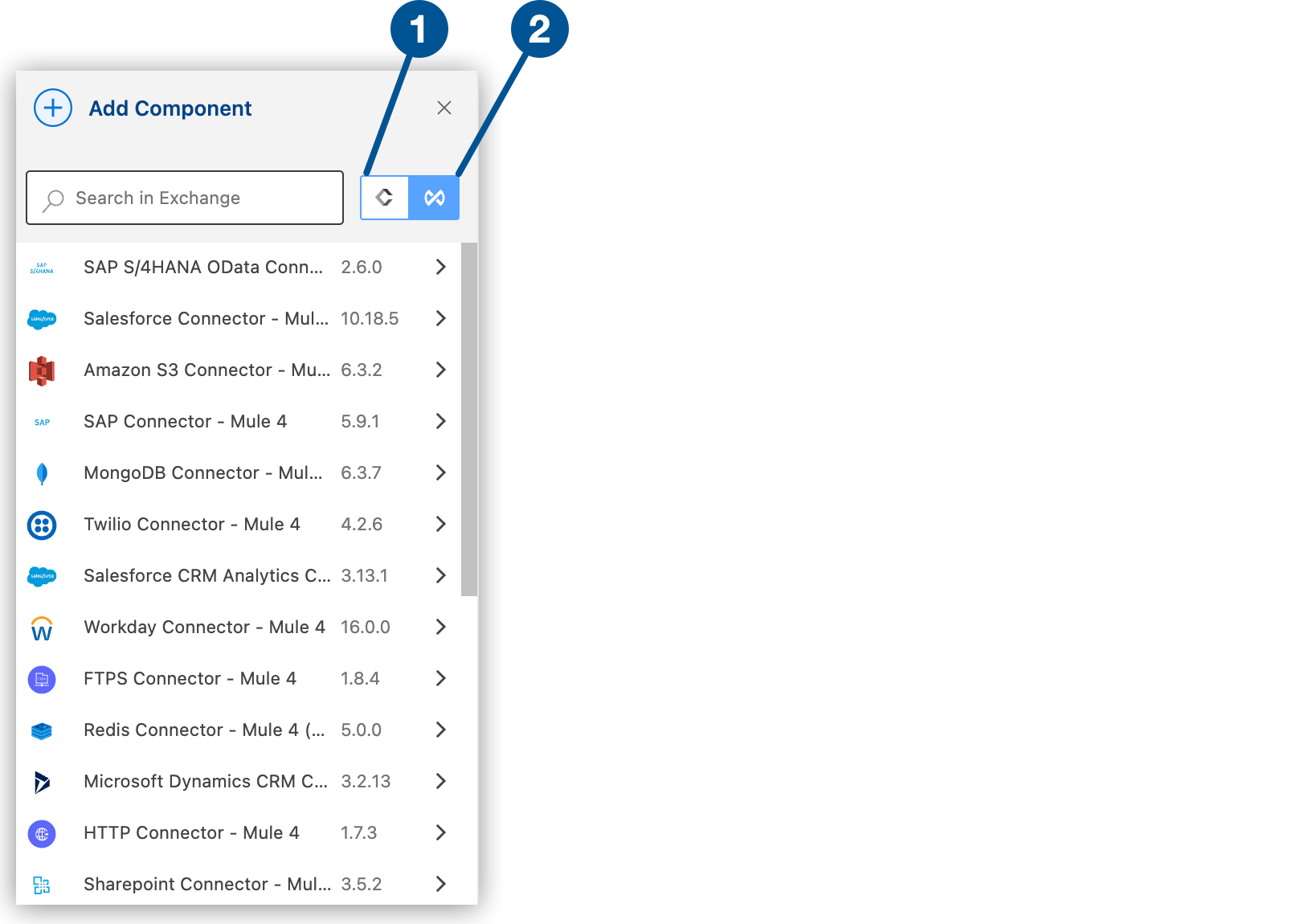 切り替え"]
 -
検索ボックスに「
mulesoft inference」と入力します。 -
コネクタを選択してプロジェクトに追加します。
コネクタをインテグレーションプロジェクトに追加しても、Anypoint Code Builder ワークスペースの他のプロジェクトはそのコネクタを使用できません。
グローバル設定を追加する
-
設定 XML で、
<flow/> 要素の前にカーソルを置いて「ms-inference」と入力します。カーソルが
<flow/> 要素の内側にないことを確認します。 -
スニペットを選択します。次に、使用可能な設定に基づくいくつかの例 (OpenAI を使用) を示します。
<ms-inference:text-generation-config name="OpenAITextGen" doc:name="MuleSoft Inference Text generation config" doc:id="1ef66d01-d3ec-442a-bf61-99919d73f97e" >
<ms-inference:openai-connection apiKey="${openai.apiKey}" openAIModelName="${openai.llmModel}" timeout="60000" />
</ms-inference:text-generation-config>
<ms-inference:moderation-config name="OpenAIModeration" doc:name="MuleSoft Inference Moderation config" doc:id="8bd9c1fe-3176-4319-9d91-090e4e6da3cc" > <ms-inference:openai-moderation-connection apiKey="${openai.apiKey}" openAIModelName="${openai.moderation}"/> </ms-inference:moderation-config><ms-inference:image-generation-config name="OpenAIImageGen" doc:name="MuleSoft Inference Image generation config" doc:id="aba51427-1dd3-4915-a411-8fe6543ee6ac" > <ms-inference:openai-image-connection apiKey="${openai.apiKey}" openAIModelName="${openai.imageGenModel}" /> </ms-inference:image-generation-config><ms-inference:vision-config name="OpenAIVision" doc:name="MuleSoft Inference Vision config" doc:id="797661b2-a4ac-493d-8550-45d05d03da17" > <ms-inference:openai-vision-connection apiKey="${openai.apiKey}" openAIModelName="${openai.visionModel}" /> </ms-inference:vision-config> -
属性を追加して設定を完了します。
プロバイダー固有の設定
選択した推論プロバイダーによっては、追加の設定が必要になる場合があります。例:
<ms-inference:text-generation-config
    provider="OPENAI"
    modelName="gpt-4o"
    temperature="0.7"
    maxTokens="1000"
    timeout="60"
    name="OpenAIConfig">
</ms-inference:text-generation-config>
その他のコネクタ項目の設定
コネクタのグローバル要素を設定したら、他の必須項目を設定します。必須項目は、使用するコネクタアクションによって異なります。
MuleSoft Inference Connector アクションの設定についての詳細は、「MuleSoft Inference Connector - 追加設定情報」を参照してください。