---
schema_version: "1"
id: db6b75c8dbf758147d7d2d1292d8e1bd9e17e388be20f7ac2b7e5c706747a012
title: Anypoint Code Builder を使用した Configure MuleSoft Inference Connector 1.0 の設定
collection: mulesoft
version: current
locale: ja-jp
portal_url: https://docs.salesforce.com/mulesoft/current/ja-jp/mulesoft-inference-connector/1.0/mulesoft-inference-connector-config-acb.md
canonical_url: https://docs.mulesoft.com/jp/mulesoft-inference-connector/1.0/mulesoft-inference-connector-config-acb
source_site: docs.mulesoft.com
content_type: documentation
content_hash: d59dd0b04b6d4cac9b303e383997e06884e2a760952864c0b2d4fd294f644740
description: MuleSoft Documentation Site
release: "1.0"
latest: true
---
# Anypoint Code Builder を使用した Configure MuleSoft Inference Connector 1.0 の設定
Unresolved include directive in modules/ROOT/pages/mulesoft-inference-connector-config-acb.adoc - include::connectors::partial$configure-acb-connectors-partial.adoc\[\]
## [](#create-new-integration-project)新しいインテグレーションプロジェクトを作成する
Unresolved include directive in modules/ROOT/pages/mulesoft-inference-connector-config-acb.adoc - include::connectors::partial$configure-acb-connectors-partial.adoc\[\]
## [](#add-components-to-project)プロジェクトにコンポーネントを追加する
Unresolved include directive in modules/ROOT/pages/mulesoft-inference-connector-config-acb.adoc - include::connectors::partial$configure-acb-connectors-partial.adoc\[\]
## [](#configure-http-trigger)フローのトリガーを設定する
Unresolved include directive in modules/ROOT/pages/mulesoft-inference-connector-config-acb.adoc - include::connectors::partial$configure-acb-connectors-partial.adoc\[\]
## [](#add-connector-to-project)インテグレーションプロジェクトにコネクタを追加する
1. \[Explorer\] ビューで、目的のプロジェクトの設定 XML ファイル (`my-project-name.xml` など) を開きます。
2. キャンバス UI が自動的に開かない場合は、アクティビティバーの  (**Show Mule graphical mode (Mule グラフィカルモードを表示)**) アイコンをクリックしてキャンバス UI を開きます。
3. キャンバス UI から他のコンポーネントを追加した方法と同じ方法でコネクタを追加します。
1. キャンバス UI で  アイコン",15,15\] (**\[Add component (コンポーネントを追加)\]**) アイコンをクリックします。
2. **\[Add Component (コンポーネントを追加)\]** パネルで **\[Connectors (コネクタ)\]** をクリックします。
4.  アイコン",15,15\] (**\[Search in Exchange (Exchange 内を検索)\]**) 切り替えをクリックします。
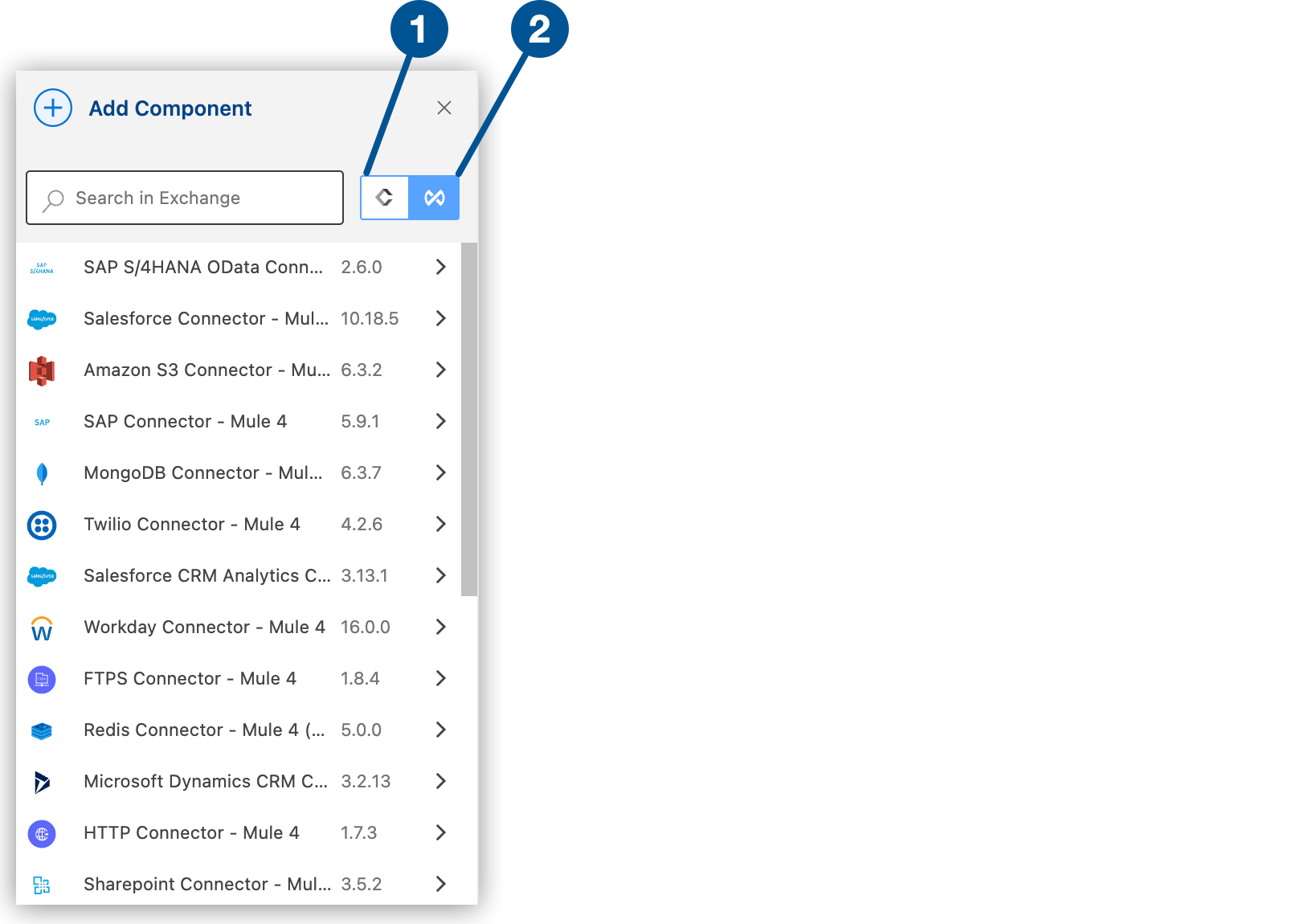 切り替え"\]
5. 検索ボックスに「`mulesoft inference`」と入力します。
6. コネクタを選択してプロジェクトに追加します。
コネクタをインテグレーションプロジェクトに追加しても、Anypoint Code Builder ワークスペースの他のプロジェクトはそのコネクタを使用できません。
## [](#add-global-config)グローバル設定を追加する
1. 設定 XML で、`` 要素の前にカーソルを置いて`「ms-inference」`と入力します。
カーソルが `` 要素の内側にないことを確認します。
2. スニペットを選択します。次に、使用可能な設定に基づくいくつかの例 (OpenAI を使用) を示します。
```xml
```
```xml
```
```xml
```
```xml
```
3. 属性を追加して設定を完了します。
## [](#プロバイダー固有の設定)プロバイダー固有の設定
選択した推論プロバイダーによっては、追加の設定が必要になる場合があります。例:
```xml
```
## [](#その他のコネクタ項目の設定)その他のコネクタ項目の設定
コネクタのグローバル要素を設定したら、他の必須項目を設定します。必須項目は、使用するコネクタアクションによって異なります。
MuleSoft Inference Connector アクションの設定についての詳細は、[「MuleSoft Inference Connector - 追加設定情報」](https://docs.mulesoft.com/jp/mulesoft-inference-connector/1.0/mulesoft-inference-additional-config)を参照してください。
## [](#関連情報)関連情報
- [Anypoint Connector の概要](https://docs.mulesoft.com/connectors/introduction/introduction-to-anypoint-connectors)
- [MuleSoft Inference Connector リファレンス](https://docs.mulesoft.com/jp/mulesoft-inference-connector/1.0/mulesoft-inference-connector-reference)
- [MuleSoft Inference - 追加設定情報](https://docs.mulesoft.com/jp/mulesoft-inference-connector/1.0/mulesoft-inference-additional-config)
- [MuleSoft ヘルプセンター](https://help.mulesoft.com)