
Microsoft Dynamics 365 for Operations 用 Anypoint Connector を使用すると、Microsoft Dynamics 365 for Operations Web API とのインテグレーションが可能になります。このコネクタは、Anypoint Studio を使用して設定することできます。このコネクタでは、OAuth 2、またはユーザー名とパスワードを使用した OAuth 2 の接続種別が可能です。
このコネクタにより、次の操作を実行できるようになります。
-
Microsoft Dynamics 365 for Operations サーバーへのアクセスの認証または認証の取り消しを行う
-
Microsoft Dynamics 365 for Operations サーバーに定期的なジョブを作成する
-
複数のエントリを取得する (DataSense クエリ言語を使用した取得を含む)
-
操作を実行する
始める前に
-
ソフトウェアの要件および互換性に関する情報は、「Microsoft Dynamics 365 for Operations Connector リリースノート」を参照してください。
-
Microsoft Dynamics 365 for Operations および Anypoint Platform (Mule Runtime Engine、Anypoint Studio、Mule フローの要素、グローバル要素を含む) に精通していること。
-
対象リソースへの接続をテストするには、ログイン情報が必要です。
-
Apache Maven でこのコネクタを使用するには、 Anypoint Exchange のこのコネクタの [Dependency Snippets (連動関係スニペット)] で
pom.xml ファイルの連動関係情報を確認してください。 -
Azure Active Directory で管理される Microsoft Dynamics 365 インスタンス (オンラインまたはオンプレミス) へのアクセス権が必要です。
POM ファイル情報
<dependency>
  <groupId>com.mulesoft.connectors</groupId>
  <artifactId>mule-microsoft-dynamics365-for-operations-connector</artifactId>
  <version>x.x.x</version>
  <classifier>mule-plugin</classifier>
</dependency>
x.x.x を使用しているコネクタに対応するバージョンに置き換えます。
最新の pom.xml ファイル情報を取得するには、 Anypoint Exchange でコネクタにアクセスし、[Dependency Snippets (連動関係スニペット)] をクリックします。
Anypoint Studio 7 での接続
Anypoint Studio でコネクタを設定する手順は、次のとおりです。
-
プロジェクトにコネクタを追加します。
-
コネクタを設定します。
-
コネクタの入力元を設定します。
Exchange を使用してコネクタを追加する
-
Studio で Mule プロジェクトを作成します。
-
Studio タスクバーの左上にある Exchange (X) アイコンをクリックします。
-
Exchange で、[Login (ログイン)] をクリックし、Anypoint Platform のユーザー名とパスワードを指定します。
-
Exchange で、「Operations」を検索します。
-
[Microsoft Dynamics 365 for Operations Connector] を選択して [Add to project (プロジェクトに追加)] をクリックします。
-
画面の指示に従ってコネクタをインストールします。
Studio でコネクタに追加する
-
Studio で Mule プロジェクトを作成します。
-
[Mule Palette (Mule パレット)] で、[(X) Search in Exchange ((X) Exchange 内を検索)] をクリックします。
-
[Add Modules to Project (モジュールをプロジェクトに追加)] で、検索項目に「Operations」と入力します。
-
[Available modules (使用可能なモジュール)] で [Microsoft Dynamics 365 for Operations Connector] をクリックします。
-
[Add (追加)] をクリックします。
-
[Finish (完了)] をクリックします。
Studio で設定する
コネクタを Studio キャンバスにドラッグします。
次のグローバル要素を作成します。
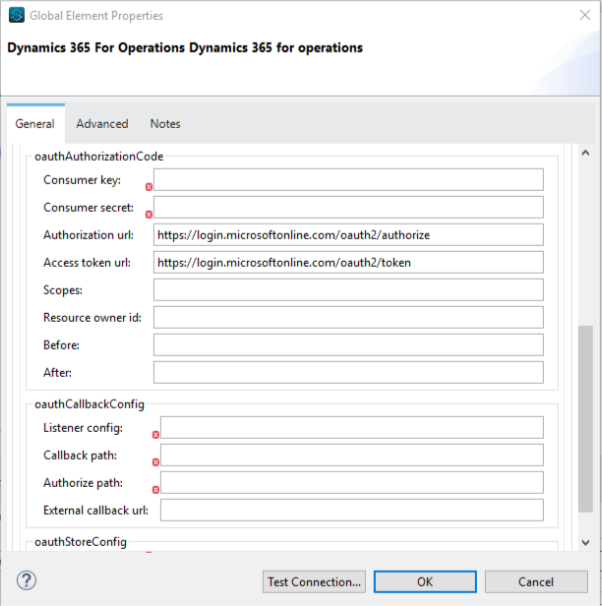
OAuth 2 の設定
| 項目 | 説明 |
|---|---|
Resource (リソース) |
OAuth エンドポイント URL。 |
Consumer Key (コンシューマーキー) |
アプリケーションを Azure Active Directory に登録したときに割り当てられたアプリケーション ID。この ID は Azure Portal (portal.azure.com) で確認できます。[Active Directory] をクリックして、ディレクトリをクリックし、アプリケーションを選択してから [Configure (設定)] をクリックします。 |
Consumer Secret (コンシューマーシークレット) |
アプリケーション登録ポータルでアプリケーション用に作成したシークレット。クライアントシークレットは信頼のおける方法でデバイスに保存できないため、このシークレットをネイティブアプリケーションで使用しないでください。この情報は Web アプリケーションと Web API で必要です (クライアントシークレットをサーバー側で安全に保存できます)。この ID は Azure Portal (portal.azure.com) で確認できます。クライアントシークレットは、アプリケーションと Azure サーバーのみに公開されている数値であり、これによりアプリケーションにアクセスできます。 |
Authorization URL (認証 URL) |
テナント固有の OAuth2.0 エンドポイント。 |
Access token URL (アクセストークン URL) |
アクセストークンを要求するためのテナント固有のエンドポイント。 |
Listener config (リスナー設定) |
Anypoint Studio のフローで作成された HTTP リスナーインスタンスの名前。 |
Callback path (コールバックパス) |
アプリケーションの URL で、アプリケーションが認証応答の送受信に使用できる (エンドポイントの具体的な取得方法については、上記のリンク先に記載されている手順に従ってください)。 |
Authorize path (認証パス) |
OAuth メカニズムをトリガーする URL。 |
External callback URL (外部コールバック URL) |
コールバック URL に直接アクセスできない場合 (例: プロキシを使用する場合) にのみ必須。 |
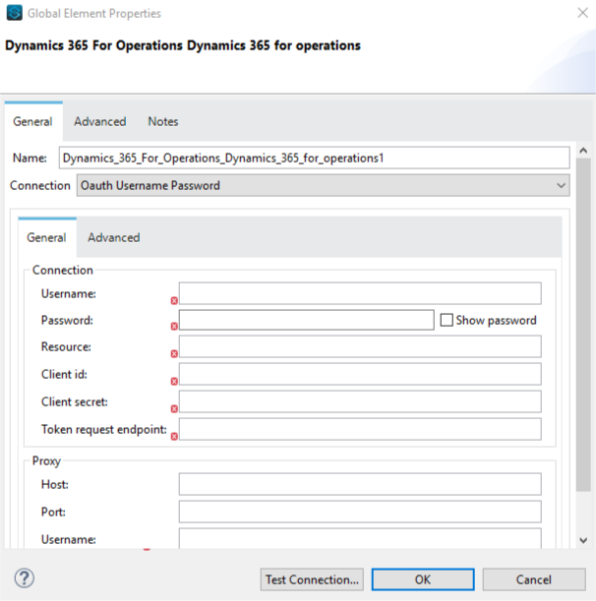
OAuth 2 ユーザー名/パスワードの設定
| 項目 | 説明 |
|---|---|
Username (ユーザー名) |
セッションの初期化に使用するユーザー名。 |
Password (パスワード) |
ユーザーの認証に使用するパスワード。 |
リソース |
Web API のアプリケーション ID URI (セキュアなリソース)。バージョンを指定しない、ルート URI である必要があります (例: |
Client ID (クライアント ID) |
アプリケーションを Azure Active Directory に登録したときに割り当てられた ID。この ID は Azure Portal (portal.azure.com) で確認できます。[Active Directory] をクリックして、ディレクトリをクリックし、アプリケーションを選択してから [Configure (設定)] をクリックします。 |
Client Secret (クライアントシークレット) |
アプリケーション登録ポータルでアプリケーション用に作成したシークレット。クライアントシークレットは信頼のおける方法でデバイスに保存できないため、このシークレットをネイティブアプリケーションで使用しないでください。この情報は Web アプリケーションと Web API で必要です (クライアントシークレットをサーバー側で安全に保存できます)。この ID は Azure Portal (portal.azure.com) で確認できます。クライアントシークレットは、アプリケーションと Azure サーバーのみに公開されている数値であり、これによりアプリケーションにアクセスできます。 |
Token Request Endpoint (トークン要求エンドポイント) |
アクセストークンを取得するためにコールされるトークンエンドポイント。例: |
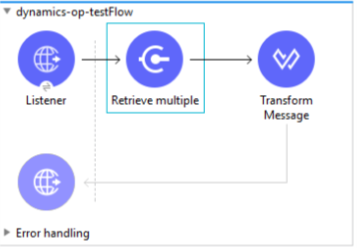
ユースケース: データを受け入れて JSON に出力する
このユースケースでは、Retrieve Multiple 操作を使用して Microsoft Dynamics 365 for Operations の機能を操作できます。
-
Listener (HTTP) (リスナー (HTTP)) - HTTP 要求のデータを受け入れる。
-
Dynamics AX for Operations - 接続し、顧客のエンティティをすべて取得するクエリを実行する。
-
Transform message (メッセージの変換) - Retrieve Multiple 操作の結果を JSON 形式で出力する。
プロパティファイルを使用して、フローで使用する次の属性を定義します。
-
username="${operations.username}" -
password="${operations.password}" -
resource="${operations.resource}" -
clientId="${operations.client_id}" -
clientSecret="${operations.client_secret}" -
tokenRequestEndpoint="${operations.request_endpoint}"
次の XML コードを Anypoint Studio に貼り付けて、フローを試してください。
<?xml version="1.0" encoding="UTF-8"?>

<mule xmlns:ee="http://www.mulesoft.org/schema/mule/ee/core"
xmlns:dynamics365ForOperations="http://www.mulesoft.org/schema/mule/dynamics365ForOperations"
xmlns:http="http://www.mulesoft.org/schema/mule/http"
xmlns="http://www.mulesoft.org/schema/mule/core"
xmlns:doc="http://www.mulesoft.org/schema/mule/documentation"
xmlns:xsi="http://www.w3.org/2001/XMLSchema-instance"
xsi:schemaLocation="
http://www.mulesoft.org/schema/mule/ee/core
http://www.mulesoft.org/schema/mule/ee/core/current/mule-ee.xsd
http://www.mulesoft.org/schema/mule/core
http://www.mulesoft.org/schema/mule/core/current/mule.xsd
http://www.mulesoft.org/schema/mule/http
http://www.mulesoft.org/schema/mule/http/current/mule-http.xsd
http://www.mulesoft.org/schema/mule/dynamics365ForOperations
http://www.mulesoft.org/schema/mule/dynamics365ForOperations/current/mule-dynamics365ForOperations.xsd">
	<http:listener-config name="HTTP_Listener_config" doc:name="HTTP Listener config">
		<http:listener-connection
		host="localhost"
		port="8081" />
	</http:listener-config>
	<dynamics365ForOperations:dynamics-365-for-operations-config
		name="Dynamics_365_For_Operations_Dynamics_365_for_operations"
		doc:name="Dynamics 365 For Operations Dynamics 365 for operations">
		<dynamics365ForOperations:oauth2-user-password-connection
			username="USERNAME"
			password="PASSWORD"
			resource="https://muledev.sandbox.operations.dynamics.com"
			clientId="CLIENT_ID"
			clientSecret="CLIENT_SECRET"
			tokenRequestEndpoint="https://login.windows.net/TOKEN/oauth2/token" />
	</dynamics365ForOperations:dynamics-365-for-operations-config>
	<dynamics365ForOperations:dynamics-365-for-operations-config
	name="Dynamics_365_For_Operations_Dynamics_365_for_operations1"
	doc:name="Dynamics 365 For Operations Dynamics 365 for operations">
		<dynamics365ForOperations:oauth2-user-password-connection
		username="${operations.username}"
		password="${operations.password}"
		resource="${operations.resource}"
		clientId="${operations.client_id}"
		clientSecret="${operations.client_secret}"
		tokenRequestEndpoint="${operations.request_endpoint}" />
	</dynamics365ForOperations:dynamics-365-for-operations-config>
	<flow name="dynamics-op-testFlow">
		<http:listener doc:name="Listener" config-ref="HTTP_Listener_config" path="/retrieve" />
		<dynamics365ForOperations:retrieve-multiple doc:name="Retrieve multiple"
		config-ref="Dynamics_365_For_Operations_Dynamics_365_for_operations1">
			<dynamics365ForOperations:data-query-url ><![CDATA[https://muledev.sandbox.operations.dynamics.com/data/Customers]]></dynamics365ForOperations:data-query-url>
		</dynamics365ForOperations:retrieve-multiple>
		<ee:transform doc:name="Transform Message">
			<ee:message >
				<ee:set-payload ><![CDATA[%dw 2.0
output application/json
---
payload]]></ee:set-payload>
			</ee:message>
		</ee:transform>
	</flow>
</mule>