
Lightweight Directory Access Protocol 用 Anypoint Connector (LDAP Connector) の使用例を次に示します。
-
組織単位にグループとユーザーを追加してから、そのユーザーとグループを削除する
-
一般的なトラストストアをセットアップする
組織単位へのグループとユーザーの追加および削除
次の例は、LDAP の Add entry 操作を使用してグループとユーザーを組織単位に追加し、Delete entry 操作を使用してユーザーとグループを組織単位から削除する方法を示しています。
次のスクリーンショットは、この例の Studio アプリケーションフローを示しています。
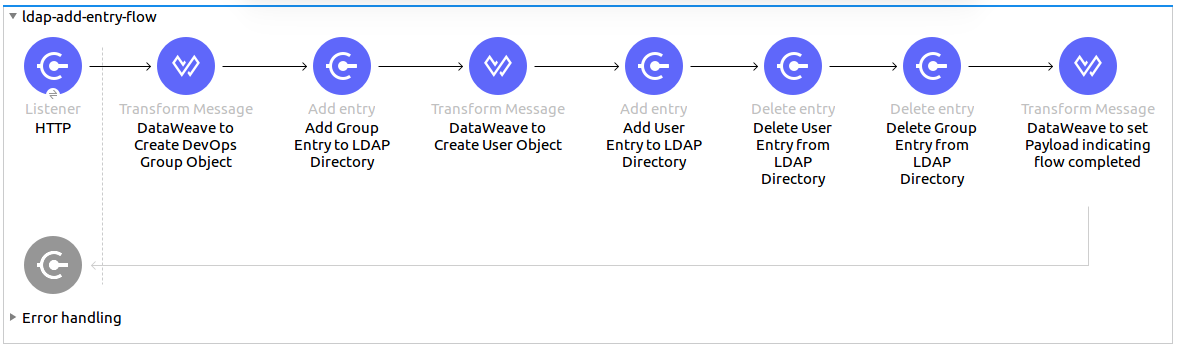
組織単位にグループとユーザーを追加する
組織単位にグループとユーザーを追加する手順は、次のとおりです。
-
Anypoint Studio で新しい Mule プロジェクトを作成します。
-
mule-artifact.properties ファイルに次のプロパティを追加します。config.principal.dn=<DN> config.password=<Password> config.url=<URL> -
プロジェクトの
src/main/resources ディレクトリに mule-artifact.properties ファイルを置きます。 -
[Mule Palette (Mule パレット)] ビューから、[HTTP] をクリックして [Listener] ソースをキャンバスにドラッグします。
-
[Listener (リスナー)] プロパティウィンドウで、[Listener] ソースの表示名を
HTTP に変更します。 -
[Connector configuration (コネクタ設定)] 項目の横にある [+] をクリックし、グローバル要素を追加します。
-
デフォルトを受け入れます。
-
[Listener (リスナー)] プロパティウィンドウで、[Path (パス)] 項目値を
/ に設定します。 -
[Mule Palette (Mule パレット)] ビューから、[Core (コア)] を選択して [Transform Message] コンポーネントを [HTTP] の横にドラッグします。
-
[Output (出力)] セクションで、既存のテキストを次の DataWeave スクリプトに置き換えます。
%dw 2.0 output application/java --- { dn : "ou=DevOpsGroup," ++ attributes.queryParams.dn, ou : "DevOpsGroup", objectclass : ["top", "organizationalUnit"] } -
[Mule Palette (Mule パレット)] ビューから、[LDAP] を選択して [Add entry] 操作を [Transform Message] コンポーネントの横にドラッグし、LDAP グループの追加を開始します。
-
コネクタ設定項目の横にある [+] をクリックし、新しいグローバル要素を追加します。
-
次のようにグローバル要素を設定します。
パラメーター 説明 値 名前
設定の名前。
LDAP_ConfigurationPrincipal DN (プリンシパル DN)
ユーザー識別名 (DN)
${config.principal.dn}Password (パスワード)
ユーザーパスワード
${config.password}URL
LDAP サーバーに接続する URL
${config.url} -
[Test Connection (接続をテスト)] をクリックして、Mule が LDAP サーバーインスタンスに接続できることを確認します。
-
次のように接続結果を処理します。
-
正常に接続できた場合は、[OK] をクリックして設定を保存します。
-
接続に失敗した場合は、誤った項目値を確認して修正し、もう一度テストを実行します。
-
-
LDAP Connector プロパティウィンドウに戻り、Add entry 操作に必要なパラメーターを設定します。
パラメーター 値 Display Name (表示名)
Add Group Entry to LDAP DirectoryBasic Settings (基本設定)
Connector configuration (コネクタ設定)
以前に作成した LDAP Connector グローバル要素
General (一般)
Entry (エントリ)
payload (デフォルト値) -
[Mule Palette (Mule パレット)] ビューから、[Core (コア)] を選択して [Transform Message] コンポーネントを [Add Group Entry to the LDAP directory (LDAP ディレクトリへのグループエントリの追加)] の横にドラッグします。
-
[Output (出力)] セクションで、既存のテキストを次の DataWeave スクリプトに置き換えます。
%dw 2.0 output application/java --- { dn : "cn=Test User,ou=DevOpsGroup," ++ attributes.queryParams.dn, uid : "testUser", cn : "Test User", sn : "User", userPassword : "test1234", objectclass : ["top", "person", "organizationalPerson", "inetOrgPerson"] } -
[Mule Palette (Mule パレット)] ビューから、[LDAP] を選択して [Add entry] 操作を [Transform Message] の横にドラッグし、LDAP ユーザーの追加を開始します。
-
LDAP Connector プロパティエディターで、次のようにパラメーターを設定します。
パラメーター 値 Display Name (表示名)
Add User Entry to LDAP DirectoryBasic Settings (基本設定)
Connector configuration (コネクタ設定)
以前に作成した LDAP Connector グローバル要素
General (一般)
Entry (エントリ)
payload (デフォルト値)
組織単位からグループとユーザーを削除する
組織単位にグループとユーザーが正常に追加されたら、LDAP Connector を使用してそれらを削除します。
-
[Mule Palette (Mule パレット)] ビューから、[LDAP] を選択して [Delete entry] 操作をキャンバスの [Add User Entry to LDAP Directory (LDAP ディレクトリへのユーザーエントリの追加)] の横にドラッグします。
-
LDAP Connector プロパティエディターで、次のようにパラメーターを設定します。
パラメーター 値 Display Name (表示名)
Delete User Entry from LDAP DirectoryBasic Settings (基本設定)
Connector configuration (コネクタ設定)
以前に作成した LDAP Connector グローバル要素
General (一般)
DN
#['cn=Test User,ou=DevOpsGroup,' ++ attributes.queryParams.dn] -
別の [Delete entry] 操作を最初の操作の横にドラッグして、LDAP グループエントリの削除を開始します。
パラメーター 値 Display Name (表示名)
Delete Group Entry from LDAP DirectoryBasic Settings (基本設定)
Connector configuration (コネクタ設定)
以前に作成した LDAP Connector グローバル要素
General (一般)
DN
#['ou=DevOpsGroup,' ++ attributes.queryParams.dn] -
[Transform Message] コンポーネントを [Delete Group Entry from LDAP Directory (LDAP ディレクトリからのグループエントリの削除)] の横にドラッグします。
-
ペイロードを「Flow Successfully Completed」 (フロー正常完了) に設定します。
アプリケーションをテストする
アプリケーションをテストする手順は、次のとおりです。
-
プロジェクトを保存します。
-
プロジェクトを Mule アプリケーションとして実行します。
-
PUT コマンドを次の URL に送信します。
http://localhost:8081/?dn=mulesoft,dc=orgrequest
例の XML
この例のフローをすばやく Mule アプリケーションに読み込むには、次のコードを Studio XML エディターに貼り付けます。
<?xml version="1.0" encoding="UTF-8"?>

<mule xmlns:ldap="http://www.mulesoft.org/schema/mule/ldap" xmlns:ee="http://www.mulesoft.org/schema/mule/ee/core"
	xmlns:http="http://www.mulesoft.org/schema/mule/http"
	xmlns="http://www.mulesoft.org/schema/mule/core" xmlns:doc="http://www.mulesoft.org/schema/mule/documentation"
	xmlns:xsi="http://www.w3.org/2001/XMLSchema-instance" xsi:schemaLocation="http://www.mulesoft.org/schema/mule/core http://www.mulesoft.org/schema/mule/core/current/mule.xsd
http://www.mulesoft.org/schema/mule/http http://www.mulesoft.org/schema/mule/http/current/mule-http.xsd
http://www.mulesoft.org/schema/mule/ee/core http://www.mulesoft.org/schema/mule/ee/core/current/mule-ee.xsd
http://www.mulesoft.org/schema/mule/ldap
http://www.mulesoft.org/schema/mule/ldap/current/mule-ldap.xsd">
<http:listener-config name="HTTP_Listener_config" doc:name="HTTP Listener config" doc:id="74b34b41-4e8b-4b96-adec-da917b183083" >
<http:listener-connection host="0.0.0.0" port="8081" />
</http:listener-config>
<ldap:config name="LDAP_Configuration" doc:name="LDAP Configuration" doc:id="2e1caebb-d041-47ec-9513-69c140c78700" >
		<ldap:basic-connection authDn="${config.principal.dn}" authPassword="${config.password}" url="${config.url}" />
	</ldap:config>
	<flow name="ldap-examplesFlow" doc:id="dc01fbb8-1e2c-4255-be17-46309cdbef07" >
		<http:listener doc:name="HTTP" doc:id="180e5809-d508-498c-a74f-97d93afc98f8" config-ref="HTTP_Listener_config" path="/"/>
		<ee:transform doc:name="Transform Message" doc:id="183ca95a-dcc2-448f-8bba-26f7295fb1e4" >
			<ee:message >
				<ee:set-payload ><![CDATA[%dw 2.0
output application/java
---
{
	dn : "ou=DevOpsGroup," ++ attributes.queryParams.dn,
	ou : "DevOpsGroup",
	objectclass : ["top", "organizationalUnit"]
}]]></ee:set-payload>
			</ee:message>
		</ee:transform>
		<ldap:add doc:name="Add Group Entry to LDAP Directory" doc:id="95d60199-e087-4fe1-afa7-1c035fdd3aec" config-ref="LDAP_Configuration"/>
		<ee:transform doc:name="Transform Message" doc:id="0e96e606-48be-4ba0-9266-242bd9911184">
			<ee:message>
				<ee:set-payload><![CDATA[{
	dn : "cn=Test User,ou=DevOpsGroup," ++ attributes.queryParams.dn,
	uid : "testUser",
	cn : "Test User",
	sn : "User",
	userPassword : "test1234",
	objectclass : ["top", "person", "organizationalPerson", "inetOrgPerson"]
}]]></ee:set-payload>
			</ee:message>
		</ee:transform>
		<ldap:add doc:name="Add User Entry to LDAP Directory" doc:id="28c98048-0ba6-4a36-92df-49d437303217" config-ref="LDAP_Configuration"/>
		<ldap:delete doc:name="Delete User Entry from LDAP Directory" doc:id="07e7141a-03d9-4565-bbca-8a4b03cbb6ee" config-ref="LDAP_Configuration" dn="#['cn=Test User,ou=DevOpsGroup,' ++ attributes.queryParams.dn]"/>
		<ldap:delete doc:name="Delete Group ENtry from LDAP Directory" doc:id="892dca59-86a3-40a2-b758-09560fb95383" config-ref="LDAP_Configuration" dn="#['ou=DevOpsGroup,' ++ attributes.queryParams.dn]"/>
		<ee:transform doc:name="Transform Message" doc:id="5dc391aa-87b1-4e84-97e5-71dc5f8daa22" >
			<ee:message >
				<ee:set-payload ><![CDATA[%dw 2.0
output application/java
---
{
}]]></ee:set-payload>
			</ee:message>
		</ee:transform>
	</flow>
</mule>
一般的なトラストストアをセットアップする
次の例は、カスタムトラストストアを使用する TLS 設定を含めるように前の例を変更する方法を示しています。
| このカスタムトラストストア機能は FIPS 準拠ではありません。 |
カスタムトラストストアをセットアップする手順は、次のとおりです。
-
前の例の手順に従います。
-
次のプロパティを
mule-artifact.properties ファイルに追加して LDAP ログイン情報を保持します。config.principal.dn=<DN> config.password=<Password> config.url=<URL> -
プロジェクトの
src/main/resources ディレクトリに mule-artifact.properties ファイルを置きます。 -
XML コードで次の要素を見つけます。
<ldap:conf name=:LDAP_configuration" doc:name="LDAP Configuration" . . . </ldap:config -
見つかった要素を次のコードで上書きします。
<ldap:config name="LDAP_Configuration">
  <ldap:tls-connection
    authDn="${config.principal.dn}}"
    authPassword="${config.password}"
    url="${config.url}"
    trustStorePath="path_to_truststore_jks_file"
    trustStorePassword="changeit" />