
The messaging experience in the Salesforce mobile app is similar to the messaging experience on the desktop site. You can message from a smartphone or tablet. Review the relevant messaging documentation for agents to learn more.
Required Editions
| Available in: Lightning experience |
| User Permissions Needed | |
|---|---|
| To send and receive messages in the Salesforce mobile app: | Messaging User permission set license AND Message on Mobile permission |
Reps can reply to customer-initiated messaging sessions and send business-initiated messaging sessions in the Salesforce mobile app on a smartphone or tablet. Initial instructions are slightly different for each scenario.
See Also
Customer-Initiated Messaging
Send and receive messages in a customer-initiated messaging session with the Salesforce Mobile App.
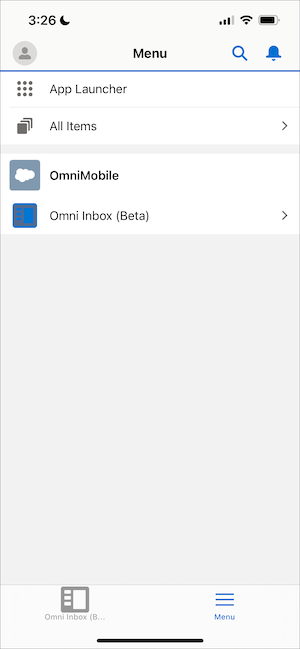
- Sign in to the Salesforce mobile app on a smartphone or tablet, and then select OmniMobile from the App Launcher.
-
Click Omni Inbox (Beta).
-
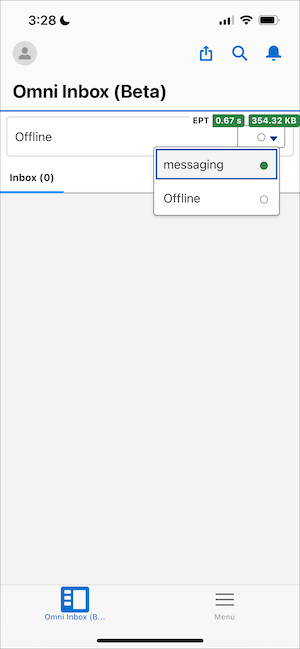
In the Omni widget, set yourself as available for messaging.
-
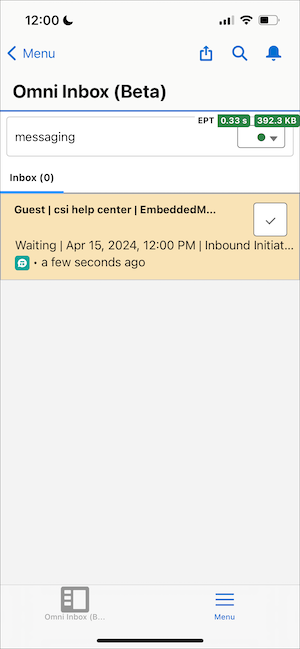
Click the checkmark icon on an incoming messaging session to accept it.
-
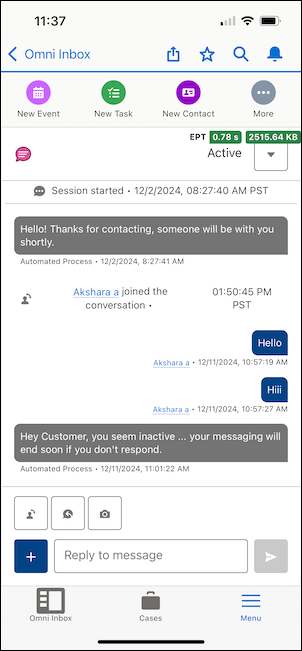
Message with your customer. When the conversation is over, click the downward arrow, and
select End Chat. You can alternatively set the conversation to Inactive
if your customer disappears.
Business-Initiated Messaging
Send and receive messages in a business-initiated messaging session on the Salesforce Mobile App.
- Sign in to the Salesforce mobile app, and then select OmniMobile from the App Launcher.
- Click Omni Inbox (Beta).
-
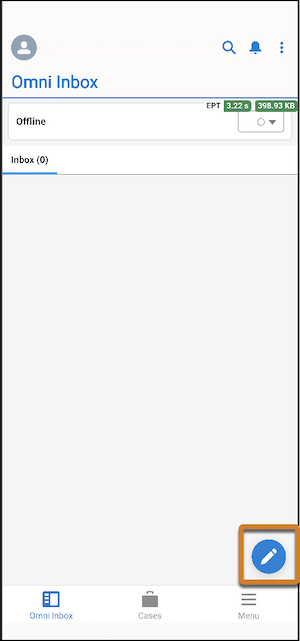
Click the pencil icon.
-
In the Contact dropdown menu, select the type of contact record you want to chat with.
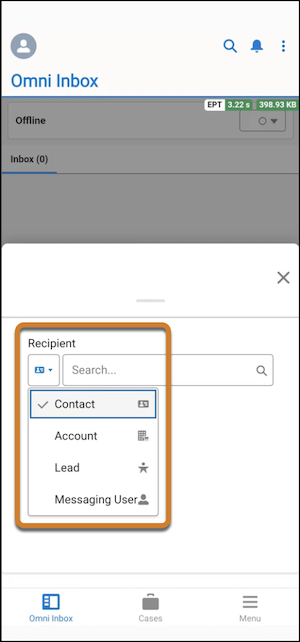
- In the Search bar, enter the name of the individual, and then select their record.
-
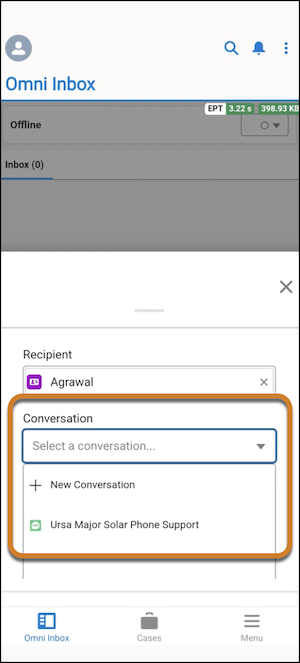
In the Conversation field, select an existing Messaging User record. If you're using SMS
messaging, you can alternatively select + New Conversation to associate
a new Messaging User record to an existing Lead, Contact, or Account record.
- If you selected an existing Messaging User record in the Conversation field, you'll see that user implicitly opted in. Select Resume Conversation. Now, skip to step 9.
-
If you selected + New Conversation from the Conversation
field:
- In the Channel field, select an SMS channel.
- In the Phone field, enter the new phone number.
- Select the box to confirm that this receipient has consented to receive messages.
- Click Start Conversation.
- Enter and send your first message.