---
schema_version: "1"
id: ecb286bc75babc550875d9cde0923f6ed800dda395d4e9c27a8e4fe00ccf9e3c
title: Message Customers in the Salesforce Mobile App
collection: admin
version: current
locale: en-us
portal_url: https://docs.salesforce.com/admin/current/en-us/xcloud/264-0-0/salesforce_app_agent_messaging_2.md
canonical_url: https://help.salesforce.com/s/articleView?id=xcloud.salesforce_app_agent_messaging_2.htm&release=264.0.0&type=5
source_site: help.salesforce.com
content_type: documentation
content_hash: 6574d0de8bd95b3085ec2b1ebf31ee38e05d38254193d7e947d2280c0106eca2
description: The messaging experience in the Salesforce mobile app is similar to the messaging experience on the desktop site. You can message from a smartphone or tablet. Review the relevant messaging documentation for agents to learn more.
products:
- Mobile App Mobile App Mobile App
- Cross Cloud Cross Cloud Cross Cloud
release: "264"
---
# Message Customers in the Salesforce Mobile App
The messaging experience in the Salesforce mobile app is similar to the messaging experience on the desktop site. You can message from a smartphone or tablet. Review the relevant messaging documentation for agents to learn more.
### Required Editions
Available in: Lightning experience
User Permissions Needed
To send and receive messages in the Salesforce mobile app:
Messaging User permission set license AND Message on Mobile permission
Reps can reply to customer-initiated messaging sessions and send business-initiated messaging sessions in the Salesforce mobile app on a smartphone or tablet. Initial instructions are slightly different for each scenario.
#### See Also
- [Open Messaging](https://help.salesforce.com/s/articleView?id=service.livemessage_agent_open_app.htm&type=5&language=en_US)
- [Accept a Message and Chat with a Customer](https://help.salesforce.com/s/articleView?id=service.livemessage_agent_accept_message.htm&type=5&language=en_US)
- [Send Voice Messages in Messaging Sessions](https://help.salesforce.com/s/articleView?id=service.messaging_send_audio_messages.htm&type=5&language=en_US)
- [Inactive a Messaging Session](https://help.salesforce.com/s/articleView?id=service.livemessage_agent_inactivate_session.htm&type=5&language=en_US)
- [End a Messaging Session](https://help.salesforce.com/s/articleView?id=service.livemessage_agent_end_session.htm&type=5&language=en_US)
## Customer-Initiated Messaging
Send and receive messages in a customer-initiated messaging session with the Salesforce Mobile App.
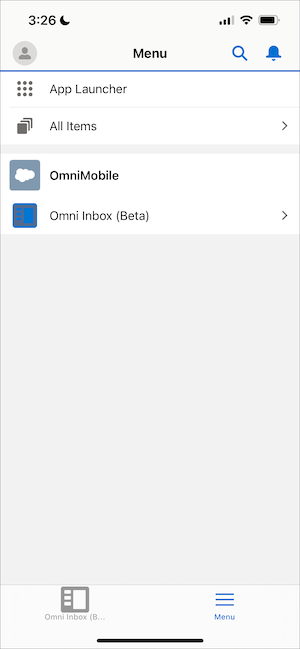
1. Sign in to the Salesforce mobile app on a smartphone or tablet, and then select **OmniMobile** from the App Launcher.
2. Click **Omni Inbox (Beta)**.
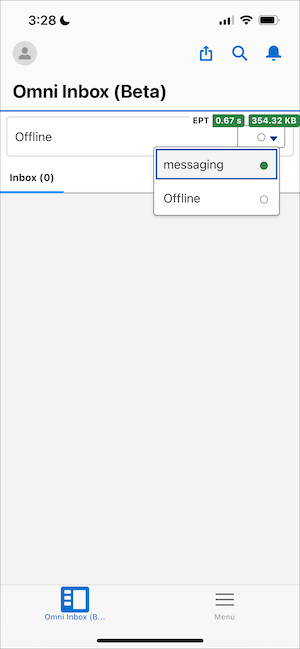
3. In the Omni widget, set yourself as available for messaging.
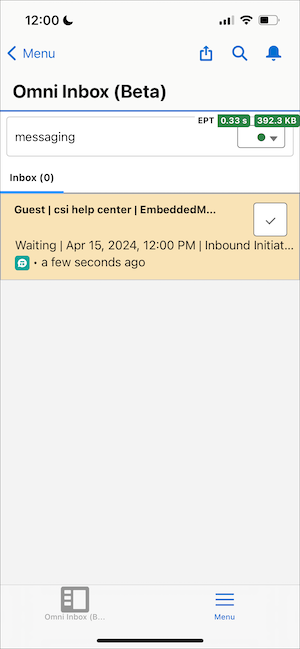
4. Click the checkmark icon on an incoming messaging session to accept it.
5. Message with your customer. When the conversation is over, click the downward arrow, and select **End Chat**. You can alternatively set the conversation to Inactive if your customer disappears. 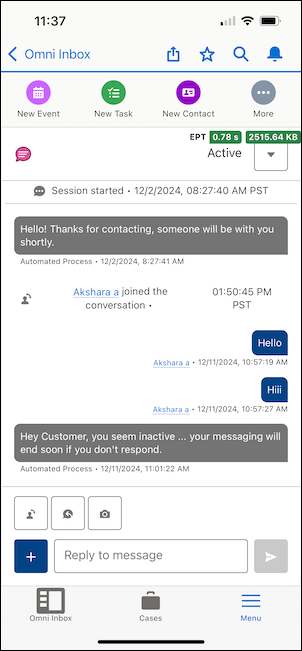
## Business-Initiated Messaging
Send and receive messages in a business-initiated messaging session on the Salesforce Mobile App.
1. Sign in to the Salesforce mobile app, and then select **OmniMobile** from the App Launcher.
2. Click **Omni Inbox (Beta)**.
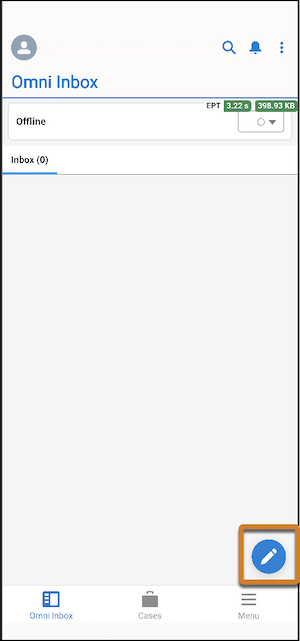
3. Click the pencil icon.
4. In the Contact dropdown menu, select the type of contact record you want to chat with.
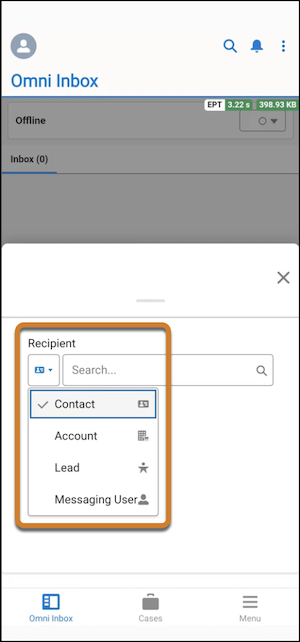
5. In the Search bar, enter the name of the individual, and then select their record.
6. In the Conversation field, select an existing Messaging User record. If you're using SMS messaging, you can alternatively select **\+ New Conversation** to associate a new Messaging User record to an existing Lead, Contact, or Account record.
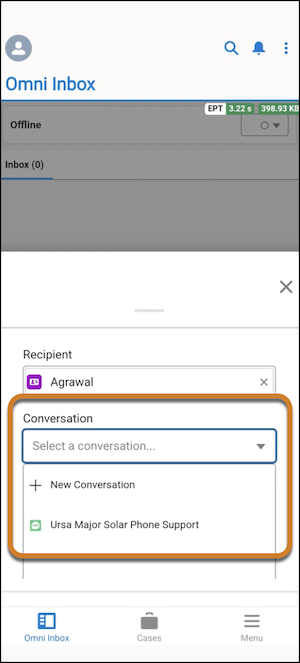
7. If you selected an existing Messaging User record in the Conversation field, you'll see that user implicitly opted in. Select **Resume Conversation**. Now, skip to step 9.
8. If you selected **\+ New Conversation** from the Conversation field:
1. In the Channel field, select an SMS channel.
2. In the Phone field, enter the new phone number.
3. Select the box to confirm that this receipient has consented to receive messages.
4. Click **Start Conversation**.
9. Enter and send your first message.