
Set up your organization to use CRM Analytics dashboards in Quip VPC. After you set it up, users can see and update filters directly in their documents.
Required Editions
| Available in: Lightning Experience |
| User Permissions Needed | |
|---|---|
| To configure the CRM Analytics live app: | Customize Application |
To access the CRM Analytics live app in Quip, users need a CRM Analytics Growth or CRM Analytics Plus license.
- In Salesforce, go to the Setup page.
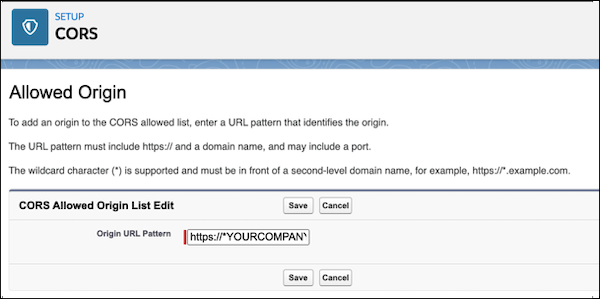
- In the Quick Find box, enter CORS and click New.
-
For the Origin URL Pattern, enter
https://*YOURCOMPANY.qvpc-apps.com.
- In the Quick Find box, enter Analytics.
-
Under Analytics, click Allowlist, and then
New.
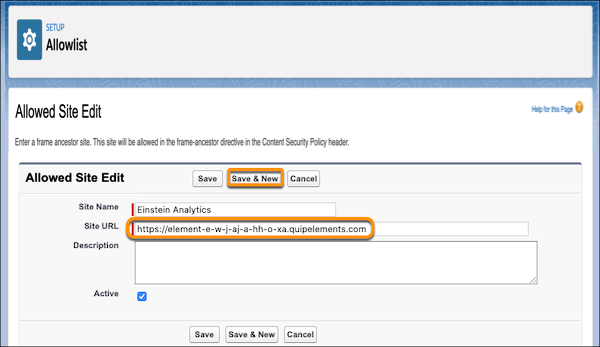
- Enter a site name. To make it easier to identify later, we recommend naming it TableauCRMQuip.
- For the site URL, enter https://element-e-w-j9j-a-hh-o-xa.YOURCOMPANY.qvpc-apps.com.
- Click Save and New.
-
Use the CRM Analytics live app in a sandbox org.
- Enter a site name.
- Enter your Quip site URL using the format https://YOURCOMPANY-sbx.YOURCOMPANY.onquip.com. Save the action.
-
Use the Einstein Anlytics live app in production.
- Enter a site name.
- Enter your Quip site URL using the format https://YOURCOMPANY.onquip.com. Save the action.
-
In Setup, add these URLs as Trusted URLs with all Content Security Policy (CSP) directives
selected.
- https://*.salesforce-experience.com
- Sandbox: https://YOURCOMPANY-sbx.YOURCOMPANY.onquip.com
- Production: https://YOURCOMPANY.onquip.com
- https://*.salesforce.com
-
https://*.force.com
If https://*force.com is already a CSP trusted site, don’t readd it.
- https://*.site.com
- https://*.salesforce-sites.com
To let your VPC users add CRM Analytics dashboards in Quip, enable the CRM Analytics live app.