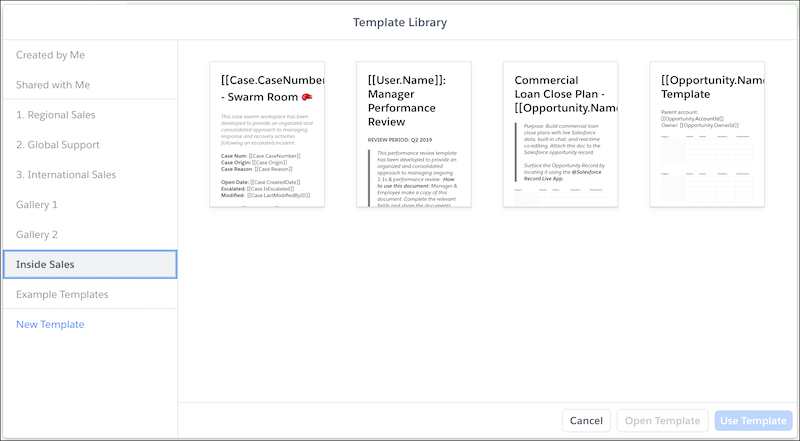
To publish company-wide templates to your Quip site’s Template Library, create a company gallery and publish templates to it.
To publish a template to the Template Library in Quip, you must:
- Have Template permissions in the Quip Admin Console
- Be the template creator or have Full Access to it
After you publish a template to a company gallery, link sharing is enabled and all users in the Quip site can use the template. The template is removed from your private gallery and users shared on the template are removed. External link sharing settings aren’t affected—external users with link sharing access to a template can still view it after it’s published.
- Go to https://admin.quip.com.
- Log in using your Quip admin email and password.
-
Decide which templates you want to publish and how you can organize them thematically. To
see your available templates, click Templates, then Private
Galleries.
 Note You can only publish templates in your Shared with Me or Created by Me gallery.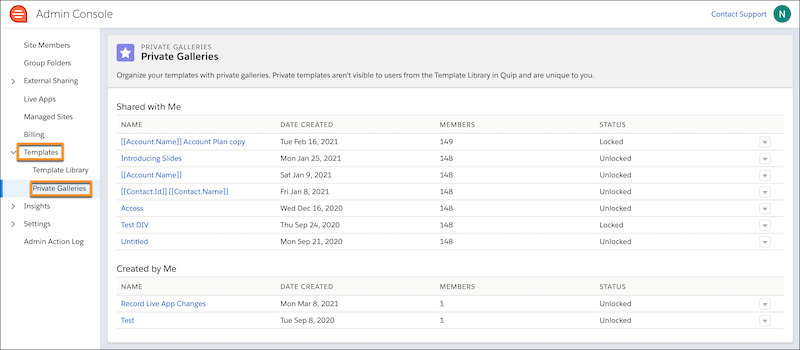
-
To group your templates thematically, create company galleries.
-
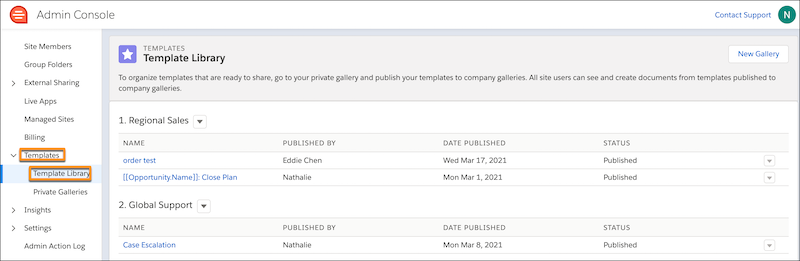
Under Templates, click Template Library.
-
Click New Gallery. Enter a name and save the action.
 Tip Company galleries are shown in alphabetical order.
-
Under Templates, click Template Library.
-
From your Private Galleries, click the dropdown next to the template you want to publish,
and click Publish to Template Library. Your template is removed from
your private gallery and added to the company gallery you selected.

Your template is now published and shared with your users via the Template Library in Quip. Templates are sorted within a gallery from most recently published to oldest.