Use Flow Builder to export a Quip document to PDF anytime the record associated with the
document is updated.
Required Editions
| Available in: Lightning Experience |
| User Permissions Needed |
| To create or change custom fields: |
Customize Application |
| To open, edit, or create a flow in Flow Builder: |
Manage Flow |
-
From Setup, create a custom field labeled Generate_PDF for the
object you want to export a Quip document from.
For example, to export a Quip document to PDF from the Account object, click , and follow the steps to create the field.
The field name is autopopulated as Generate_PDF__c.
-
Open Flow Builder.
From Setup, you can type Flows in the Quick Find box, select
Flows, and then click New Flow.
-
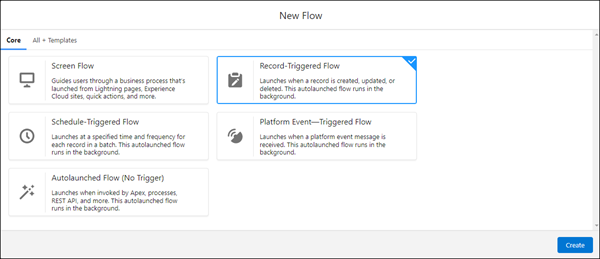
In the New Flow dialog box, select Record-Triggered Flow, and then
click Create.
-
Fill in the fields using the following values, and then click
Done.
| Field |
Description |
| Object |
Object that you want to export the PDF from, for example,
Account.
|
| Trigger the Flow When |
A record is updated |
| Condition Requirements |
All Conditions Are Met (AND) |
| Field |
Generate_PDF__c
|
| Operator |
Equals |
| Value |
True |
| When to Run the Flow for Updated Records |
Every time a record is updated and meets the condition requirements |
| Optimize the Flow for |
Actions and Related Records |
-
In the Flow Builder canvas, add the Export Quip Document to PDF
action, and connect the start of the flow to the action.
-
Click Save.
-
Activate the flow.
The next time an Account record associated with the Account Plan is updated, a new
Competitive Analysis section appears in the Account Plan.