---
schema_version: "1"
id: c6e86b0885b5840c4fcf303d603212eb42bb5efa511654c749eca4b76cfec250
title: Automate Exporting a Quip Document to PDF
collection: admin
version: current
locale: en-us
portal_url: https://docs.salesforce.com/admin/current/en-us/xcloud/264-0-0/quip_export_a_quip_document_to_pdf.md
canonical_url: https://help.salesforce.com/s/articleView?id=xcloud.quip_export_a_quip_document_to_pdf.htm&release=264.0.0&type=5
source_site: help.salesforce.com
content_type: documentation
content_hash: f35eda0ed4bdc0e4a8df384fc93d5384f2df30cae40a7d44dd2201ce6c4f505f
description: Use Flow Builder to export a Quip document to PDF anytime the record associated with the document is updated.
products:
- Quip
- Cross Cloud
release: "264"
---
# Automate Exporting a Quip Document to PDF
Use Flow Builder to export a Quip document to PDF anytime the record associated with the document is updated.
### Required Editions
Available in: Lightning Experience
User Permissions Needed
To create or change custom fields:
Customize Application
To open, edit, or create a flow in Flow Builder:
Manage Flow
1. From Setup, create a custom field labeled Generate\_PDF for the object you want to export a Quip document from.
For example, to export a Quip document to PDF from the Account object, click **Objects and Fields** | **Object Manager** | **Account** | **Fields & Relationships** | **New**, and follow the steps to create the field.
The field name is autopopulated as Generate\_PDF\_\_c.
2. Open Flow Builder.
From Setup, you can type Flows in the Quick Find box, select **Flows**, and then click **New Flow**.
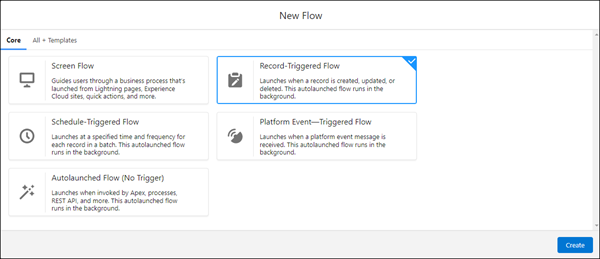
3. In the New Flow dialog box, select **Record-Triggered Flow**, and then click **Create**.
4. Fill in the fields using the following values, and then click **Done**.
| Field | Description |
| --- | --- |
| Object | Object that you want to export the PDF from, for example, Account. |
| Trigger the Flow When | A record is updated |
| Condition Requirements | All Conditions Are Met (AND) |
| Field | Generate\_PDF\_\_c |
| Operator | Equals |
| Value | True |
| When to Run the Flow for Updated Records | Every time a record is updated and meets the condition requirements |
| Optimize the Flow for | Actions and Related Records |
5. In the Flow Builder canvas, add the **Export Quip Document to PDF** action, and connect the start of the flow to the action.
6. Click **Save**.
7. Activate the flow.
The next time an Account record associated with the Account Plan is updated, a new Competitive Analysis section appears in the Account Plan.