
Use Template Mode to add live CRM Analytics dashboards to your templates that auto-filter based on the Salesforce record they’re embedded in.
Required Editions
| Available in: Lightning Experience |
| User Permissions Needed | |
|---|---|
| To configure the CRM Analytics live app: | Customize Application |
To configure the CRM Analytics live app in Quip, you need a CRM Analytics Growth or CRM Analytics Plus license.
- In a document, enter @CRM Analytics. Click Insert.
- Select the dashboard you want to dynamically filter based on a record, and click Choose Dashboard.
-
To set up Template Mode, click the CRM Analytics dropdown and select
Template Mode.
-
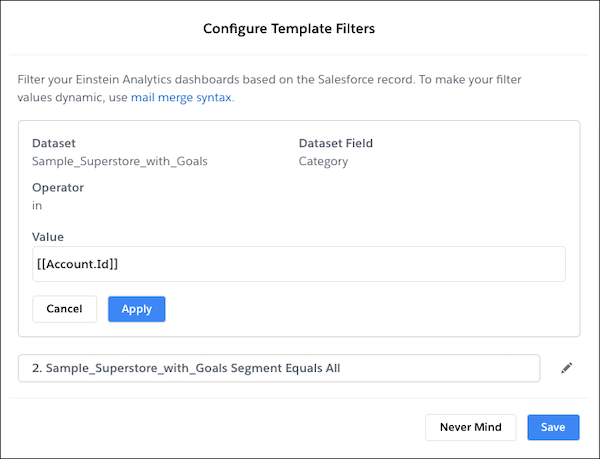
To dynamically update your CRM Analytics dashboard global filters based on a Salesforce
record, click the edit pencil and enter the filter values using
mail merge syntax.
 Tip Mail merge syntax is case-sensitive. To auto-filter the Category filter using mail merge syntax, enter [[Account.Id]] and not [[Account.ID]].
 - Click Apply and Done.
- After you finish configuring your template, add it to the Quip Document component.
After a user creates a document from a template in Salesforce, the CRM Analytics live app auto-filters based on that record.