---
schema_version: "1"
id: 07795a542fd08fd65c08e4da0033ec79808f09c1c8e7d9c72a18373273824ad6
title: Filter CRM Analytics Dashboards Based on a Salesforce Record
collection: admin
version: current
locale: en-us
portal_url: https://docs.salesforce.com/admin/current/en-us/xcloud/264-0-0/quip_einstein_analytics_template_mode.md
canonical_url: https://help.salesforce.com/s/articleView?id=xcloud.quip_einstein_analytics_template_mode.htm&release=264.0.0&type=5
source_site: help.salesforce.com
content_type: documentation
content_hash: fbc7299761dd53de013bc25ac3fc4f2c950e7d1d424373c4f6d656b5b39761d4
description: Use Template Mode to add live CRM Analytics dashboards to your templates that auto-filter based on the Salesforce record they’re embedded in.
products:
- Quip
- Cross Cloud
release: "264"
---
# Filter CRM Analytics Dashboards Based on a Salesforce Record
Use Template Mode to add live CRM Analytics dashboards to your templates that auto-filter based on the Salesforce record they’re embedded in.
### Required Editions
Available in: Lightning Experience
User Permissions Needed
To configure the CRM Analytics live app:
Customize Application
To configure the CRM Analytics live app in Quip, you need a CRM Analytics Growth or CRM Analytics Plus license.
1. In a document, enter @CRM Analytics. Click **Insert**.
2. Select the dashboard you want to dynamically filter based on a record, and click **Choose Dashboard**.
3. To set up Template Mode, click the **CRM Analytics** dropdown and select **Template Mode**.
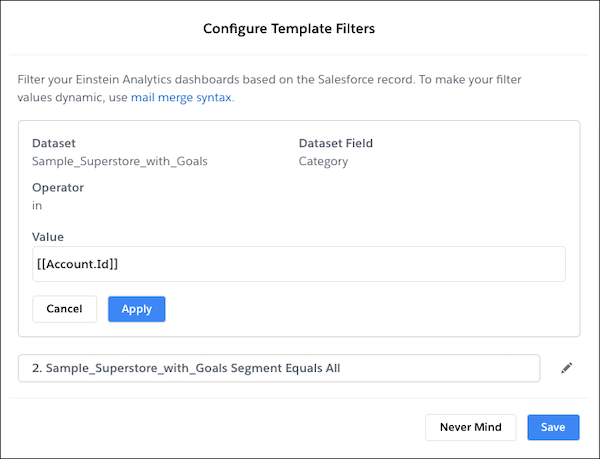
4. To dynamically update your CRM Analytics dashboard global filters based on a Salesforce record, click the **edit pencil** and enter the filter values using [mail merge syntax](https://help.salesforce.com/s/articleView?id=xcloud.quip_mail_merge.htm&release=264.0.0&type=5 "Templates save time copying and pasting, standardize your business practices, and help you get the most out of your Salesforce data. To auto-fill your embedded templates with data from a Salesforce record, you can use Salesforce Template Data Mentions or mail merge syntax.").

Tip Mail merge syntax is case-sensitive. To auto-filter the Category filter using mail merge syntax, enter \[\[Account.Id\]\] and not \[\[Account.ID\]\].
5. Click **Apply** and **Done**.
6. After you finish configuring your template, add it to the Quip Document component.
After a user creates a document from a template in Salesforce, the CRM Analytics live app auto-filters based on that record.