For the managed package runtime, embed a Flexcard Lightning Web Component in an Omniscript by using the Custom LWC element. Flexcards can receive data from the LWC Omniscript and perform any action available in the Flexcard.
Before you begin:
 This information is for Omnistudio for Managed Packages. For Omnistudio on standard runtime, see Omnistudio Help.
- Ensure your Flexcard includes Omniscript support.
- (Optional) Configure a Flexcard to receive data from Omniscript.
To embed Flexcards in an LWC Omniscript:
- In an LWC enabled Omniscript, drag the Custom LWC element into a Step.
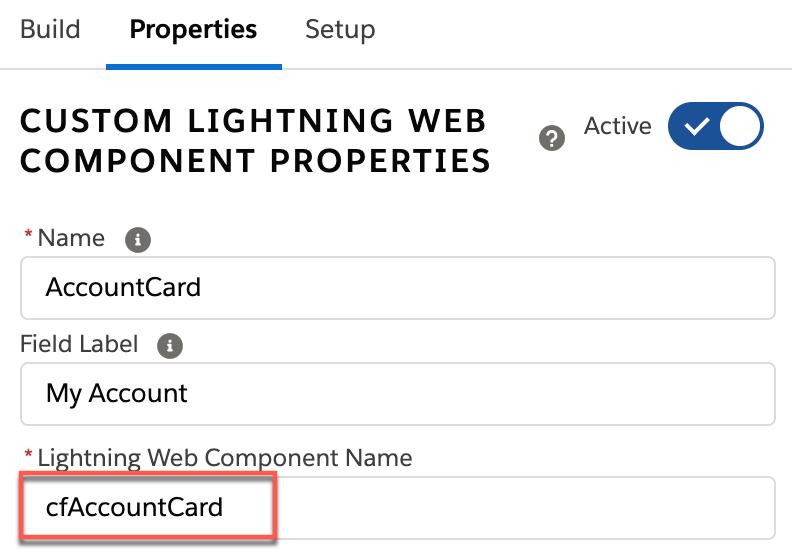
- In the Custom LWC's Lightning Web Component Name property, enter the Flexcard component's name and prepend cf to the beginning of the name. For example, a Flexcard named Account Card must be entered as cfAccountCard.
-
In Property Name, enter a property that the Flexcard
expects to receive by converting the property to an HTML attribute format. Three
options enable you to pass data into the Flexcard from your Omniscript. Each data
option requires you to pass data as an HTML attribute. For example, if a Flexcard
receives the property recordId, you must enter
record-id in the property name field to pass the property
correctly.
Property Name Option
Description
Example
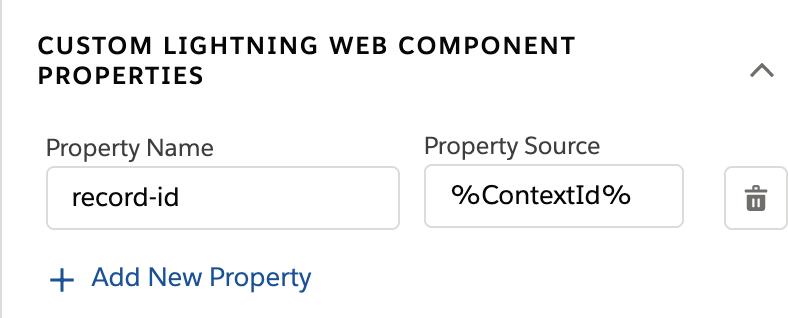
record-id
Pass a record id into a Flexcard using the record-id property. Flexcards use record ids to perform data queries.
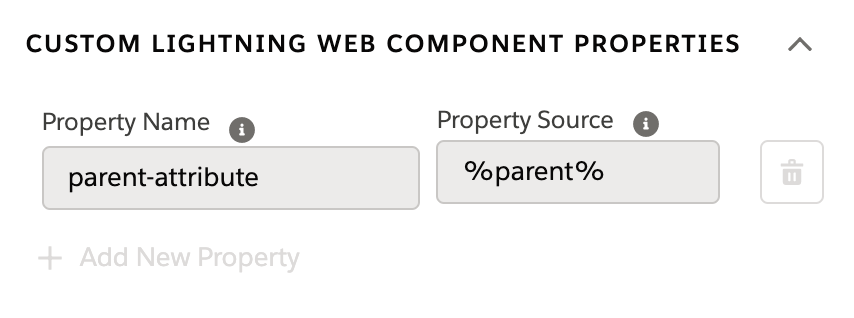
parent-attribute
Pass a parent object containing parent attributes such as Parent.id into the Flexcard. Use merge fields in Flexcard queries and fields.
parent-data
AND
records
Map data to Flexcard fields directly without running a query. The parent-data property is a boolean that Flexcards uses to determine whether to run a query or parse over a set of records.
 Note If you set parent-data to true, you can’t update the data source of the Flexcard. Specifically, if you call an Update Data Source action in a Flexcard embedded in a custom Lightning Web Component Omniscript with the Standalone property disabled, then the action overrides any changes by the user.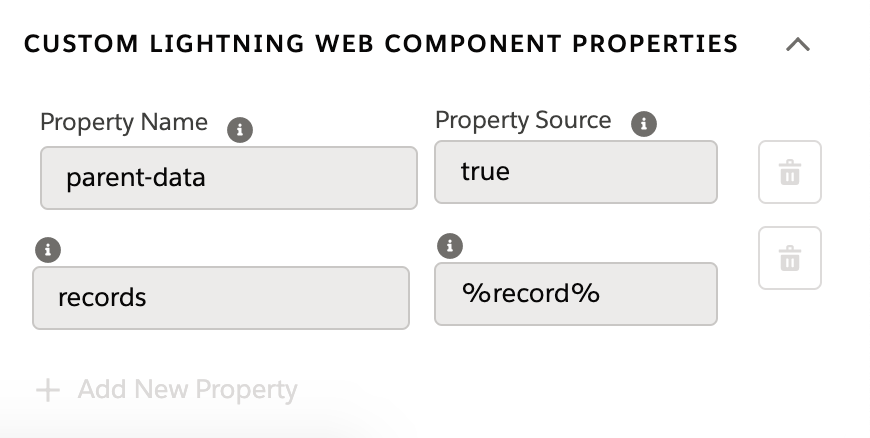
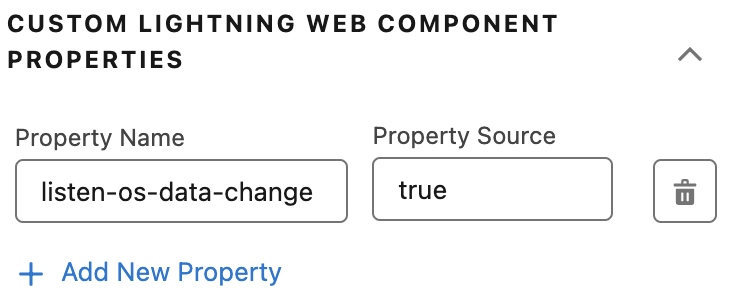
listen-os-data-change Update the Flexcard whenever the passed-in Omniscript data changes.
-
In Property Source, using merge field syntax, enter one of
these options based on your property name:
Property Name
Property Source
record-id
Enter a JSON node that contains. For example, to pass a record id stored in the ContextId node, enter %ContextId%. To avoid Flexcard loading issues, don’t use the merge field syntax to reference a custom LWC. For example, if the name of the LWC is customlwc1, don’t use %customlwc1%.
parent-attribute
Enter a JSON node containing an object.
parent-data
AND
records
Set parent-data's property source to true.
Set records equal to an object containing a record or an array of records. Flexcards parses over these records and maps the nodes to Flexcard fields.
listen-os-data-change Enter true to update the Flexcard whenever the passed-in Omniscript data changes.
- (Optional) Rerender and refresh the Flexcards save state whenever a user navigates to the step. In the Flexcards Designer, disable Omniscript support, then in the Omniscript Designer, open the Custom LWC element and check Standalone Mode.
- (Optional) Beginning with Summer '21, provide Selectable Items in your Omniscript using Flexcards.
- Save and Activate the Script.
-
Preview the Omniscript.
Note
LWC Omniscripts using custom Lightning web components must be active to preview the Omniscript.