
For the managed package runtime, the GoodStudentDiscountCalculation calculation procedure calls the GoodStudentDiscountEligibility calculation matrix, which applies a 15% discount to a quoted amount for an Age between 16 and 24 and a GPA of 3.0 or greater.
 This information is for Omnistudio for Managed Packages. For Omnistudio on standard runtime, see Omnistudio Help.
- From the Vlocity Calculation Procedures tab, click New.
- In the New Calculation Procedure window, choose Declarative, then click Next.
- In the Calculation Procedure Name box, type GoodStudentDiscountCalculation.
- Click Save. The record page for the new calculation procedure opens.
- If you don't see a GoodStudentDiscountCalculation V1 link, click the Related tab.
- Click the GoodStudentDiscountCalculation V1 link. This is version 1 of the calculation procedure.
-
Click Add Variable to add the following variables:
Name
Data type
Precision
Birthdate
Date
(none)
Age
Number
0
GPA
Number
2
QuoteAmount
Currency
2
QuoteAmountAdjusted
Currency
2
-
Click Add Constant to add the following constants:
Name
Data type
Precision
Value
Discount
Percent
0
15
One
Number
0
1
- Create the first step:
- Create the second step:
- Create the third step:
-
Create the last step:
-
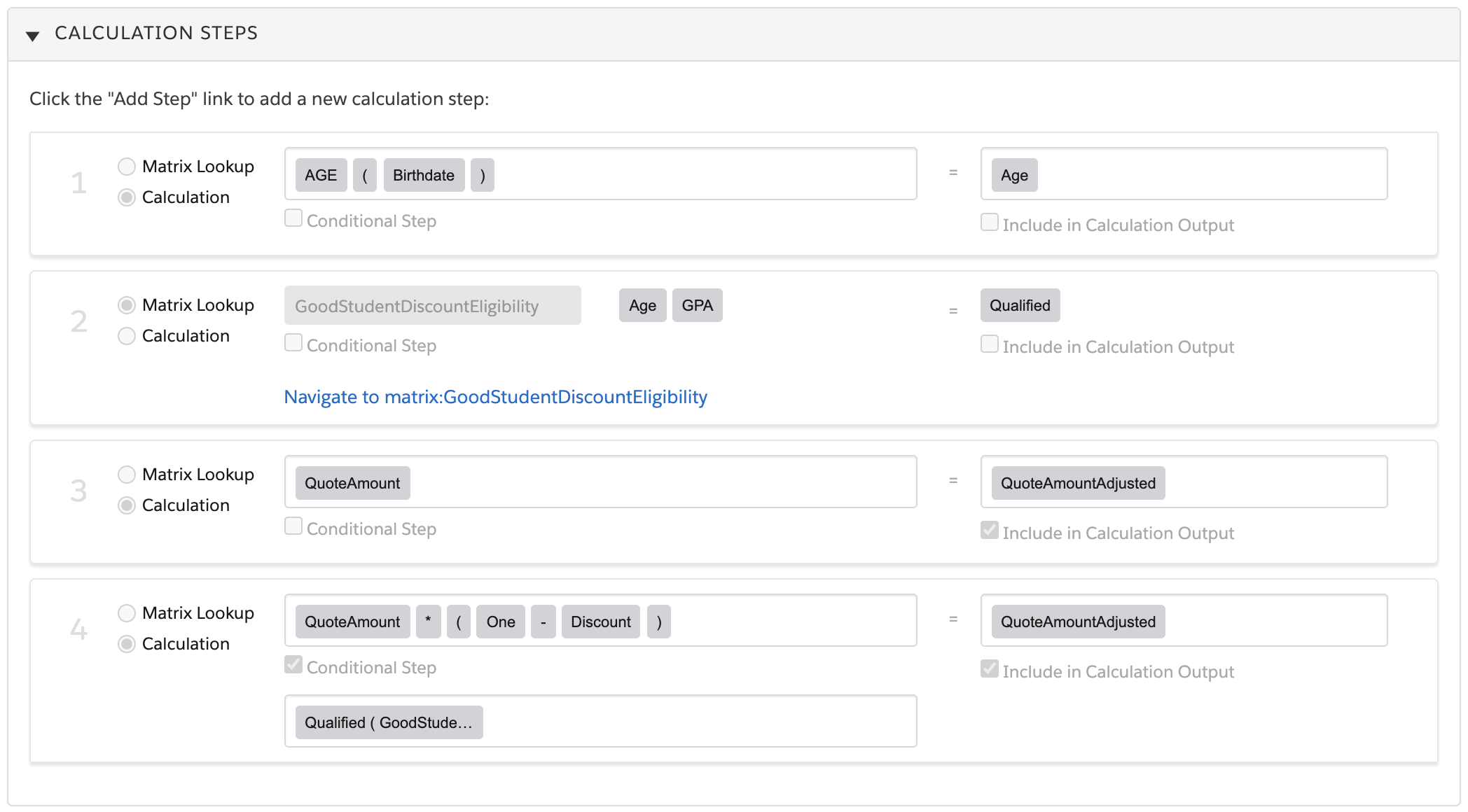
Click Add Step and select Calculation.
-
In the inputs field, type and then select the following series of elements:
QuoteAmount * ( One – Discount )
-
Check the Conditional Step box.
-
In the Enter Condition field, type and then select Qualified(GoodStudentDiscountEligibility).
-
In the outputs field, type and then select QuoteAmountAdjusted.
-
Check the Include in Calculation Output box.
When you're done, the steps should look like this:
-
- Click Save Calculation Procedure. In the Save successful pop-up, click OK.
- Scroll to the top. If you don't see the Enabled checkbox, click Edit.
- Click the pencil icon to the right of the Enabled checkbox and check the box.
- Click Save.
- (Optional) Click the Simulation or Simulate tab and test the calculation procedure.