---
schema_version: "1"
id: 96beff999cf9bb64dc8e9531aecc1b45f392960f3a35b16a104f87e8a77d3792
title: Create the GoodStudentDiscountCalculation Calculation Procedure (Managed Package)
collection: admin
version: current
locale: en-us
portal_url: https://docs.salesforce.com/admin/current/en-us/xcloud/264-0-0/os_create_the_goodstudentdiscountcalculation_calculation_procedure.md
canonical_url: https://help.salesforce.com/s/articleView?id=xcloud.os_create_the_goodstudentdiscountcalculation_calculation_procedure.htm&release=264.0.0&type=5
source_site: help.salesforce.com
content_type: documentation
content_hash: 2fca85e94a6b67311ca4f0dce4c6b64f5e12114d50d997256634be489cc0502b
description: For the managed package runtime, the GoodStudentDiscountCalculation calculation procedure calls the GoodStudentDiscountEligibility calculation matrix, which applies a 15% discount to a quoted amount for an Age between 16 and 24 and a GPA of 3.0 or greater.

products:
  - Omnistudio
release: "264"
---
# Create the GoodStudentDiscountCalculation Calculation Procedure (Managed Package)

For the managed package runtime, the GoodStudentDiscountCalculation calculation procedure calls the GoodStudentDiscountEligibility calculation matrix, which applies a 15% discount to a quoted amount for an Age between 16 and 24 and a GPA of 3.0 or greater.

![Managed Package app icon](https://sf-zdocs-cdn-prod.zoominsoftware.com/tdta-xcloud-omnistudio_for_managed_packages-264-0-0-production-enus/aa2554ec-624a-4ee6-8da4-6435670e6e62/resources-global/_corporate/images/managedpackageicon.png) This information is for Omnistudio for Managed Packages. For Omnistudio on standard runtime, see [Omnistudio Help](https://help.salesforce.com/s/articleView?id=xcloud.os_omnistudio_standard.htm&language=en_US).

1. From the Vlocity Calculation Procedures tab, click **New**.
2. In the New Calculation Procedure window, choose **Declarative**, then click **Next**.
3. In the **Calculation Procedure Name** box, type GoodStudentDiscountCalculation.
4. Click **Save**. The record page for the new calculation procedure opens.
5. If you don't see a **GoodStudentDiscountCalculation V1** link, click the **Related** tab.
6. Click the **GoodStudentDiscountCalculation V1** link. This is version 1 of the calculation procedure.
7. Click **Add Variable** to add the following variables:
    
    <table class="slds-table slds-table_bordered slds-max-medium-table_stacked slds-m-bottom_small ">
            <colgroup>
              <col>
              <col>
              <col>
            </colgroup>
            <thead class="slds-text-title_caps ">
              <tr class="">
                <th scope="col" class="slds-cell-wrap" style="vertical-align:top;" id="d183224e126">
                  <p style="margin-bottom:0;">Name</p>
                </th>
                <th scope="col" class="slds-cell-wrap" style="vertical-align:top;" id="d183224e132">
                  <p style="margin-bottom:0;">Data type</p>
                </th>
                <th scope="col" class="slds-cell-wrap" style="vertical-align:top;" id="d183224e138">
                  <p style="margin-bottom:0;">Precision</p>
                </th>
              </tr>
            </thead>
            <tbody>
              <tr class="">
                <td data-label="Name" class="slds-cell-wrap" style="vertical-align:top;" headers="d183224e126 ">
                  <p style="margin-bottom:0;">Birthdate</p>
                </td>

                <td data-label="Data type" class="slds-cell-wrap" style="vertical-align:top;" headers="d183224e132 ">
                  <p style="margin-bottom:0;">Date</p>
                </td>

                <td data-label="Precision" class="slds-cell-wrap" style="vertical-align:top;" headers="d183224e138 ">
                  <p style="margin-bottom:0;">(none)</p>
                </td>

              </tr>
              <tr class="">
                <td data-label="Name" class="slds-cell-wrap" style="vertical-align:top;" headers="d183224e126 ">
                  <p style="margin-bottom:0;">Age</p>
                </td>

                <td data-label="Data type" class="slds-cell-wrap" style="vertical-align:top;" headers="d183224e132 ">
                  <p style="margin-bottom:0;">Number</p>
                </td>

                <td data-label="Precision" class="slds-cell-wrap" style="vertical-align:top;" headers="d183224e138 ">
                  <p style="margin-bottom:0;">0</p>
                </td>

              </tr>
              <tr class="">
                <td data-label="Name" class="slds-cell-wrap" style="vertical-align:top;" headers="d183224e126 ">
                  <p style="margin-bottom:0;">GPA</p>
                </td>

                <td data-label="Data type" class="slds-cell-wrap" style="vertical-align:top;" headers="d183224e132 ">
                  <p style="margin-bottom:0;">Number</p>
                </td>

                <td data-label="Precision" class="slds-cell-wrap" style="vertical-align:top;" headers="d183224e138 ">
                  <p style="margin-bottom:0;">2</p>
                </td>

              </tr>
              <tr class="">
                <td data-label="Name" class="slds-cell-wrap" style="vertical-align:top;" headers="d183224e126 ">
                  <p style="margin-bottom:0;">QuoteAmount</p>
                </td>

                <td data-label="Data type" class="slds-cell-wrap" style="vertical-align:top;" headers="d183224e132 ">
                  <p style="margin-bottom:0;">Currency</p>
                </td>

                <td data-label="Precision" class="slds-cell-wrap" style="vertical-align:top;" headers="d183224e138 ">
                  <p style="margin-bottom:0;">2</p>
                </td>

              </tr>
              <tr class="">
                <td data-label="Name" class="slds-cell-wrap" style="vertical-align:top;" headers="d183224e126 ">
                  <p style="margin-bottom:0;">QuoteAmountAdjusted</p>
                </td>

                <td data-label="Data type" class="slds-cell-wrap" style="vertical-align:top;" headers="d183224e132 ">
                  <p style="margin-bottom:0;">Currency</p>
                </td>

                <td data-label="Precision" class="slds-cell-wrap" style="vertical-align:top;" headers="d183224e138 ">
                  <p style="margin-bottom:0;">2</p>
                </td>

              </tr>
            </tbody>
          </table>
8. Click **Add Constant** to add the following constants:
    
    <table class="slds-table slds-table_bordered slds-max-medium-table_stacked slds-m-bottom_small ">
            <colgroup>
              <col>
              <col>
              <col>
              <col>
            </colgroup>
            <thead class="slds-text-title_caps ">
              <tr class="">
                <th scope="col" class="slds-cell-wrap" style="vertical-align:top;" id="d183224e280">
                  <p style="margin-bottom:0;">Name</p>
                </th>
                <th scope="col" class="slds-cell-wrap" style="vertical-align:top;" id="d183224e286">
                  <p style="margin-bottom:0;">Data type</p>
                </th>
                <th scope="col" class="slds-cell-wrap" style="vertical-align:top;" id="d183224e292">
                  <p style="margin-bottom:0;">Precision</p>
                </th>
                <th scope="col" class="slds-cell-wrap" style="vertical-align:top;" id="d183224e298">
                  <p style="margin-bottom:0;">Value</p>
                </th>
              </tr>
            </thead>
            <tbody>
              <tr class="">
                <td data-label="Name" class="slds-cell-wrap" style="vertical-align:top;" headers="d183224e280 ">
                  <p style="margin-bottom:0;">Discount</p>
                </td>

                <td data-label="Data type" class="slds-cell-wrap" style="vertical-align:top;" headers="d183224e286 ">
                  <p style="margin-bottom:0;">Percent</p>
                </td>

                <td data-label="Precision" class="slds-cell-wrap" style="vertical-align:top;" headers="d183224e292 ">
                  <p style="margin-bottom:0;">0</p>
                </td>

                <td data-label="Value" class="slds-cell-wrap" style="vertical-align:top;" headers="d183224e298 ">
                  <p style="margin-bottom:0;">15</p>
                </td>

              </tr>
              <tr class="">
                <td data-label="Name" class="slds-cell-wrap" style="vertical-align:top;" headers="d183224e280 ">
                  <p style="margin-bottom:0;">One</p>
                </td>

                <td data-label="Data type" class="slds-cell-wrap" style="vertical-align:top;" headers="d183224e286 ">
                  <p style="margin-bottom:0;">Number</p>
                </td>

                <td data-label="Precision" class="slds-cell-wrap" style="vertical-align:top;" headers="d183224e292 ">
                  <p style="margin-bottom:0;">0</p>
                </td>

                <td data-label="Value" class="slds-cell-wrap" style="vertical-align:top;" headers="d183224e298 ">
                  <p style="margin-bottom:0;">1</p>
                </td>

              </tr>
            </tbody>
          </table>
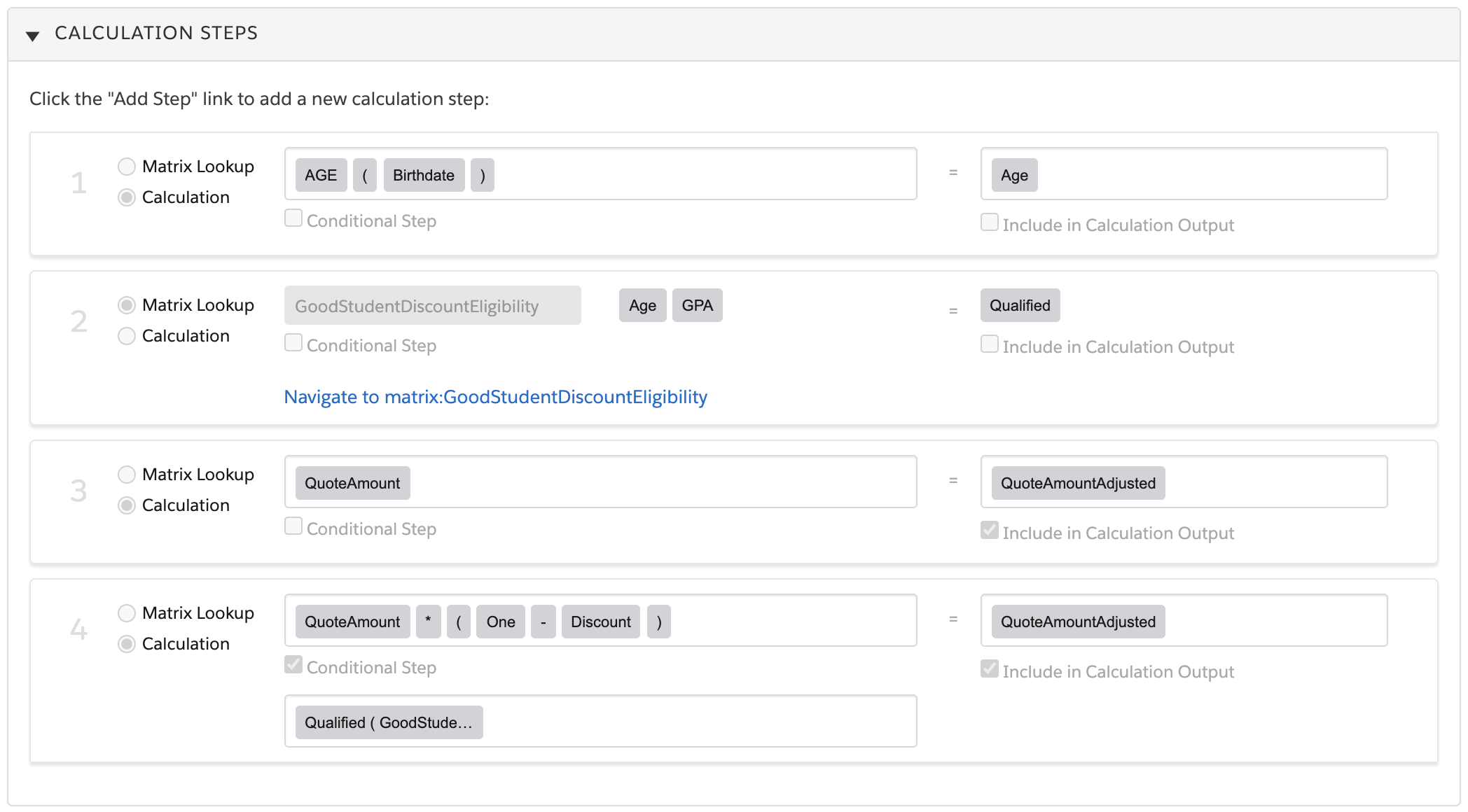
9. Create the first step:
    
    1. Click **Add Step** and select **Calculation**.
    2. In the inputs field, type and then select the following series of elements:
        
        **AGE ( Birthdate )**
    3. In the outputs field, type and then select **Age**.
10. Create the second step:
    
    1. Click **Add Step** and select **Matrix Lookup**.
    2. In the **Matrix Name** field, type and then select **GoodStudentDiscountEligibility**.
    
    Note that the matrix inputs and outputs are filled in for you.
11. Create the third step:
    
    1. Click **Add Step** and select **Calculation**.
    2. In the inputs field, type and then select **QuoteAmount**.
    3. In the outputs field, type and then select **QuoteAmountAdjusted**.
    4. Check the **Include in Calculation Output** box.
12. Create the last step:
    
    1. Click **Add Step** and select **Calculation**.
    2. In the inputs field, type and then select the following series of elements:
        
        **QuoteAmount \* ( One – Discount )**
    3. Check the **Conditional Step** box.
    4. In the **Enter Condition** field, type and then select **Qualified(GoodStudentDiscountEligibility)**.
    5. In the outputs field, type and then select **QuoteAmountAdjusted**.
    6. Check the **Include in Calculation Output** box.
    
    When you're done, the steps should look like this:
    
    ![Figure is described in the preceding text.](https://sf-zdocs-cdn-prod.zoominsoftware.com/tdta-xcloud-omnistudio_for_managed_packages-264-0-0-production-enus/aa2554ec-624a-4ee6-8da4-6435670e6e62/omnistudio_for_managed_packages/images/goodstudentcalcsteps.png)
13. Click **Save Calculation Procedure**. In the Save successful pop-up, click **OK**.
14. Scroll to the top. If you don't see the **Enabled** checkbox, click **Edit**.
15. Click the pencil icon to the right of the **Enabled** checkbox and check the box.
16. Click **Save**.
17. (Optional) Click the **Simulation** or **Simulate** tab and test the calculation procedure.

What’s next: [Create the Integration Procedure That Invokes the Calculation Procedure (Managed Package)](https://help.salesforce.com/s/articleView?id=xcloud.os_create_the_integration_procedure_that_invokes_the_calculation_procedure.htm&release=264.0.0&type=5 "For the managed package runtime, the example Integration Procedure calls the GoodStudentDiscountCalculation calculation procedure and returns its result.").