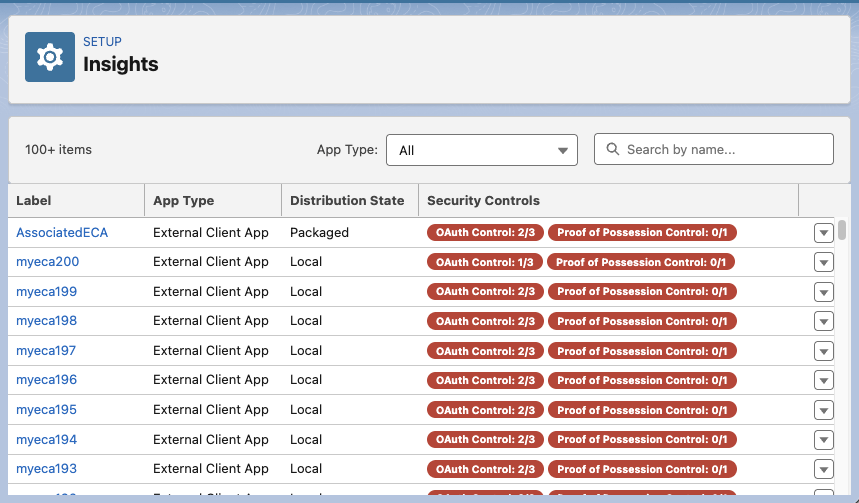
Use the Insights page to check whether your org's connected apps and external client
apps comply with Salesforce's required OAuth and proof-of-possession controls. For apps that you
develop, turn on the missing controls to come into compliance with Salesforce requirements. For
apps developed elsewhere, contact the app developer and consider disabling the app until the
developer updates the security controls. These controls are critical to protecting your org and
data from known cyber threats.
Required Editions
| Available in: Lightning Experience |
| Available in: Professional, Enterprise, Unlimited, and
Developer Editions
|
| User Permissions Needed |
| To edit local external client apps |
Create, edit, and delete External Client Apps |
The Insights page checks each app against two groups of Salesforce-required controls. An app
complies when it meets all three OAuth controls and at least one proof-of-possession control.
OAuth Controls All required.
Proof of Possession Controls At least one required.
The Insights page shows apps that are local to your org (Local) and apps that were developed
elsewhere (Packaged). Apps in your org that you didn't develop show the status of their security
controls, but only the app developer can manage them.
-
From Setup, in the Quick Find box, enter Insights, and then select
Insights.
-
To narrow the list, select an App Type, or search by name.
-
In the Security Controls column, find apps with failing controls.
-
From that app's actions menu, select Configure Security
Posture.
-
Review the controls listed in the Security Posture window.
- If the app's Distribution State is Local, click Manage App and
turn on the missing controls.
- If the Distribution State is Packaged, contact the app developer at the address listed
in the Security Posture window. To turn off the app until the developer updates it, click
Disable.