
To add your policy to the job queue, publish it. You can also edit, delete, or immediately run a policy.
Required Editions
| Available in: Developer, Enterprise, Performance, and Unlimited Editions. Requires the Privacy Center license. |
| User Permissions Needed | |
|---|---|
| To create, edit, and schedule Data Management Policies: | Manage Privacy Center Policies |
To manage your policy:
- From the Privacy Policies page, select the policy that you want to manage.
- Select an option for your policy.
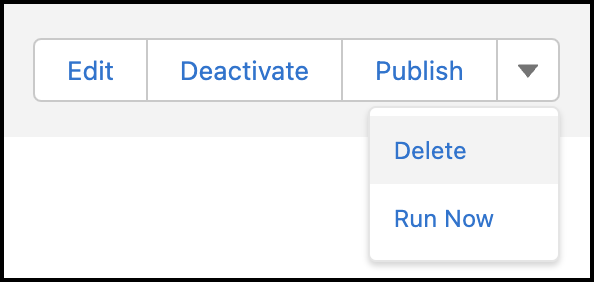
- Edit opens a window where you can change the policy name,
description, and run frequency. Additionally, under Action on Associated Records, you can
manage policy-level record deletion settings.
 Note If a setting is enabled at the policy level, it’s applied to all objects on the policy, and you can no longer edit the setting at the object level. If you want to apply the setting only to certain objects, don’t select it at the policy level. For more information, see Mask or Delete Records on an Object.
 - Publish saves any recent changes to your policy and puts it in the
job queue. Make sure to publish your policy each time you update it. Publishing also
reactivates policies that were previously deactivated.
Note The Publish action can sometimes take a minute or longer. A confirmation message appears when the process completes.
- Deactivate removes the policy from the job queue. The policy doesn’t execute until you republish it. You can only deactivate policies that are published.
- Delete removes the policy from your org. Deleted policies can’t be recovered.
- Run Now creates a new job session for the policy. If there’s no other job in progress, the new job starts running within five minutes after it’s created. If another job is already in progress, the new job starts running afterwards.
- Edit opens a window where you can change the policy name,
description, and run frequency. Additionally, under Action on Associated Records, you can
manage policy-level record deletion settings.