With Lightning stylesheets, it’s easy to tweak your existing Visualforce pages so
they’ll display with classic styling in Salesforce Classic and Lightning styling in Lightning
Experience.
Required Editions
| Available in: Group, Professional, Enterprise,
Performance, Unlimited, and Developer Editions
|
| User Permissions Needed |
| To create, edit, or delete Visualforce pages: |
Customize Application |
- From Setup, enter Visualforce in the Quick
Find box, then select Visualforce Pages.
- Click Edit next to the Visualforce page.
- Add the lightningStylesheets="true" attribute to the initial
<apex:page> component in the Visualforce markup.
<apex:page standardController="Account" lightningStyleSheets="true">
- Save your changes.
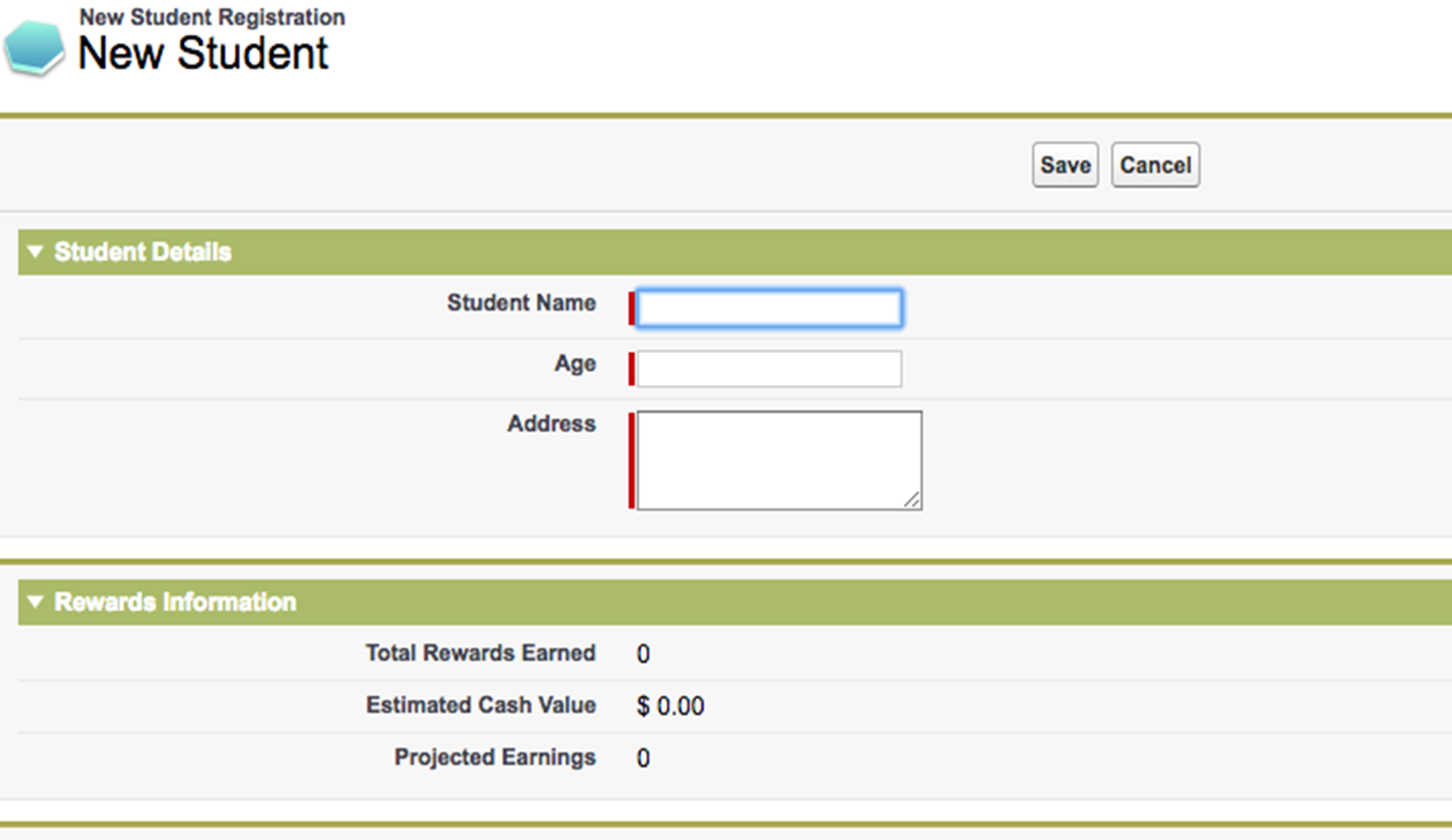
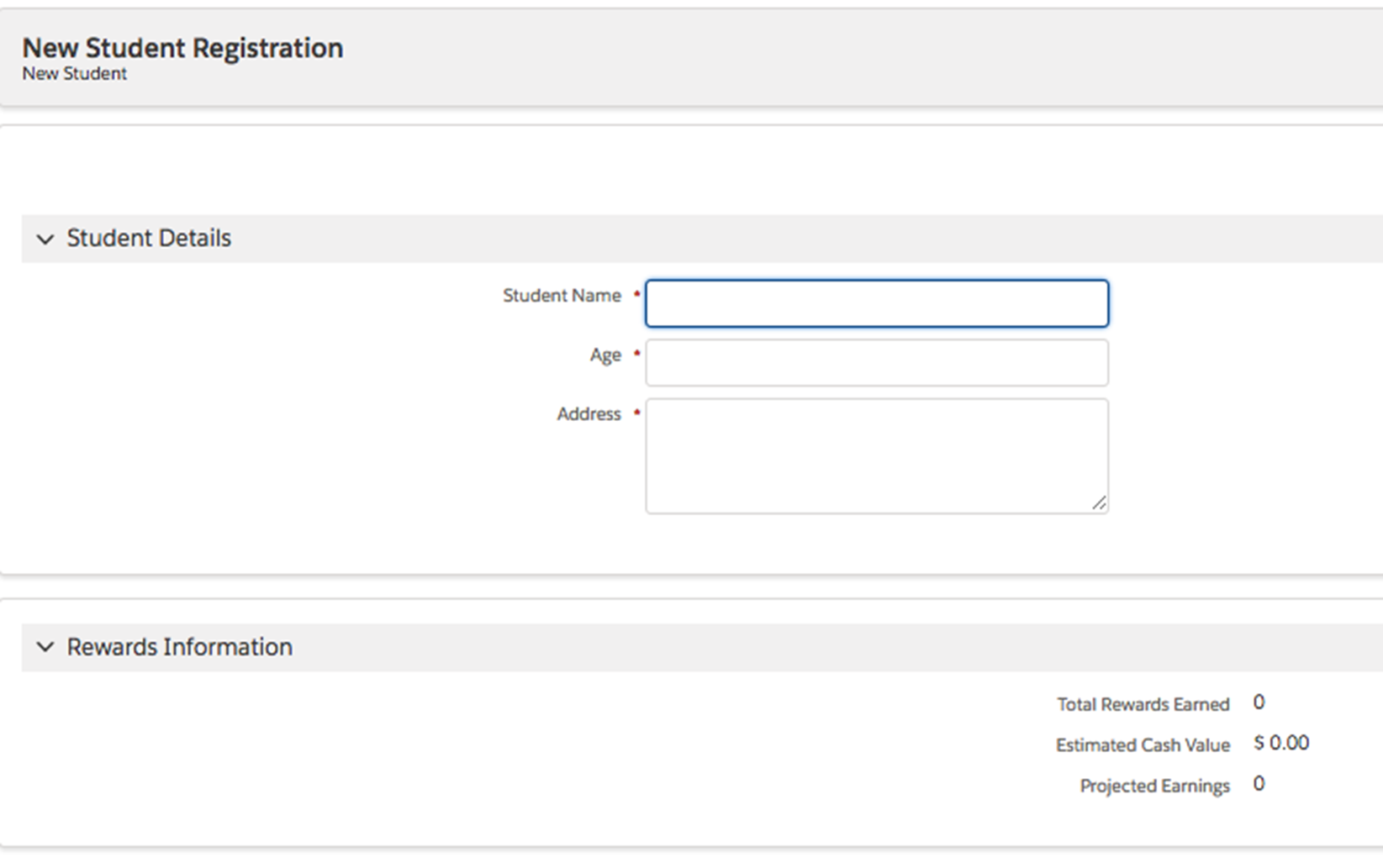
When Lightning stylesheets are applied, here’s how a Visualforce page looks in
Salesforce Classic.
And here’s how the same page appears in Lightning Experience.