---
schema_version: "1"
id: d67cb16d821501de1663f5f80bde1c909ee4745c2af1a70926db08b3918f9ae8
title: Apply Lightning Stylesheets to Visualforce Pages Manually
collection: admin
version: current
locale: en-us
portal_url: https://docs.salesforce.com/admin/current/en-us/xcloud/264-0-0/lex_prepare_vf_styling.md
canonical_url: https://help.salesforce.com/s/articleView?id=xcloud.lex_prepare_vf_styling.htm&release=264.0.0&type=5
source_site: help.salesforce.com
content_type: documentation
content_hash: e059d7be821d8b5e08ba57664f3ebe2bc6f6d730b210cecf0ace85e77cb1781b
description: With Lightning stylesheets, it’s easy to tweak your existing Visualforce pages so they’ll display with classic styling in Salesforce Classic and Lightning styling in Lightning Experience.
products:
- Salesforce Platform
- Cross Cloud
release: "264"
---
# Apply Lightning Stylesheets to Visualforce Pages Manually
With Lightning stylesheets, it’s easy to tweak your existing Visualforce pages so they’ll display with classic styling in Salesforce Classic and Lightning styling in Lightning Experience.
### Required Editions
Available in: Group, Professional, Enterprise, Performance, Unlimited, and Developer Editions
User Permissions Needed
To create, edit, or delete Visualforce pages:
Customize Application
1. From Setup, enter Visualforce in the **Quick Find** box, then select **Visualforce Pages**.
2. Click **Edit** next to the Visualforce page.
3. Add the lightningStylesheets="true" attribute to the initial component in the Visualforce markup.
```markup
```
4. Save your changes.
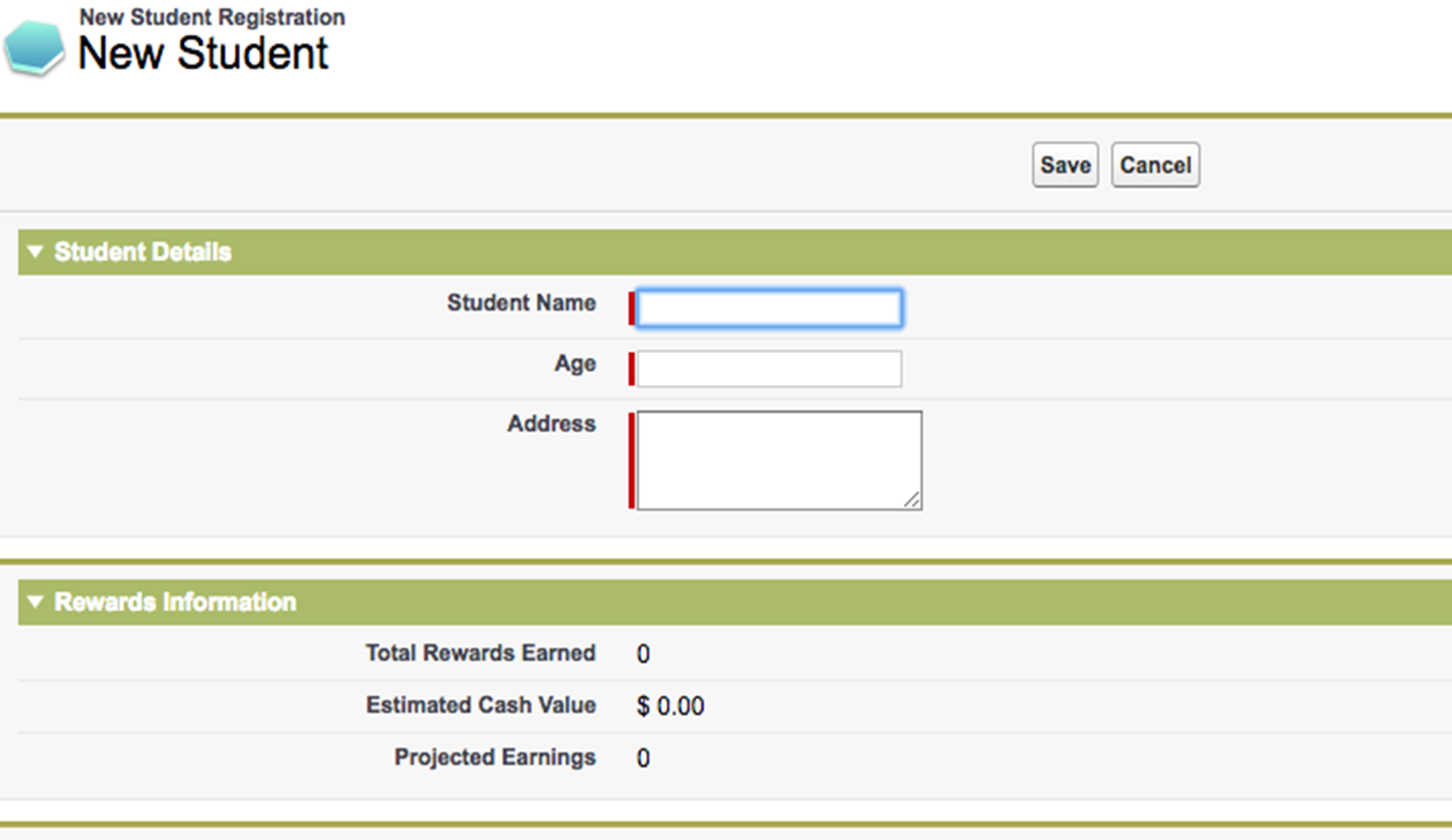
When Lightning stylesheets are applied, here’s how a Visualforce page looks in Salesforce Classic.
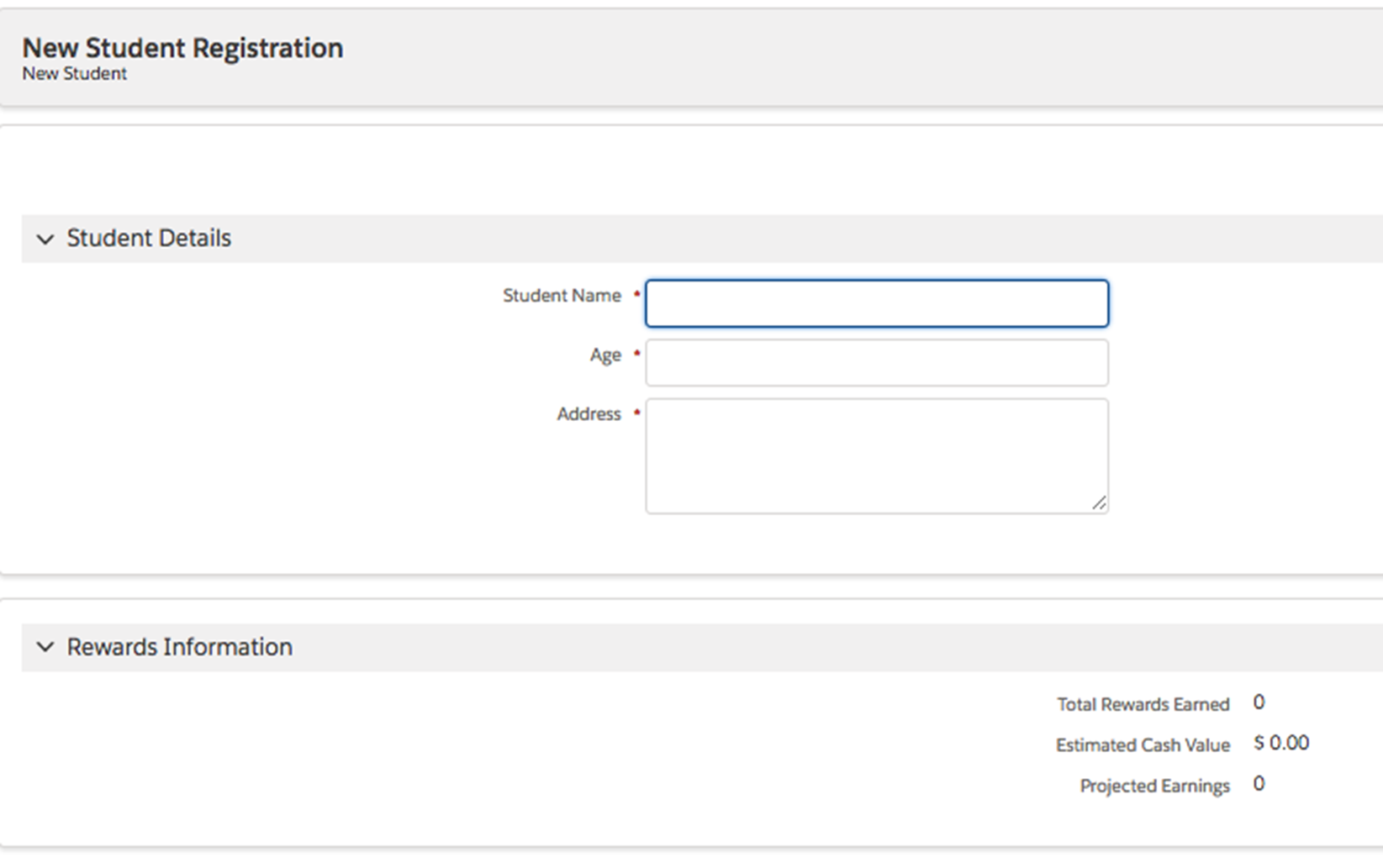
And here’s how the same page appears in Lightning Experience.
#### See Also
- [_Style Existing Visualforce Pages with Lightning Stylesheets_ in the _Visualforce Developer Guide_](https://developer.salesforce.com/docs/atlas.en-us.pages.meta/pages/vf_dev_best_practices_slds_lightningstylesheets.htm)