Make it easy for your customers and partners to stay in your site with longer sessions
and fewer logins. Allow users to remain logged in even after they close their browser. And keep
them logged in for up to seven days of inactivity. To extend sessions, modify the use profile for
the customers and partners in your site. You can also add more security when customers or partners
log in by enabling device activation.
Required Editions
| Available in: Salesforce Classic and Lightning Experience |
| Available in: Enterprise, Performance, Unlimited, and
Developer Editions
|
| User Permissions Needed |
| To edit session settings in profiles: |
Manage Profiles and Permission Sets |
-
From Setup, in the Quick Find box, enter Profiles, and then select
Profiles.
-
Next to the customer or partner profile that you want to use as the basis for the new
profile, click Clone.
-
Name the profile, and click Save.
-
Click Session Settings.
-
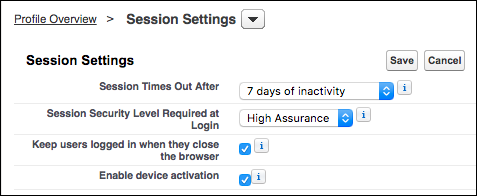
Under Session Settings, for Session Times Out After, select a timeout value.
Extend the session length to make it easy for your customers and partners to stay in your
site. You can extend session timeouts for customers and partners for up to seven days. When the
session times out, the user must log in again.
-
To keep customers or partners logged in until they log out, select Keep users
logged in when they close the browser.
This setting lets customer and partner user sessions remain active until users log out of
the site or when the session times out. If not selected, customers and partners are logged out
when they close their browser.
-
To add more security when customers or partners log in, select Enable device
activation.
When selected, Salesforce requires customers and partners to verify their identity when
they log in from a different browser or device. This option applies to the External Identity
license and community licenses.
-
Click Save.