
Automatically bring your business emails and events into Salesforce with Einstein Activity Capture. Then your deals, cases, and contacts will show any related emails and events.
How Do I Set It Up?
From the home page, select Connect to Email and Activities.
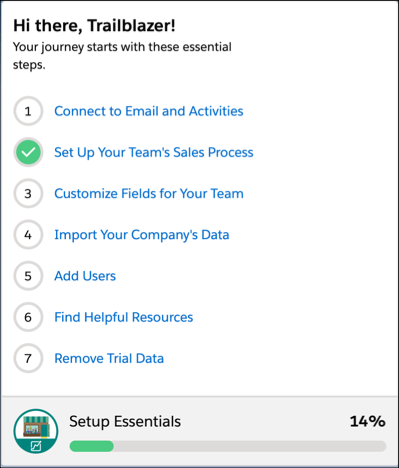
Then follow the steps in the guided setup. Once you’ve successfully set it up, a confirmation banner appears at the top of your screen.

Note If you use Email-to-Case to
create support cases from your emails, make sure to use a different email address for
Einstein Activity Capture. What's
Email-to-Case?
What Should I Do If It Doesn’t Connect?
If your emails and activities aren’t syncing after you complete the setup flow, try enabling Einstein from Setup. Here’s how to do just that.
- Go to Setup
 and enter Permission Sets in the Quick Find box.
 - Select Inbox With Einstein Activity Capture and click Manage Assignments.
- Check the box next to your name and click Remove Assignments.
- Click Okay in the pop up and then click Done.
- Check the box next to your name and click Remove Assignments.
- Click Done.
- Go to your profile by clicking on either your profile image or the placeholder image in the top right of your screen.
- Click Settingsin the drop down.
- In the Quick Find box, enter Einstein Activity Capture.
- Click Settings.
- If an email address appears, click Disconnect then Reconnect. If no email address appears, click New Accountand follow the prompts.
How Can I Check If My Email Is Connected?
If you’d like to see what email accounts are connected, there’s an easy way to do just that.
- Go to your profile by clicking your profile image or the placeholder image in the top right of your screen.
- Click Settings in the dropdown.
- Type Einstein Activity Capture in the Quick Find box.
- Click Settings.
- Dismiss the modal to see a list of your connected accounts.