
Set up the OData service as an External Data Source, and customize object tabs and External Object layouts.
Required Editions
| Available in: all editions |
| User Permissions Needed | |
|---|---|
| To set up the OData service as an External Data Source: | ModifyAllData and PrivacyCenter |
| To customize object tabs and External Object layouts: | ModifyAllData and PrivacyCenter |
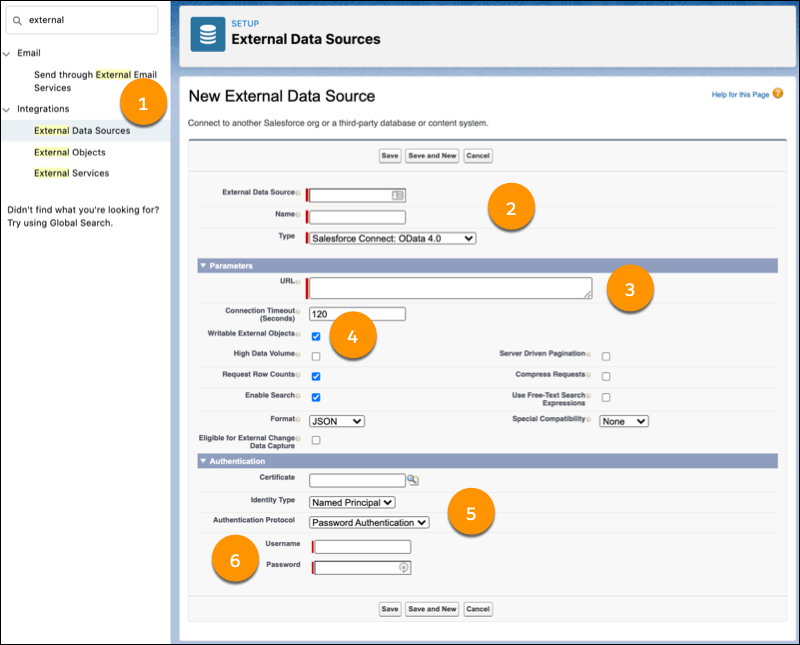
- From Setup, in the Quick Find box, enter External, then select External Data Sources in the dropdown. Click New External Data Source.
- Enter an External Data Source and Name, and select Salesforce Connect: OData 4.0 as the Type.
- Paste the OData 4.0 Service URL into the URL parameter.
- To use the read/write capabilities of OData 4.0, select Writable External Objects.
- Choose Named Principal as the Identity Type and Password Authentication as the Authentication Protocol.
- Enter your username and password.
- Save your work.
- Click Validate and Sync. Check your connection to the external
system, and select the tables you want as External Objects.
 Note Initially, table names have $ characters instead of periods, but you can edit the labels later.
 - To create custom object tabs and customize layouts for External Objects, click Edit beside the name of the object you want to update.
To make SOQL queries against your external object, use the API name [object name]_x. For example, for the external object public_customer, the associated API name is public_customer_x.