
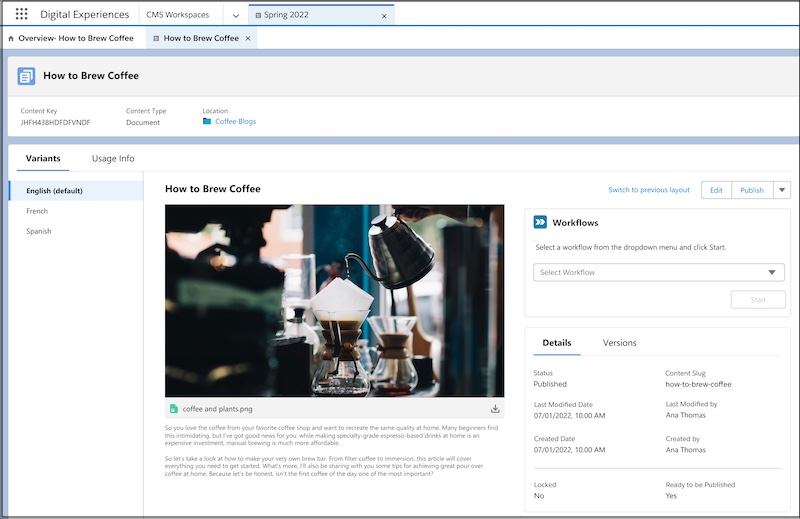
The content detail page in enhanced CMS workspaces gives a summary of a content item. If the content item has variants, you can switch between them from the left navigation menu. In the center column, see a quick view of the content. View content details, version history, and see where the content is published or referenced. Edit, publish, or unpublish, and run content workflows for your content.
Required Editions
| Available in: Lightning Experience |
| Available in: Enterprise, Performance, Unlimited, and Developer Editions |
Usage
Click Usage Info to see a list of places where the content is published or referenced. View each site, flow, collection, or other record along with key details like variant name, language, and when it was published. Usage is listed for each published variant of a content item.
Workflows
Create custom workflows directly from the Workflows card on the content detail page. Streamline your content review and approval processes, translation requests, and more. Set up content roles to predefine access and easily reuse your workflows.
More information about CMS workflows
More information about CMS contributors and roles
Details
The Details card shows you key details about your content item. See when and by whom it was created and modified, publication status, and content slug.

Versions
Version History shows all versions of a content item, its status, and the date and time it was last modified. With this point-in-time snapshot of your content, you can compare versions and see the date and time they were published.
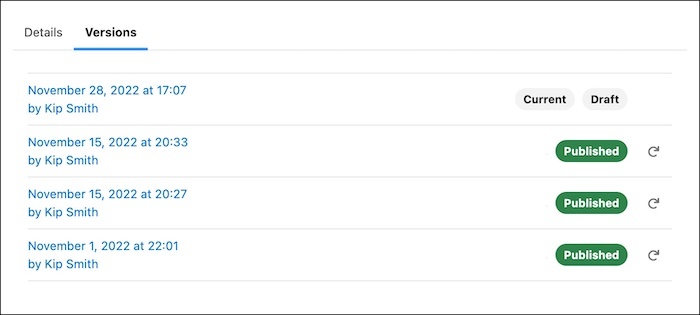
Your most recent content version is marked Current. In the Version History card, your content can have a status of Draft, Published, or Revised.
- Draft: Content that hasn’t been published, or published content that has been unpublished
- Published: Content that’s published and live on your site or other channels
- Revised: Published versions with new edits that haven’t been republished
Use the restore arrow to open a previously published version as a new draft. Save the draft or publish it as a new content version. If you close the draft without saving it, your content version history remains unchanged. Restoring a previous version as a new draft overwrites a current version in Draft status.